Virtualize a physical PC to VMware ESXi (P2V) using Acronis True Image (Cyber Protect Home Office) and Acronis Universal Restore
- Backup
- Acronis True Image, Acronis Universal Restore
- 21 September 2026 at 13:05 UTC
-

- 7/8
8. Booting your virtual machine on VMware ESXi after applying Acronis Universal Restore
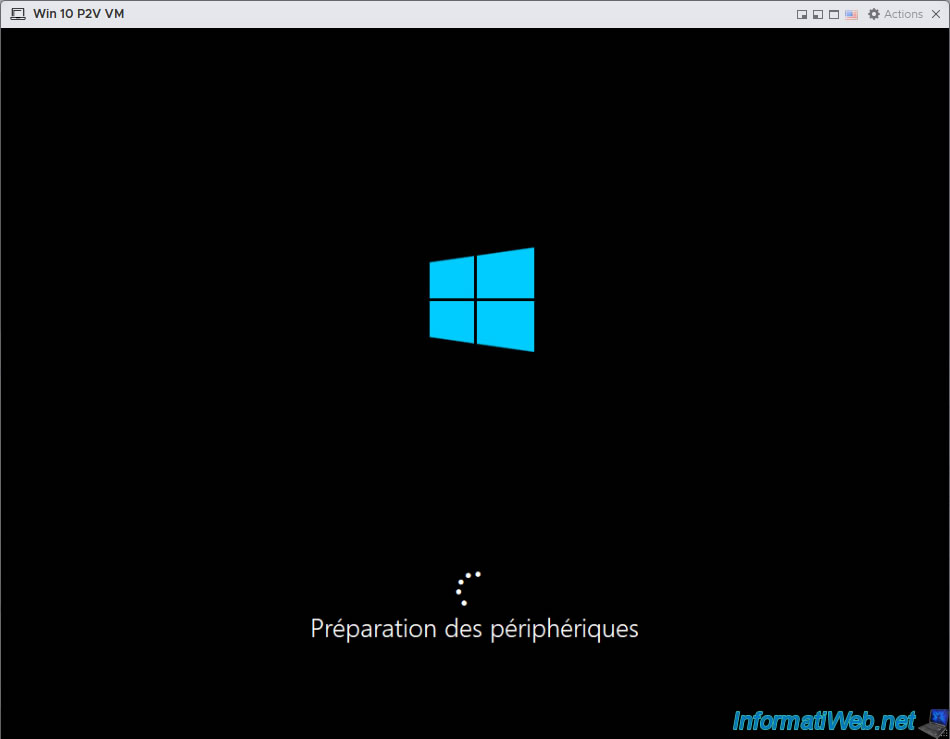
Your virtual machine will reboot into your Windows installation and you will briefly see the "Preparing" and "Preparing Devices" messages appear.
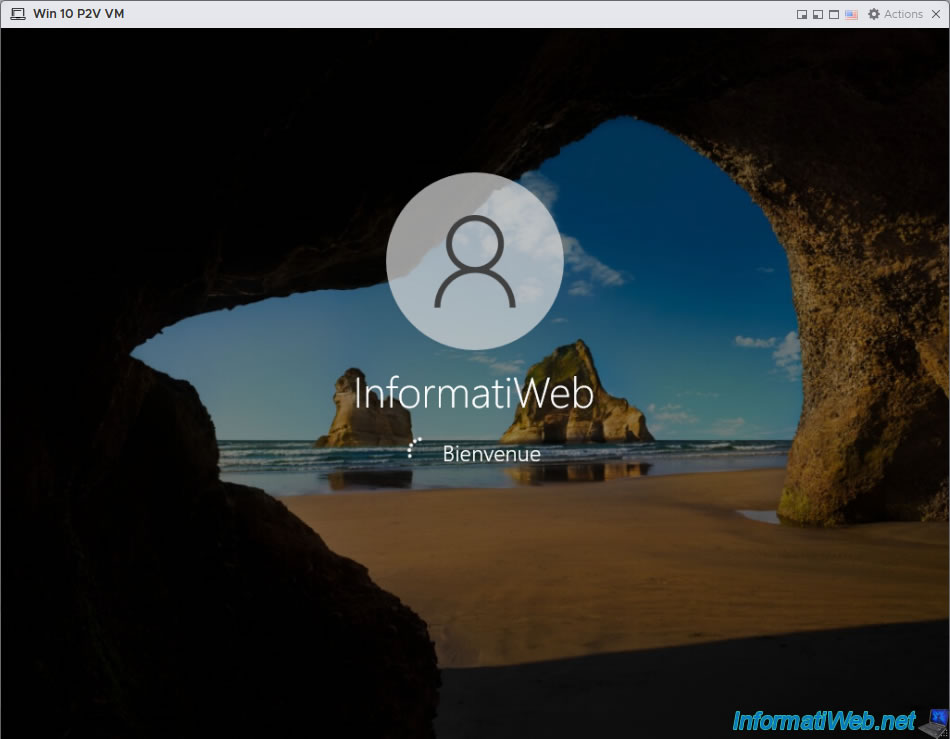
Your Windows session will open without any problems.
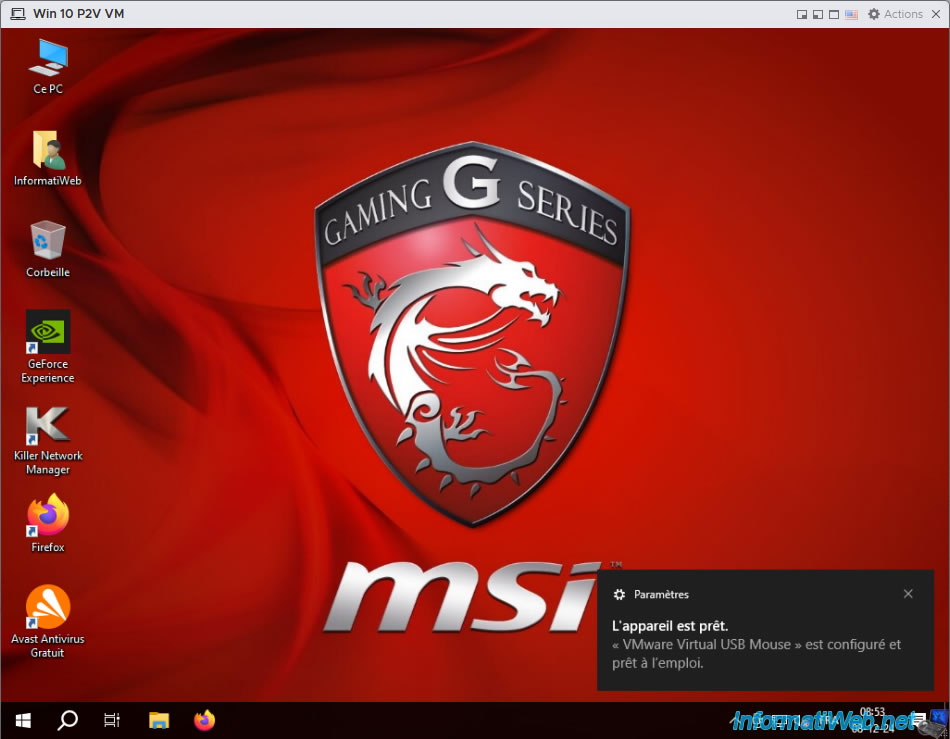
Some drivers will be installed automatically by Windows.
In particular, the virtual mouse driver (VMware Virtual USB Mouse).
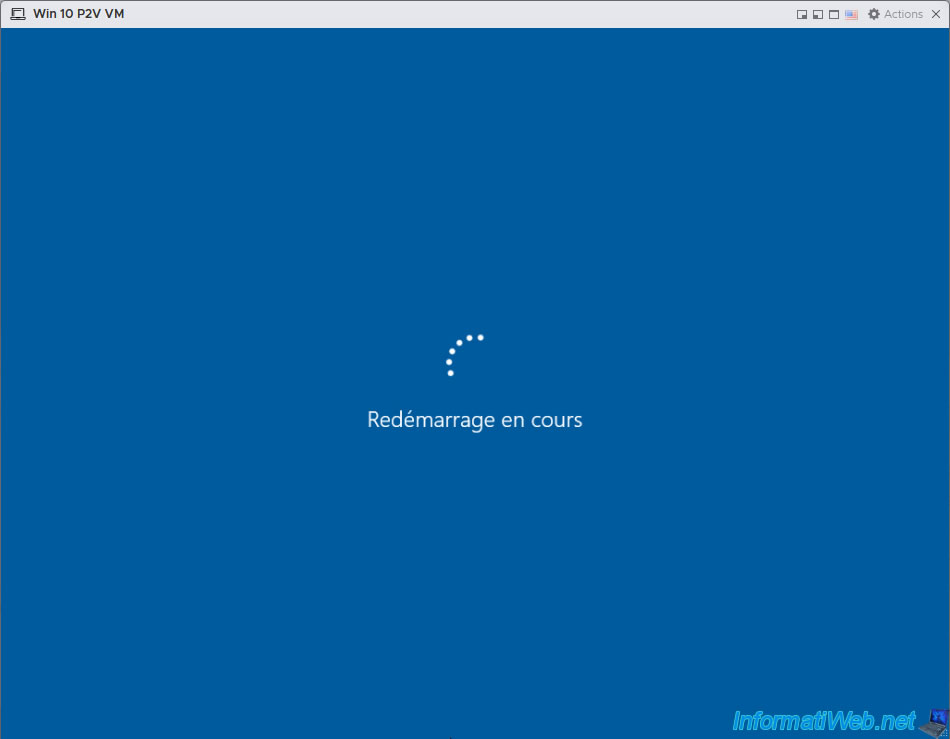
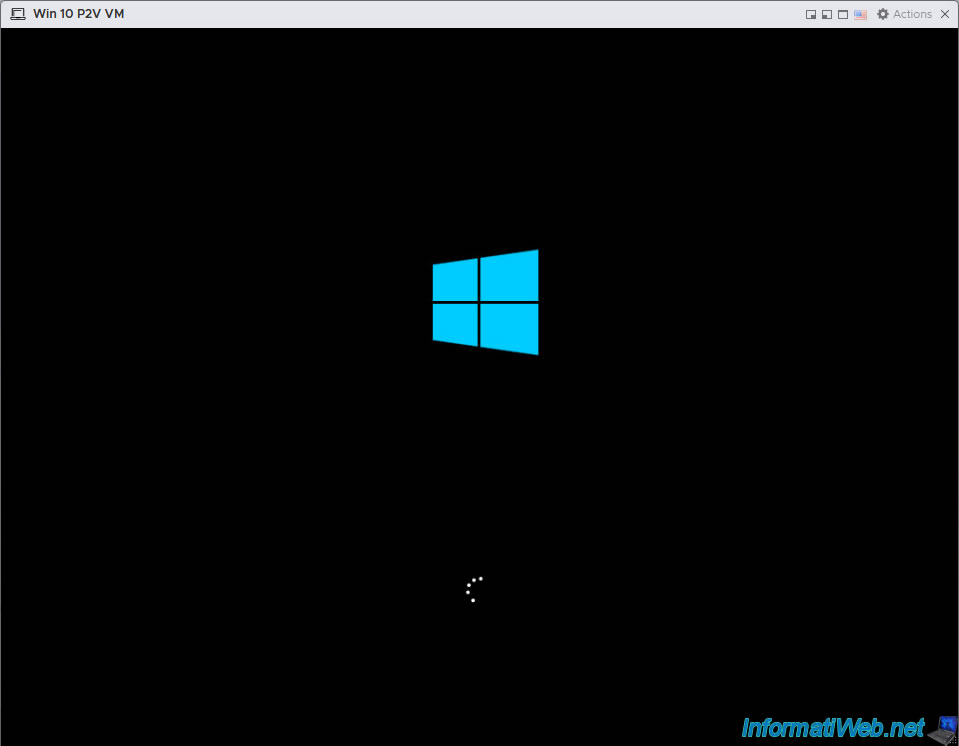
Then, your virtual machine will restart automatically.
The Windows logo will reappear.
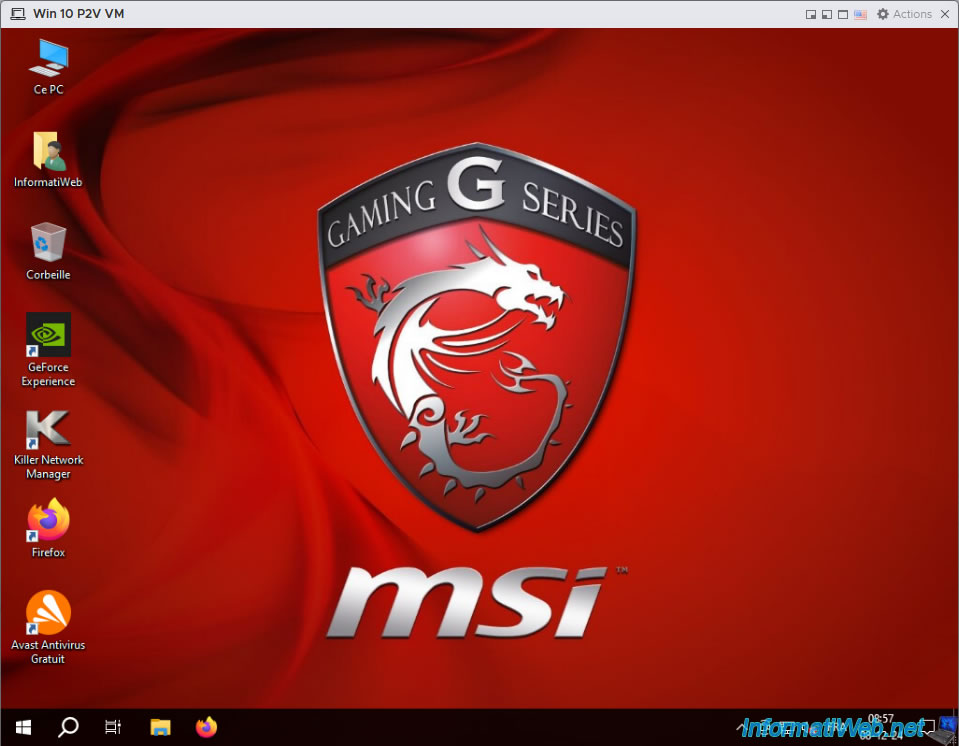
You will arrive back at your Windows desktop.
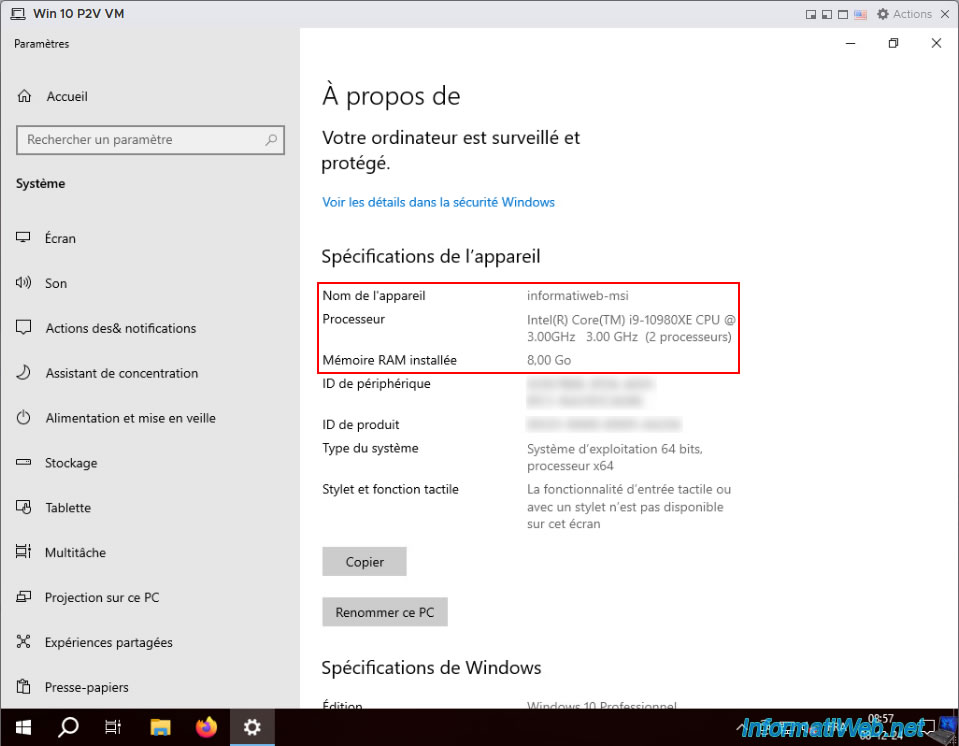
As you can see from the Windows system information, this is indeed our "informatiweb-msi" PC that we had previously backed up via Acronis.
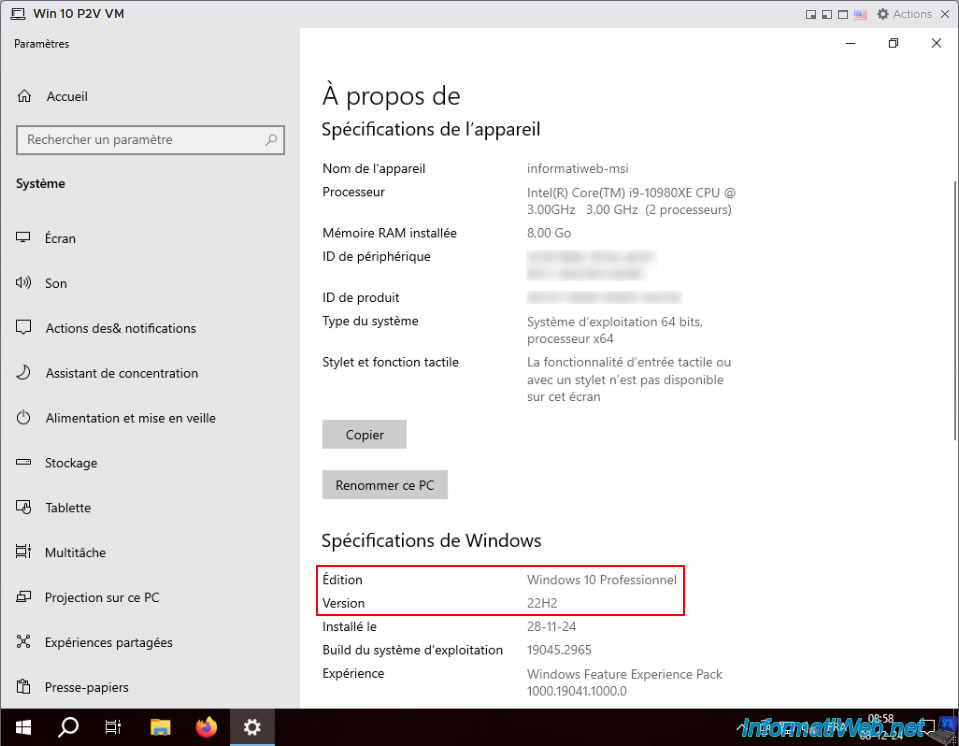
The Windows edition and version are obviously the same as before.
9. Uninstall old drivers related to the hardware of the virtualized physical PC copied into your VM on VMware ESXi
To avoid having random issues with your virtual machine, it is highly recommended to uninstall old drivers that have been copied unnecessarily into your VM.
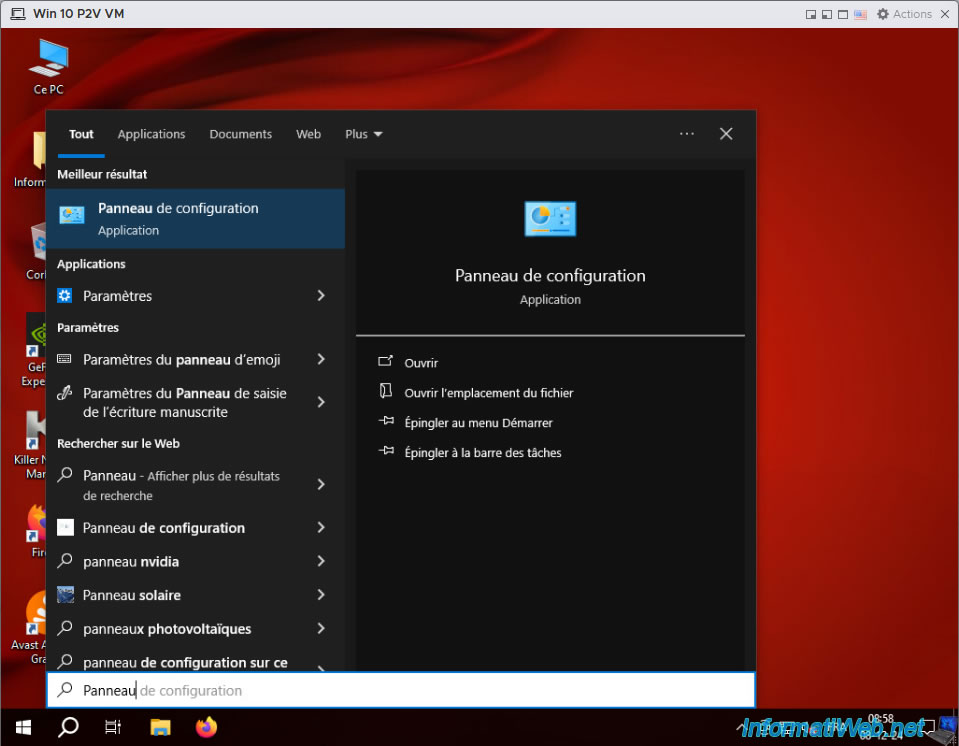
To do this, open the start menu, type "Control Panel", then launch the "Control Panel".
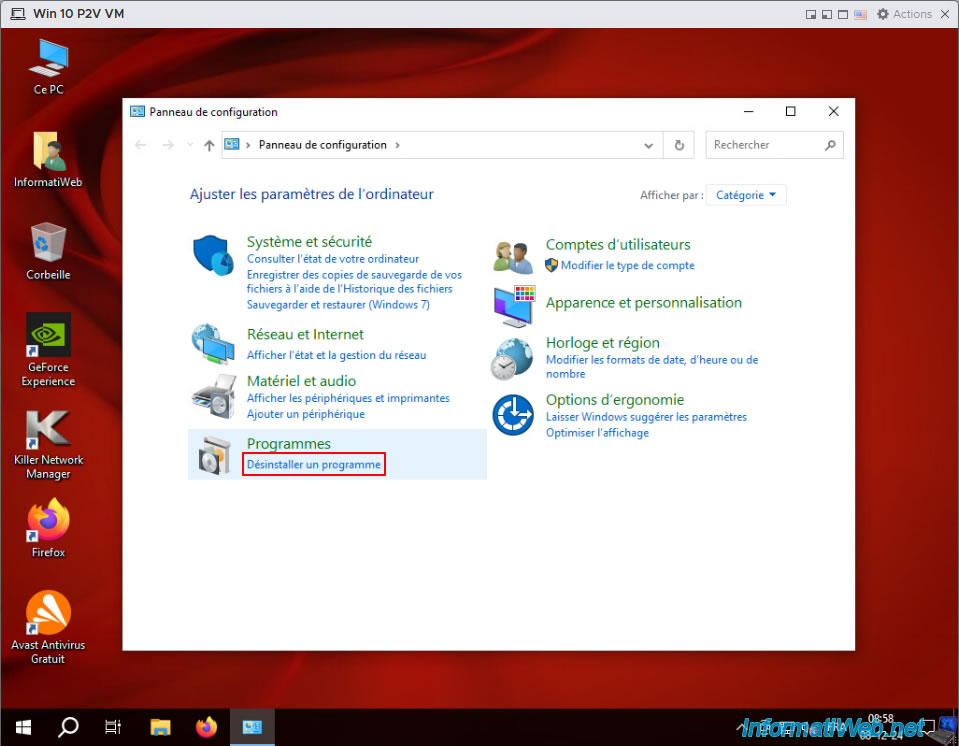
In the Control Panel that appears, click on the "Uninstall a program" link in the "Programs" section.
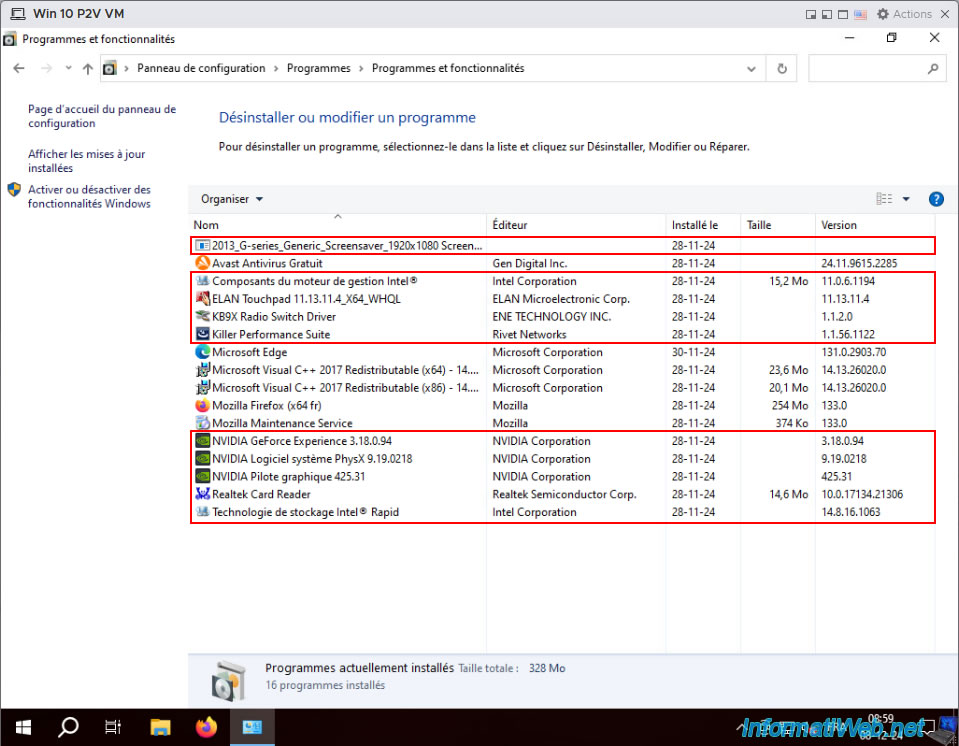
Uninstall the drivers related to the hardware of the physical computer that you had backed up with Acronis and that therefore have no interest in your VM.
Usually, these are created by: Intel, NVIDIA, ...
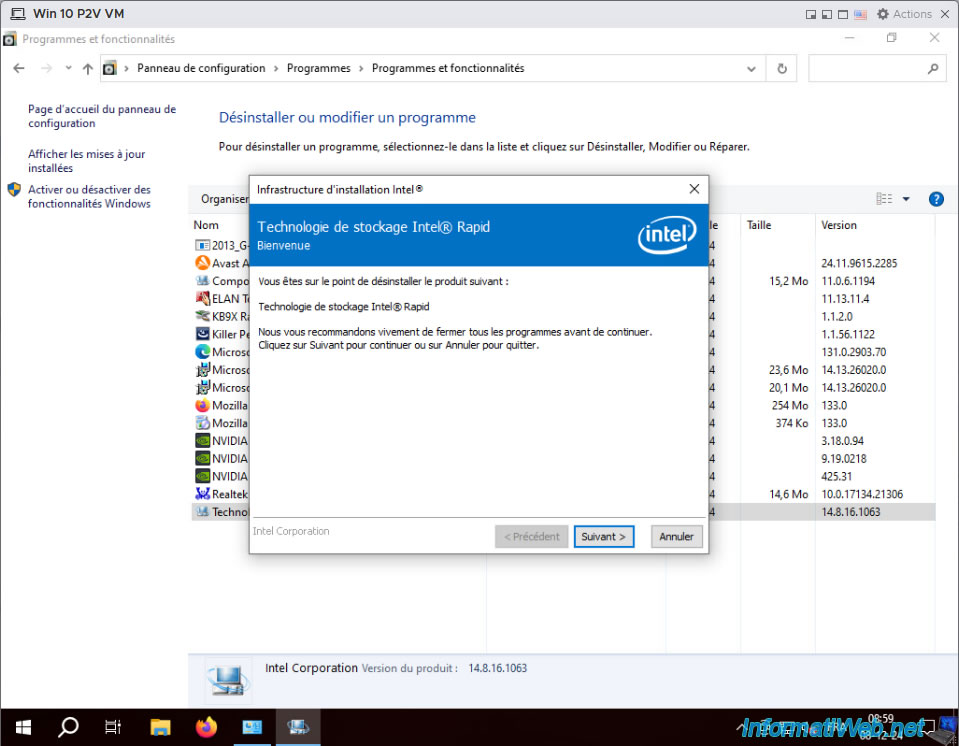
Uninstall each driver by simply running their uninstaller.
All drivers for the virtualized physical PC are uninstalled in your VM.
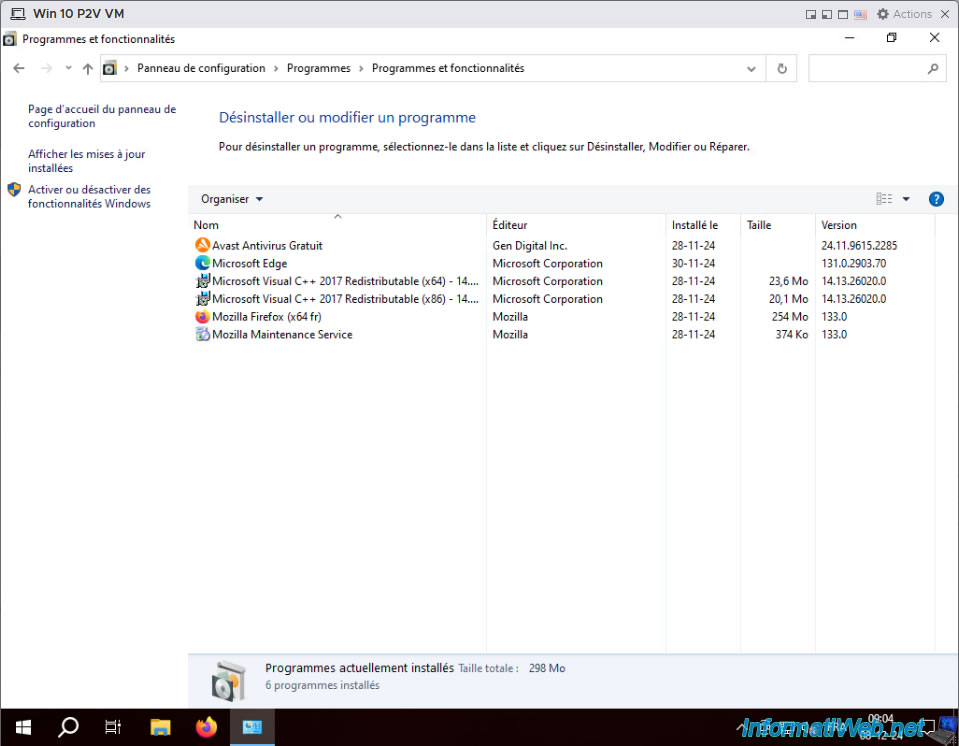
Once these drivers are uninstalled, it is recommended to restart your VM at least once so that the uninstalled drivers are no longer used by Windows.
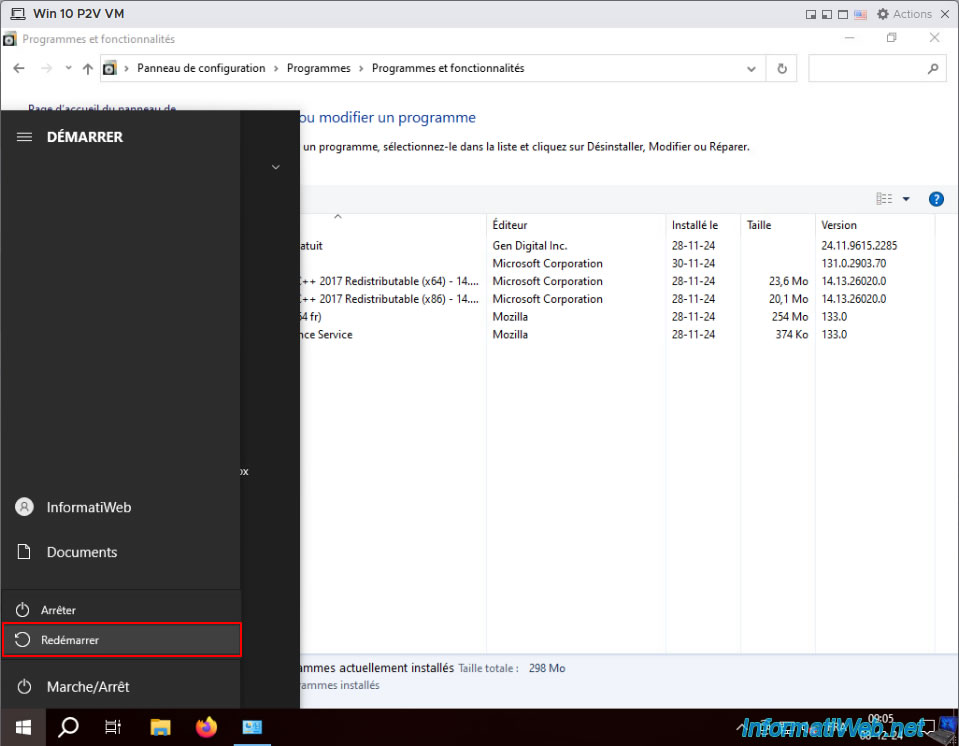
Your virtual machine restarts.
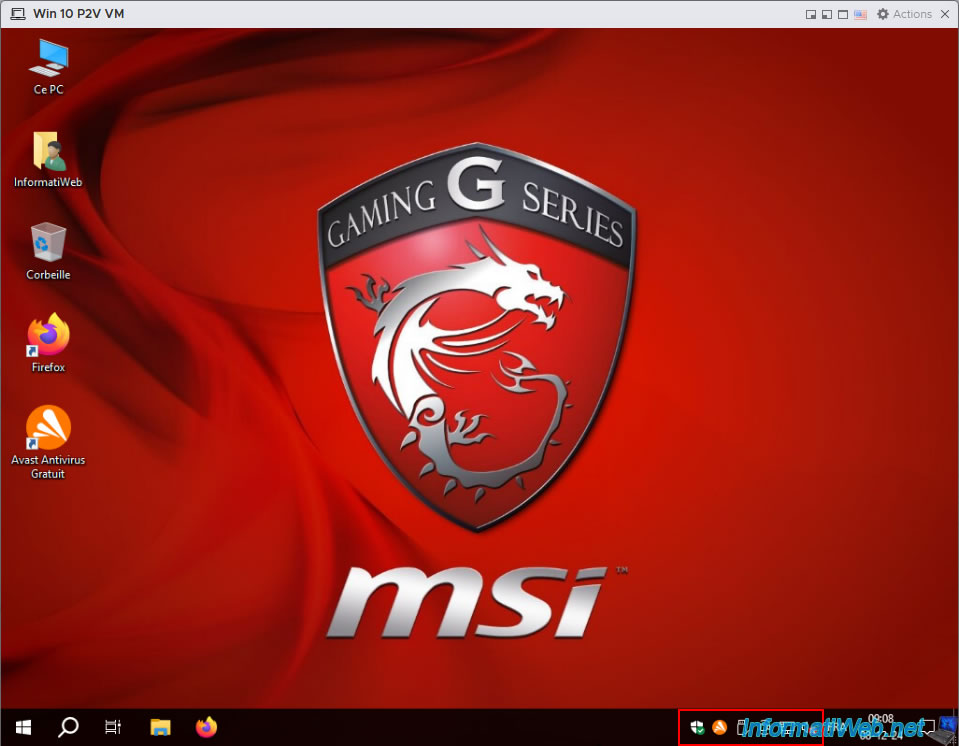
All icons related to the old uninstalled drivers are gone (including in the Windows taskbar).
Share this tutorial
To see also
-

Backup 11/3/2025
Acronis True Image - Archive your files on Acronis Cloud
-
Backup 10/6/2025
Acronis True Image - Clean up backup versions of a PC (local and Cloud)
-

Backup 6/12/2025
Acronis True Image - Delete an FTP connection
-
Backup 5/25/2026
Acronis True Image - Universal Restore Media - Create media (Win PE version based on Win AIK)
No comment