Virtualize a physical PC to VMware vSphere (P2V) using Acronis True Image (Cyber Protect Home Office) and Acronis Universal Restore
- Backup
- Acronis True Image, Acronis Universal Restore
- 28 September 2026 at 07:41 UTC
-

- 6/9
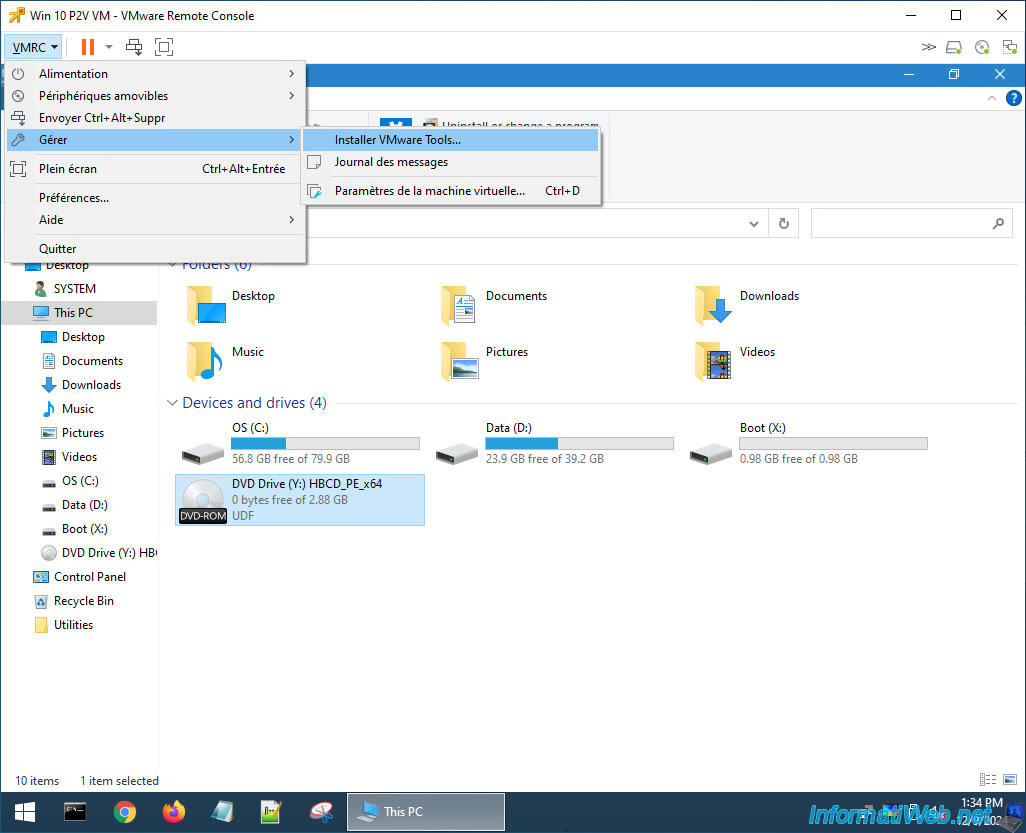
To insert the VMware Tools CD from your VMRC console, click: VMRC -> Manage -> Install VMware Tools.
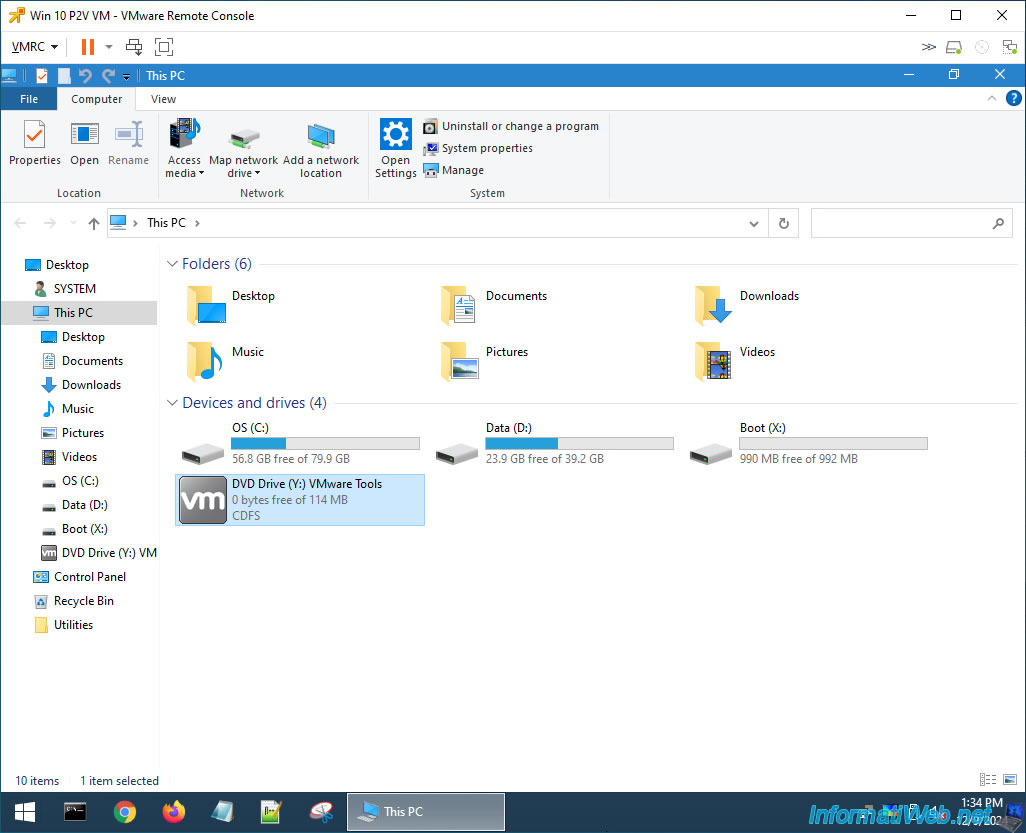
The VMware Tools CD appears in your VM's DVD Drive.
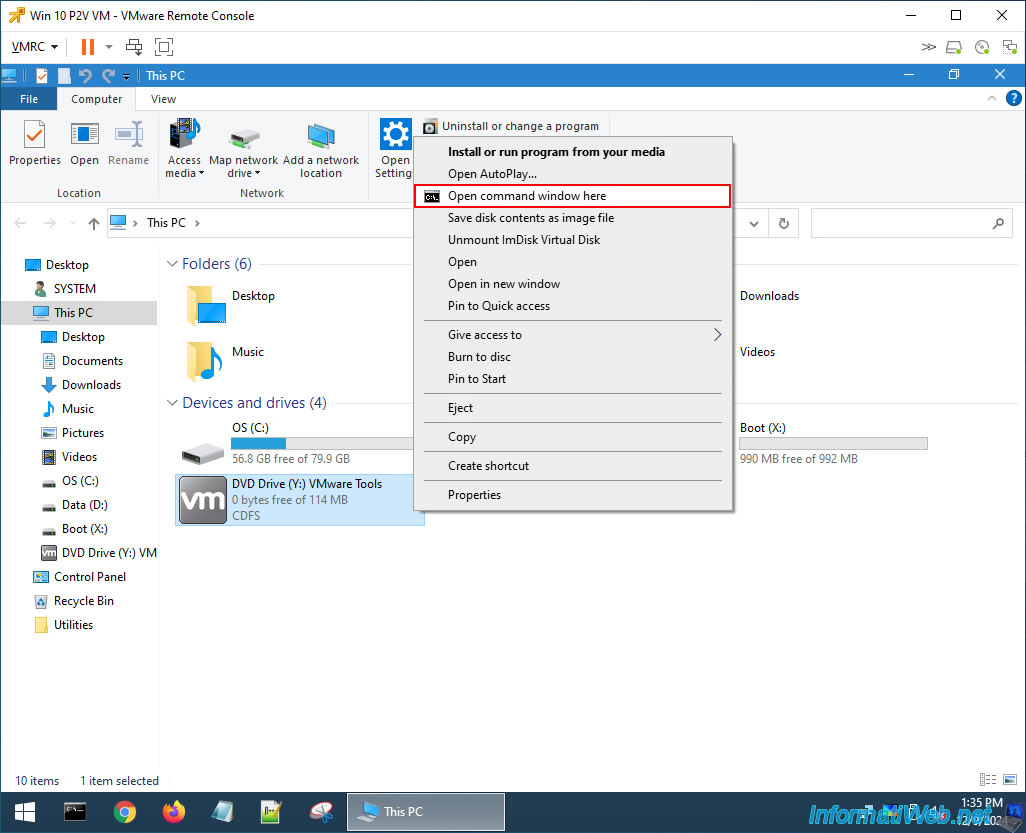
Right click "Open command window here" on this DVD drive.
The command prompt that opens uses your DVD drive as the default location.
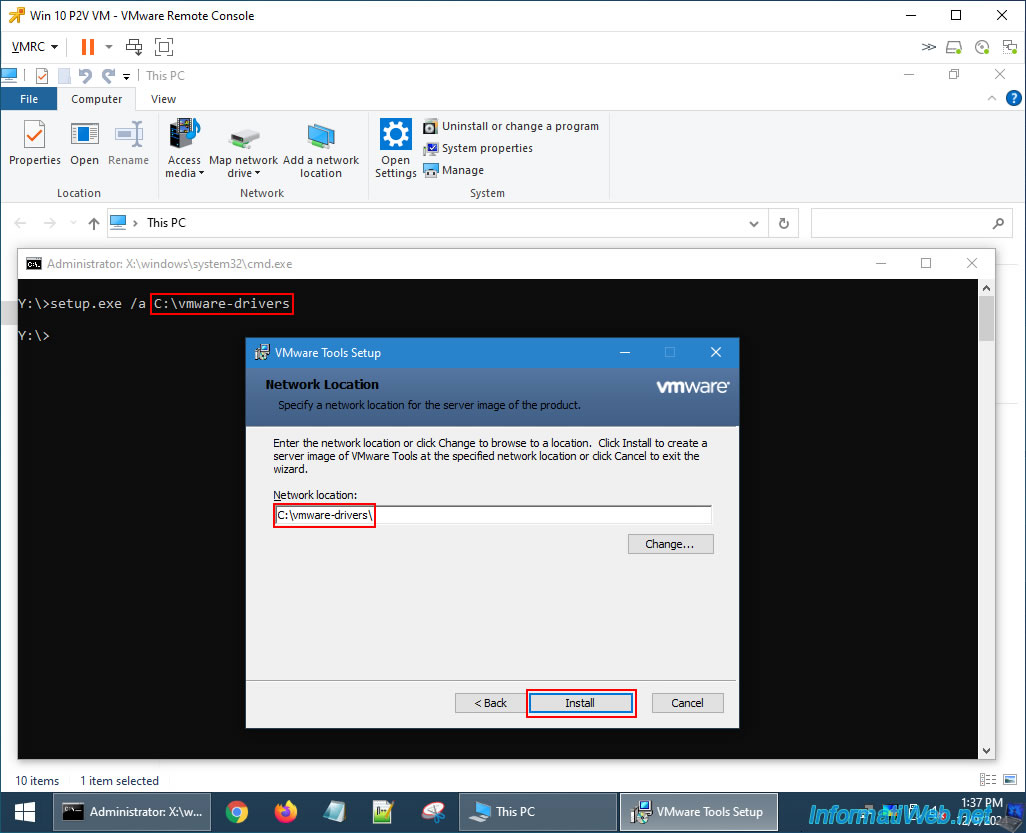
So, type the command below to extract the VMware Tools drivers to a folder that will be created on your virtual hard drive.
Batch
setup.exe /a C:\vmware-drivers
As you can see, this command launches the VMware Tools installer in a special mode that allows you to create a VMware Tools server image.
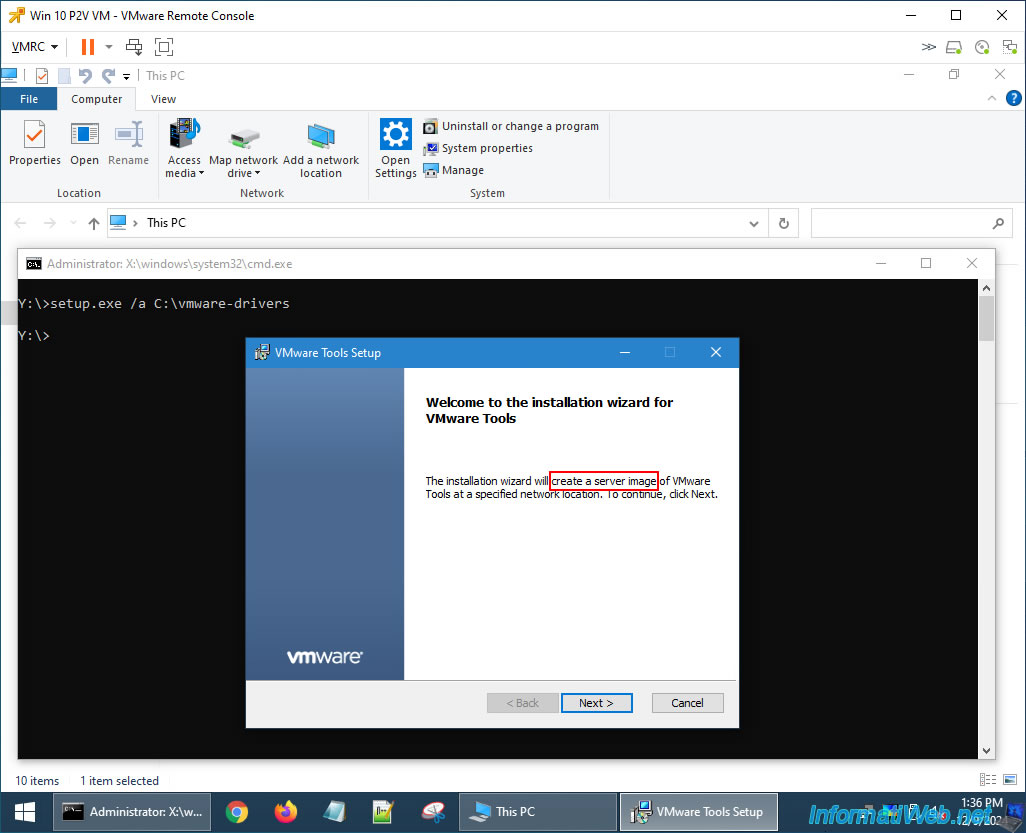
By default, the VMware Tools installer will use the path specified in the command you just ran.
If not, then specify it.
Then, click "Install".
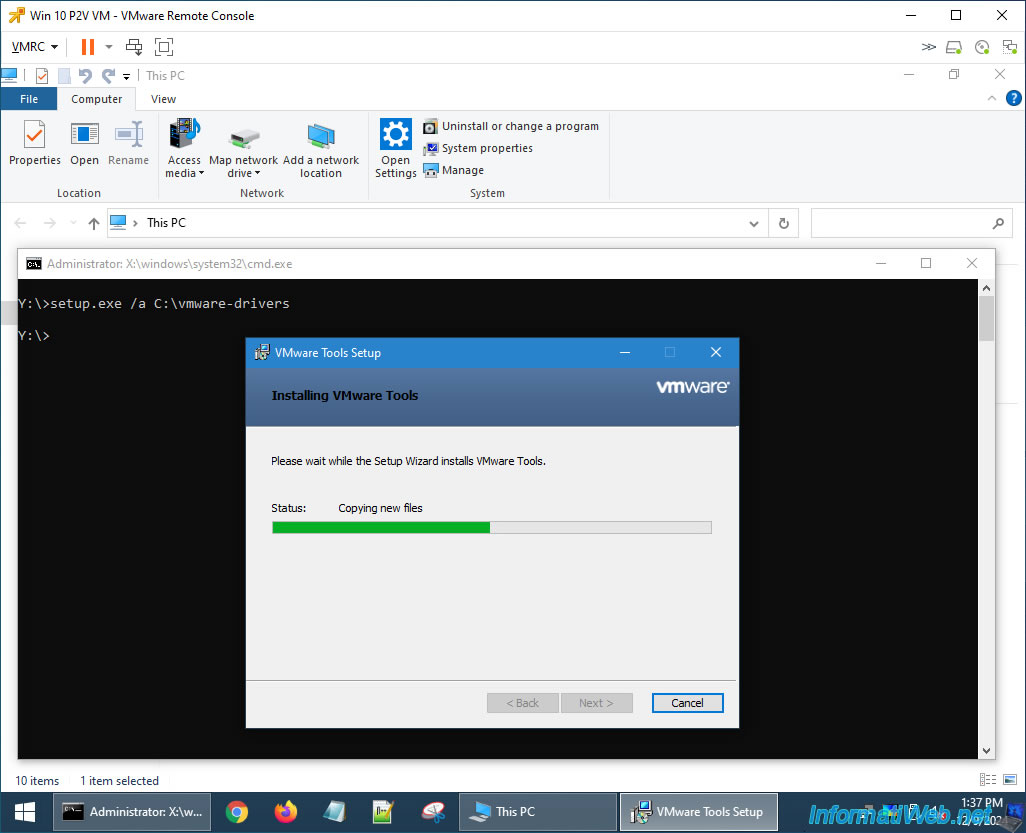
Please wait while the files are copied to the desired folder.
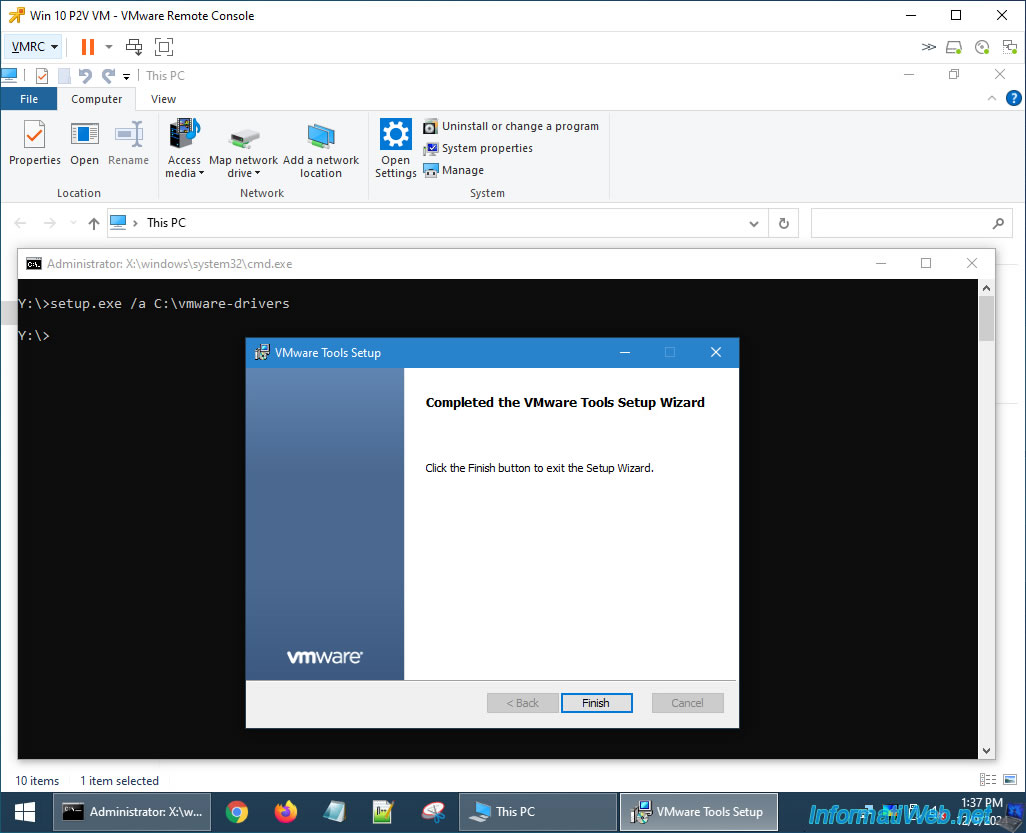
Click "Finish".
To eject the VMware Tools ISO and retrieve the Hiren's BootCD PE ISO into your VM's CD/DVD drive from a VMRC console, you simply need to eject the VMware Tools CD from the guest operating system.
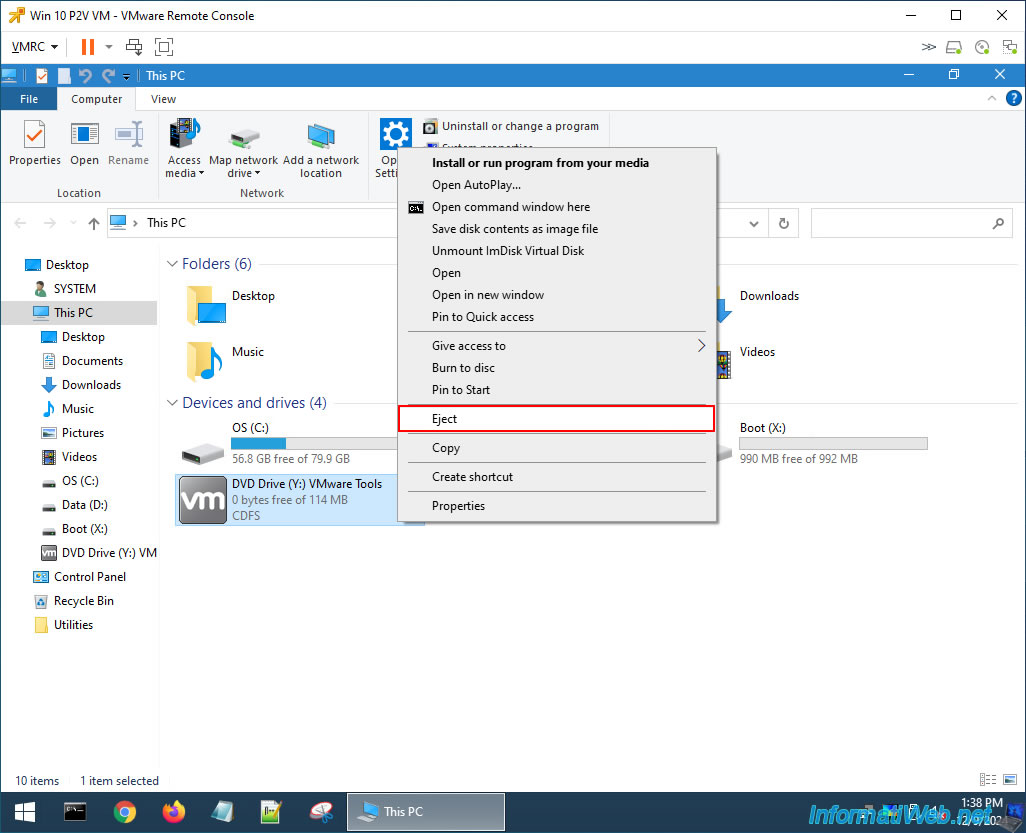
A few seconds later, you will see that VMware will automatically put the ISO file back.
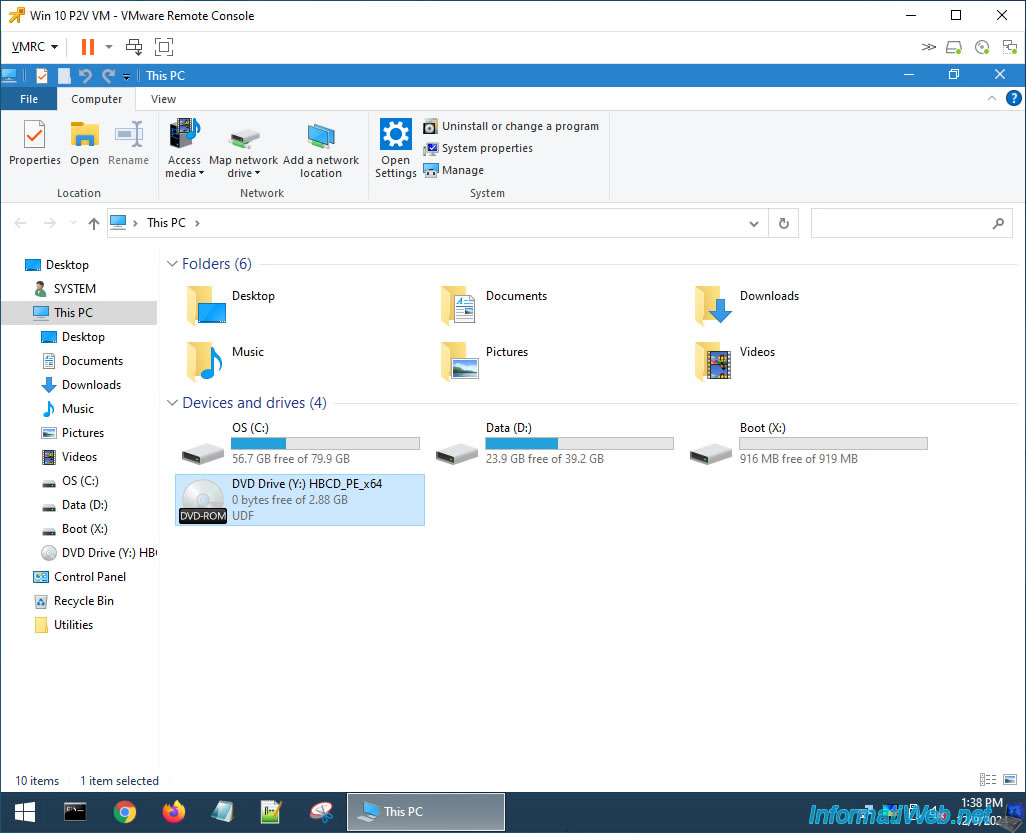
In the "C" partition, you will see that a "vmware-drivers" folder has appeared.
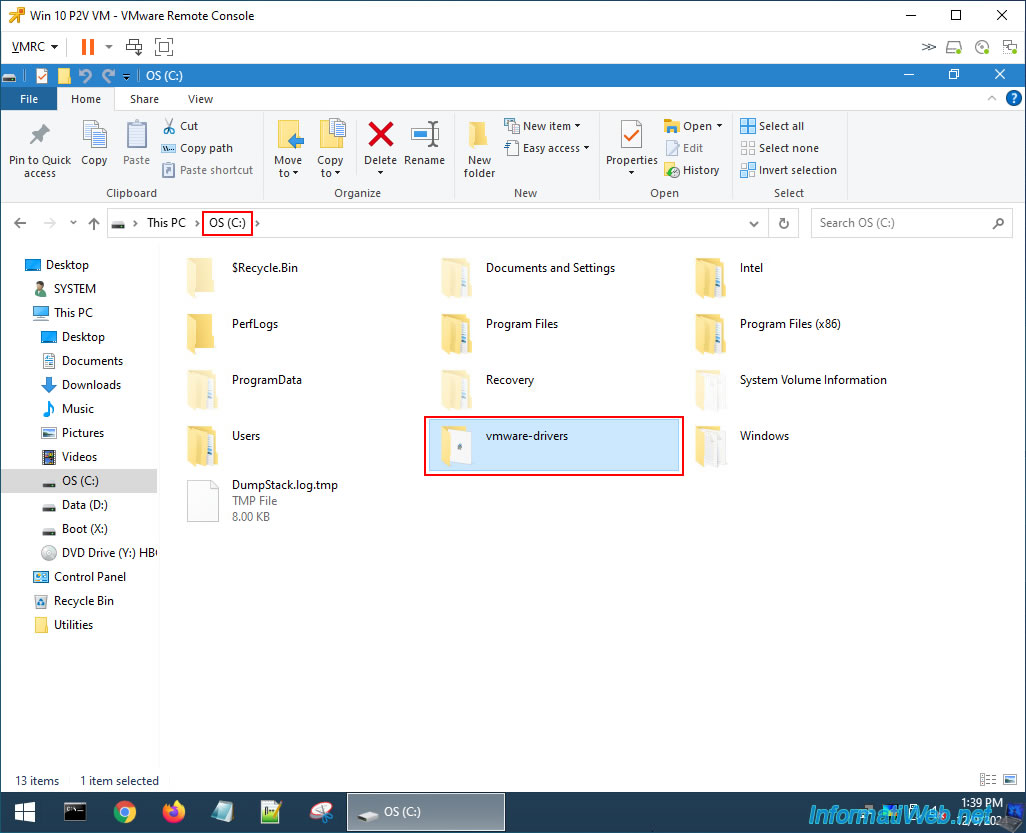
In this "vmware-drivers" folder, go to the "VMware\VMware Tools\VMware\Drivers" tree and you will see that there are several folders concerning different types of devices: audio, mouse, pvscsi, vmci, ...
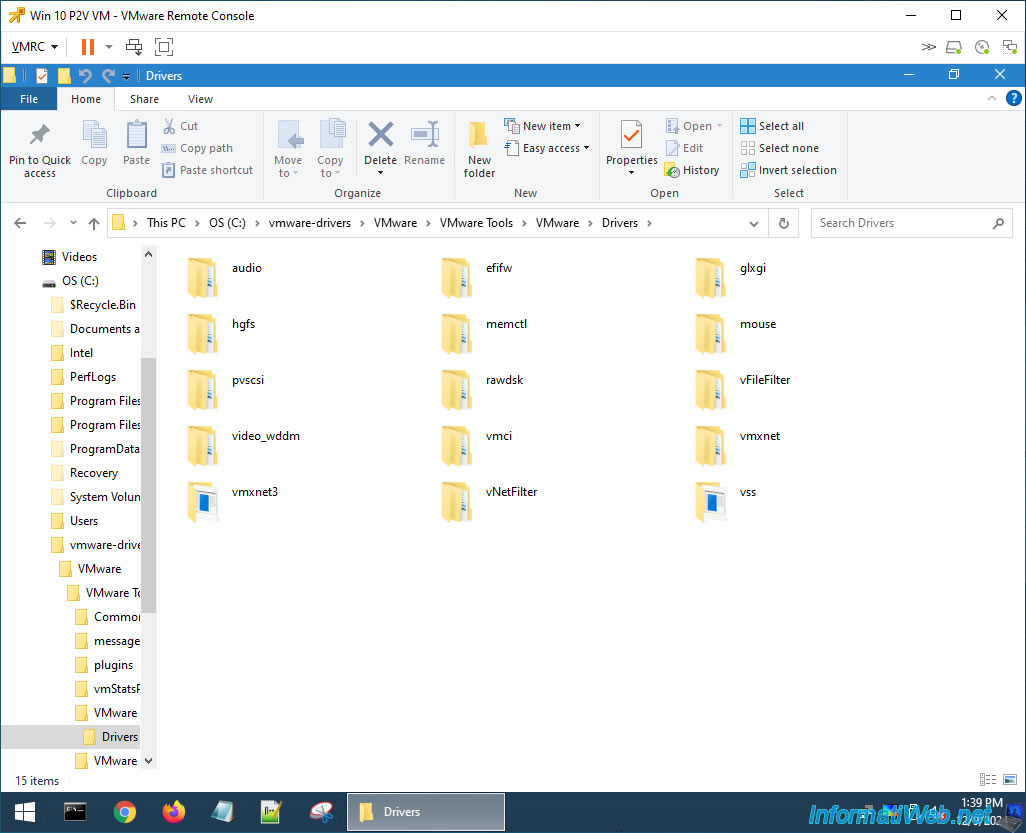
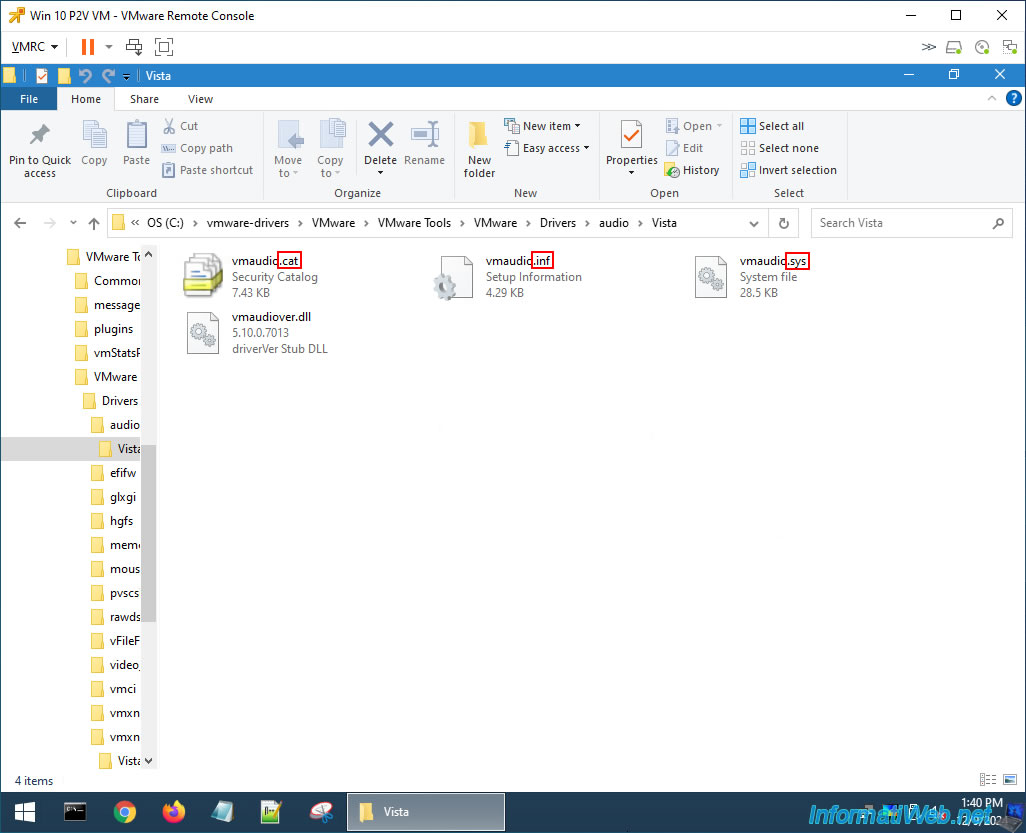
These folders always contain at least configuration files (.inf) needed to install the relevant drivers, system files (.sys) that correspond to the drivers themselves, and security catalogs (.cat), which is common when you have drivers in the form of .inf and .sys files.
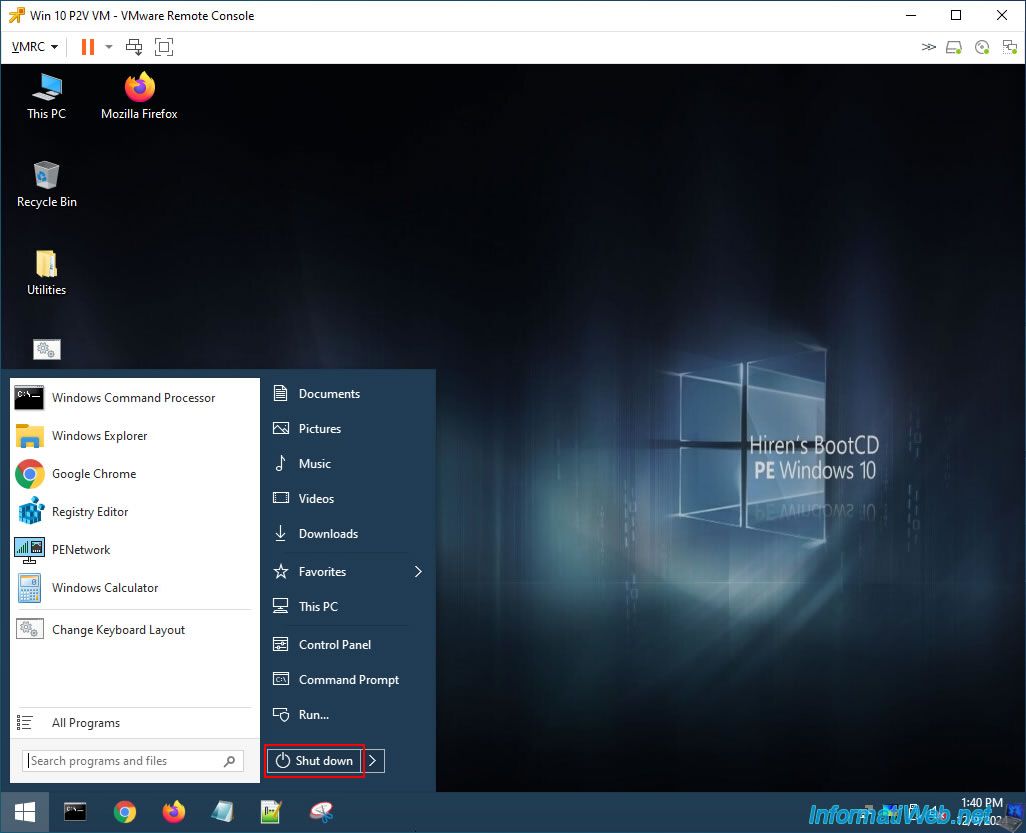
Now that you have extracted the drivers contained in VMware Tools, shut down your virtual machine by simply using the "Shut down" option from the start menu.
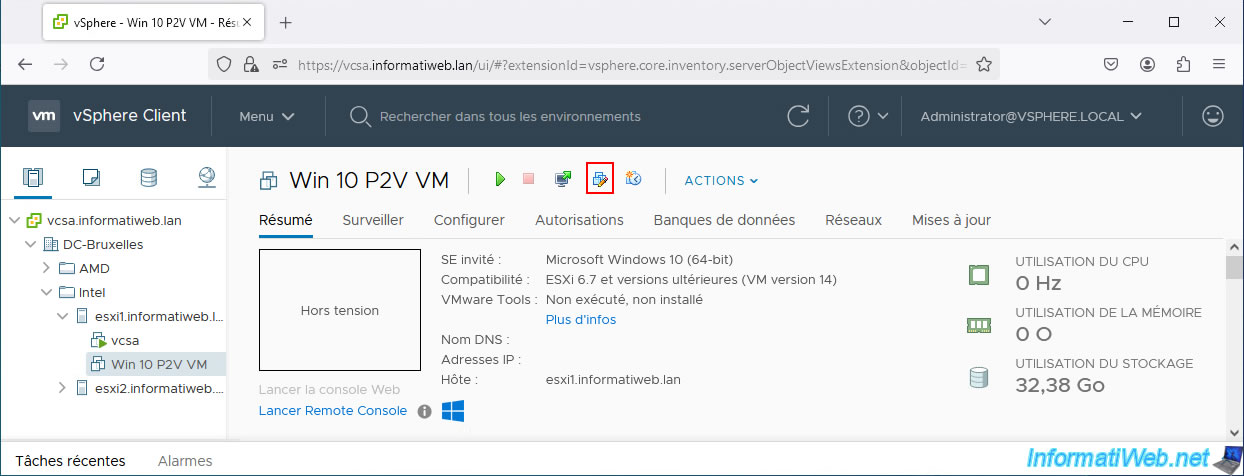
Change your VM configuration again.
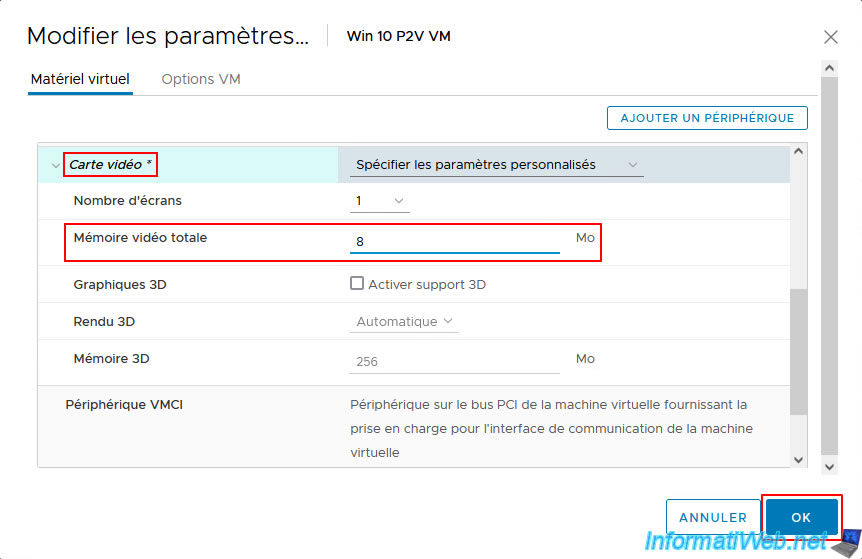
Restore your VM's video card settings.
In our case, this means setting the total video memory back to "8 MB".
Then, click OK.
Share this tutorial
To see also
-

Backup 11/3/2025
Acronis True Image - Archive your files on Acronis Cloud
-
Backup 6/16/2025
Acronis True Image - Backing up your PC to a Synology NAS
-

Backup 6/5/2025
Acronis True Image - Backing up your PC to Acronis Cloud
-
Backup 6/22/2026
Acronis True Image - Secure disk erase
No comment