Virtualize a physical PC to VMware vSphere (P2V) using Acronis True Image (Cyber Protect Home Office) and Acronis Universal Restore
- Backup
- Acronis True Image, Acronis Universal Restore
- 28 September 2026 at 07:41 UTC
-

- 7/9
6. Apply Acronis Universal Restore in your virtual machine on VMware vSphere
6.1. Insert the Acronis Universal Restore ISO into the CD/DVD drive of your VM on VMware vSphere
To apply Universal Restore on the restored Windows installation in your VM, modify your VM configuration.
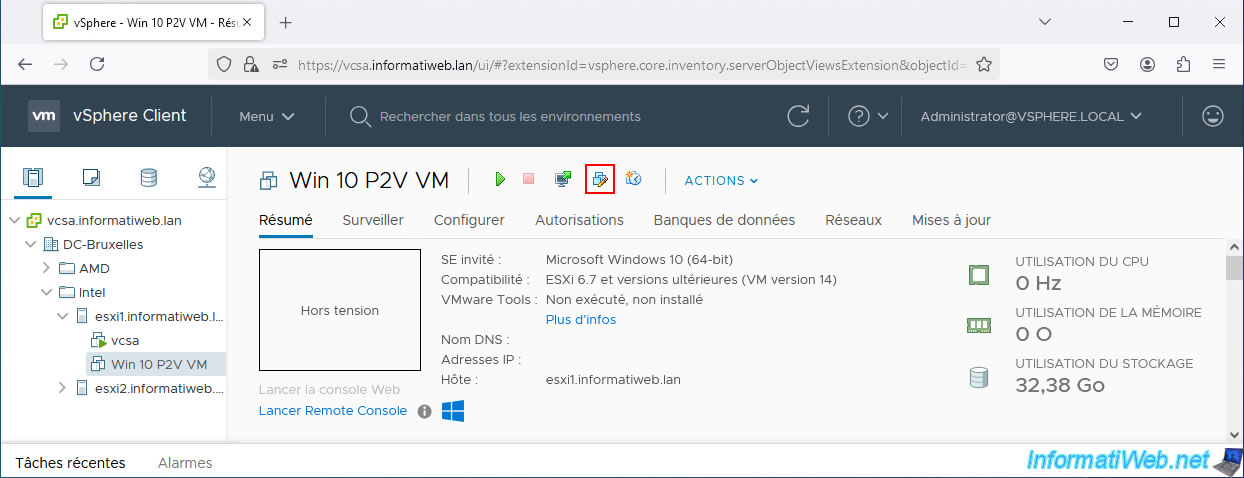
Edit the ISO file present in your VM's CD/DVD drive.
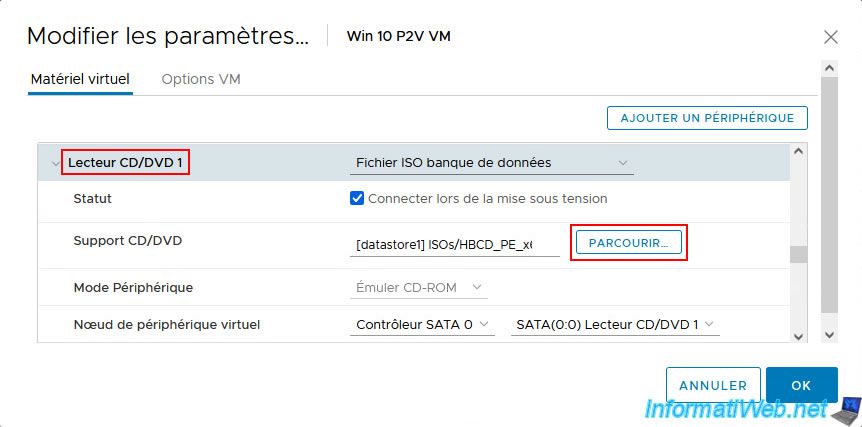
This time, select the file "AcronisURMedia (based on WinRE.iso)".
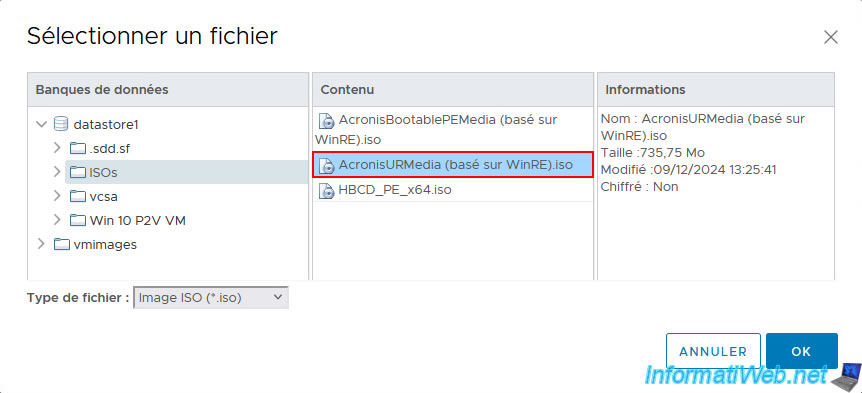
The name of the selected ISO file appears.
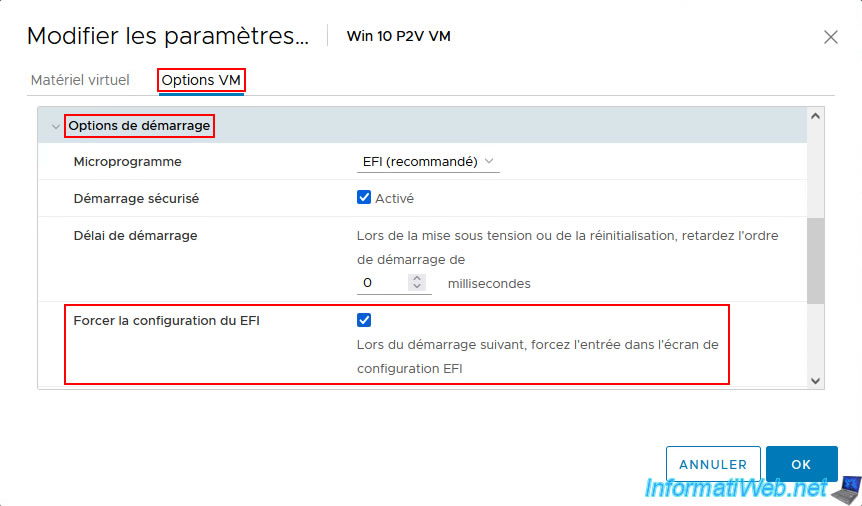
In the "VM Options" tab, go to the "Boot Options" section and check the box for the "Force EFI Configuration" option.
6.2. Apply Acronis Universal Restore from your VM on VMware vSphere
Start your VM.

Boot your VM on its CD/DVD drive.
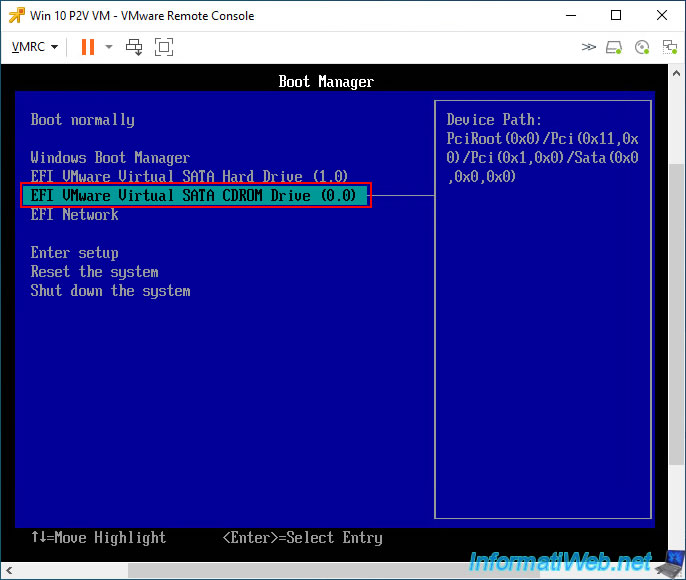
Press Enter when prompted.

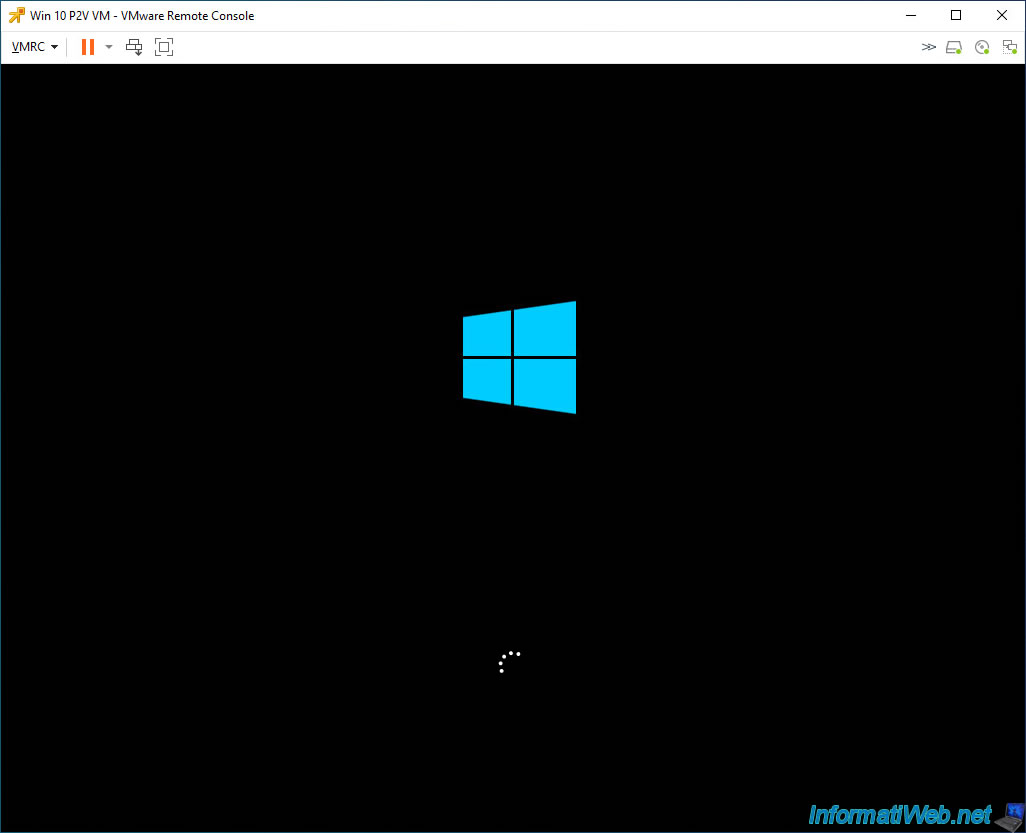
The Windows PE logo appears.
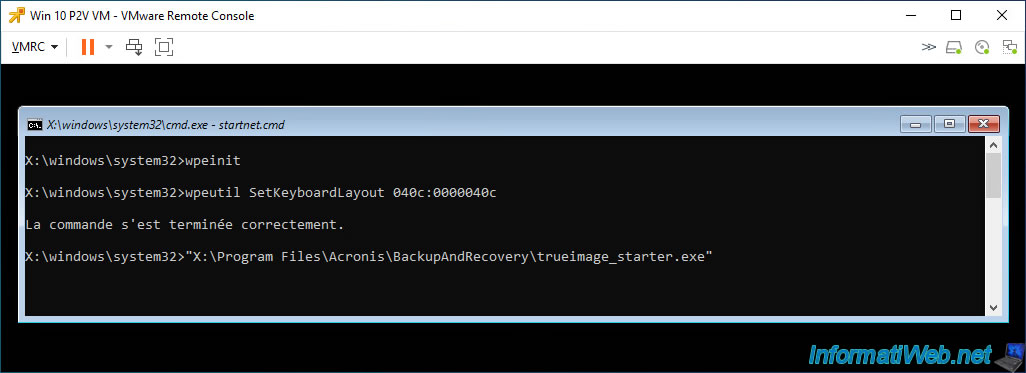
A command prompt appears with several commands.
Acronis Universal Restore automatically detects your restored Windows installation on your VM's virtual hard disk.
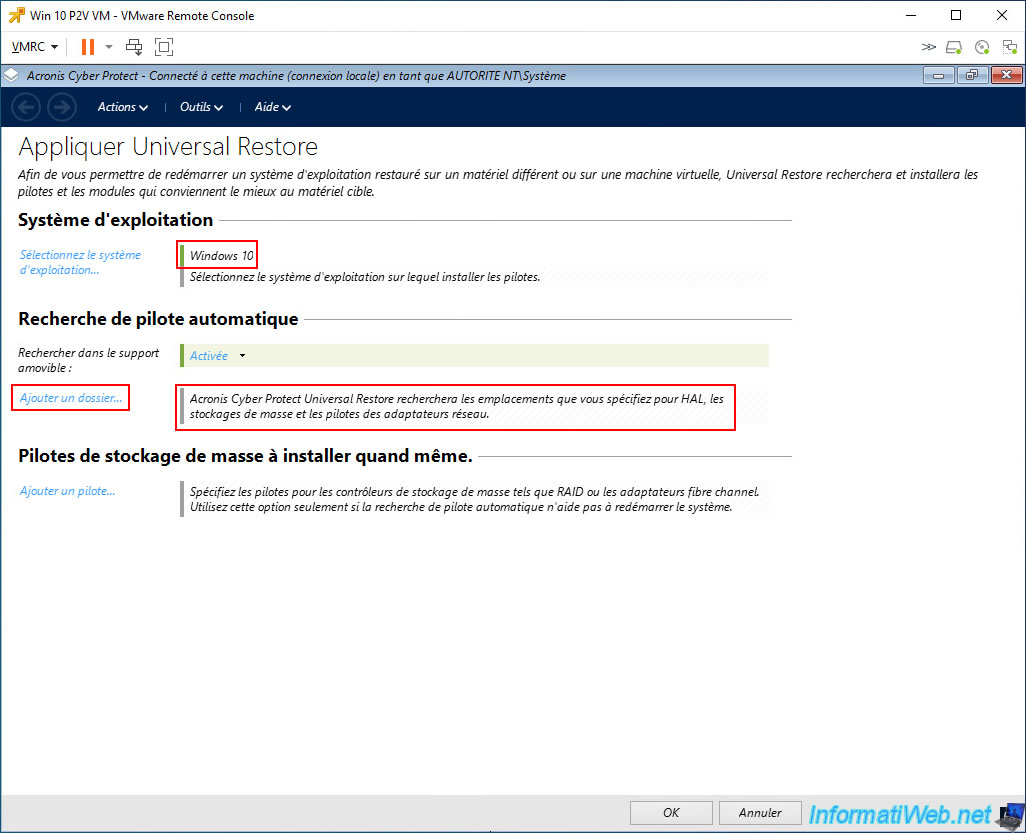
Click the "Add folder" link at the "Automatic driver search" step so that Acronis can search for drivers for new hardware, storage devices, and network adapters in your VM's virtual hardware.
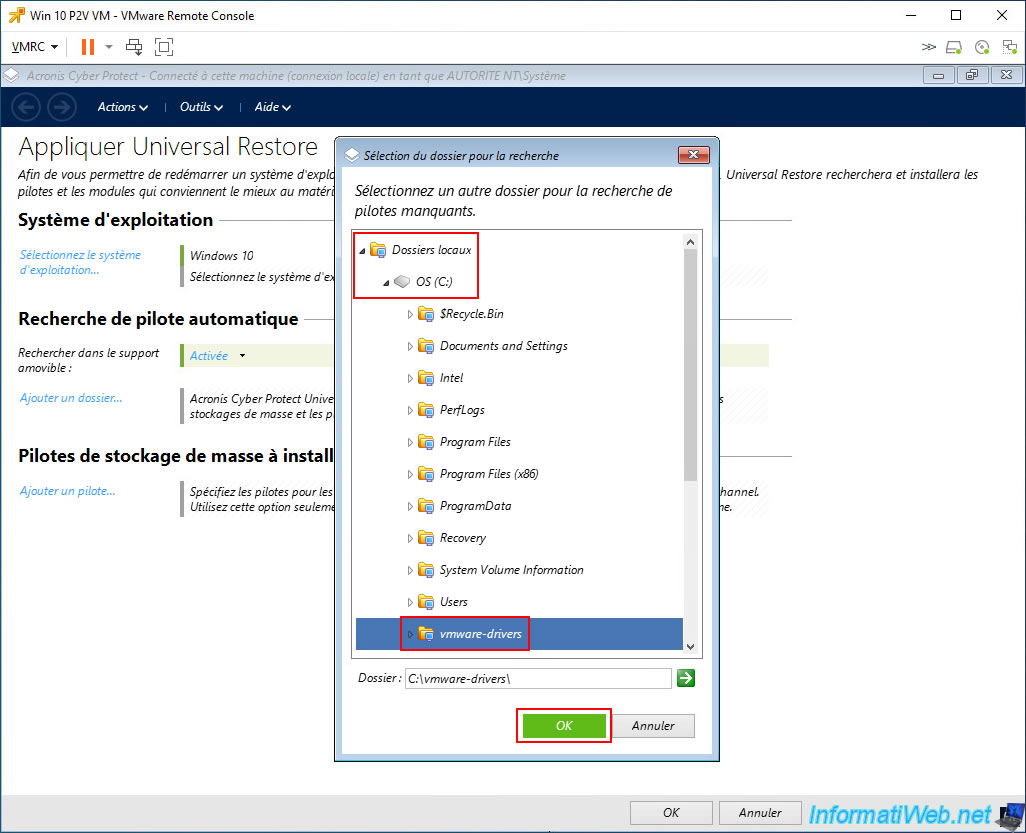
In the window that appears, go to "Local Folders -> OS (C:)" and select your "vmware-drivers" folder, then click OK.
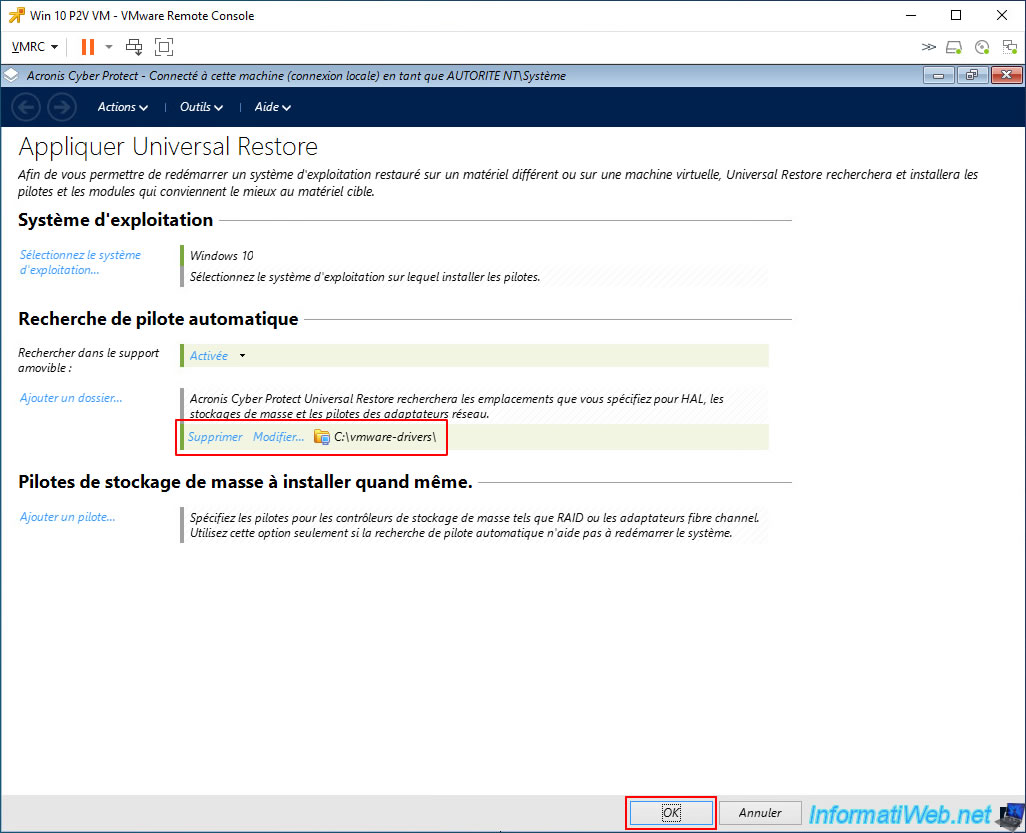
The selected "C:\vmware-drivers" folder appears.
Click OK to launch the Universal Restore application on your Windows installation in your VM.
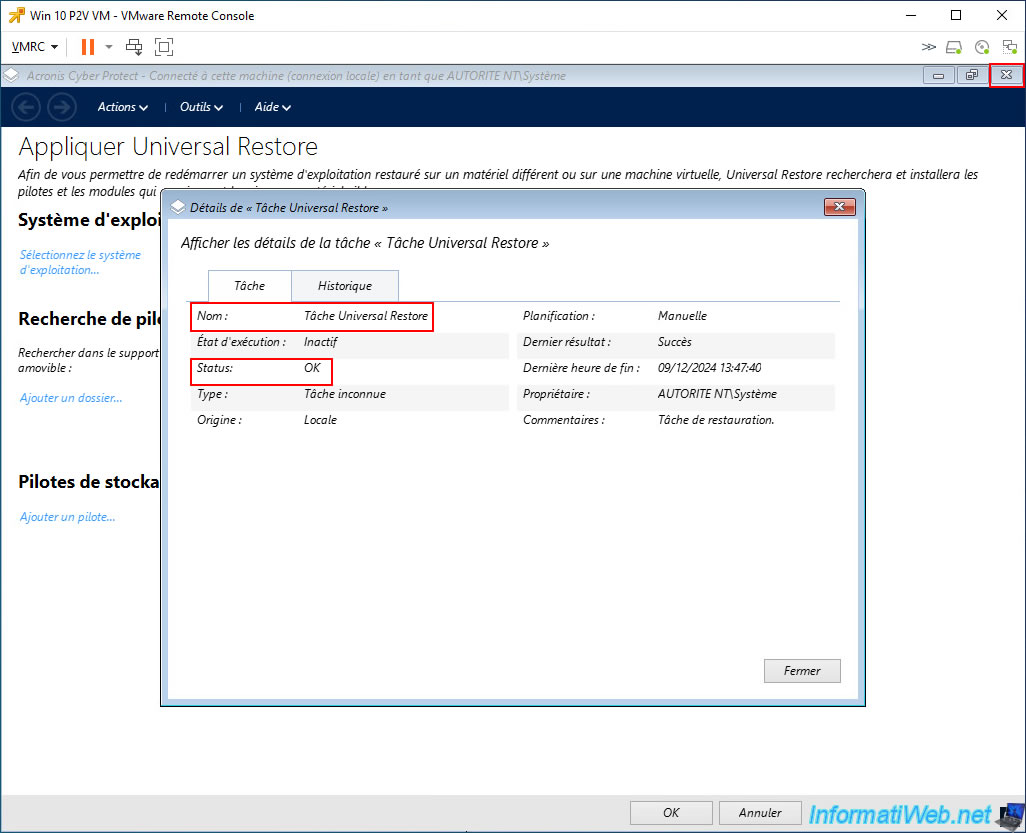
The "Universal Restore" task appears on the screen.
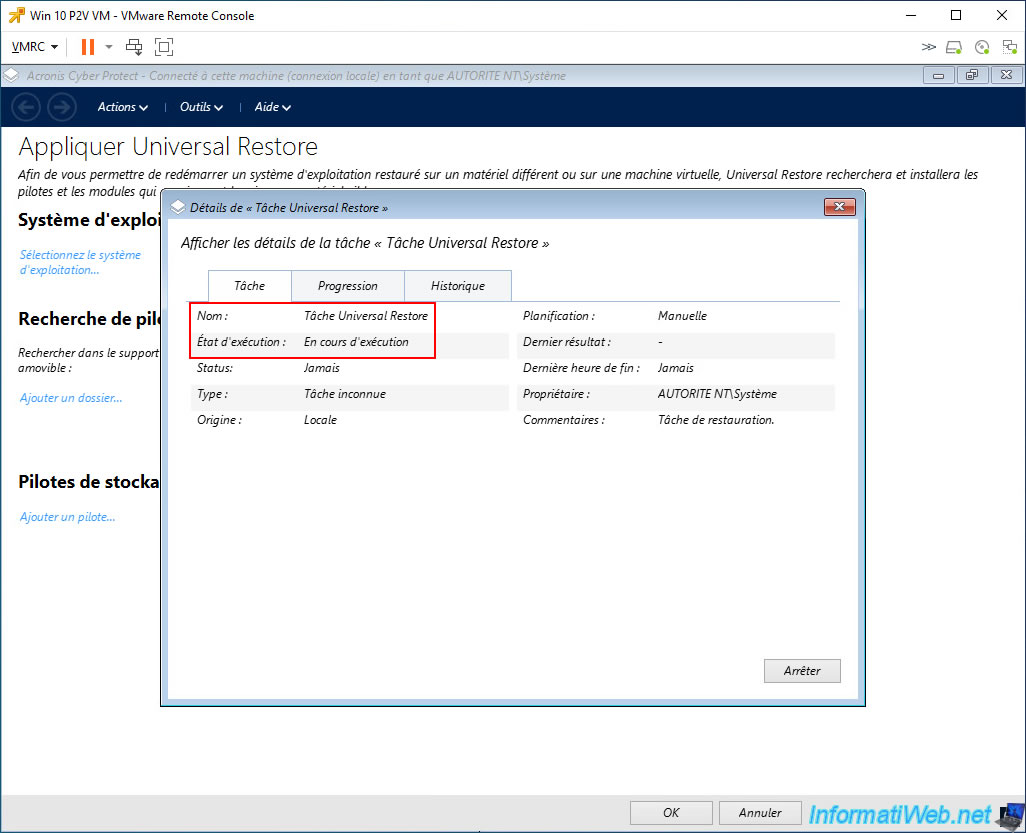
Once this "Universal Restore" task is completed, its status will be OK.
Close the window and also close the Acronis program.
Which will cause your VM to restart automatically.
Share this tutorial
To see also
-

Backup 6/2/2025
Acronis True Image - Backing up your PC to an external hard drive
-
Backup 3/30/2026
Acronis True Image - Rescue Media - Check network configuration
-
Backup 3/16/2026
Acronis True Image - Rescue Media - Partition a new disk
-

Backup 11/17/2025
Acronis True Image - Synchronize a folder to Acronis Cloud
No comment