Virtualize a physical PC to VMware vSphere (P2V) using Acronis True Image (Cyber Protect Home Office) and Acronis Universal Restore
- Backup
- Acronis True Image, Acronis Universal Restore
- 28 September 2026 at 07:41 UTC
-

- 8/9
7. Starting your virtual machine on VMware vSphere after applying Acronis Universal Restore
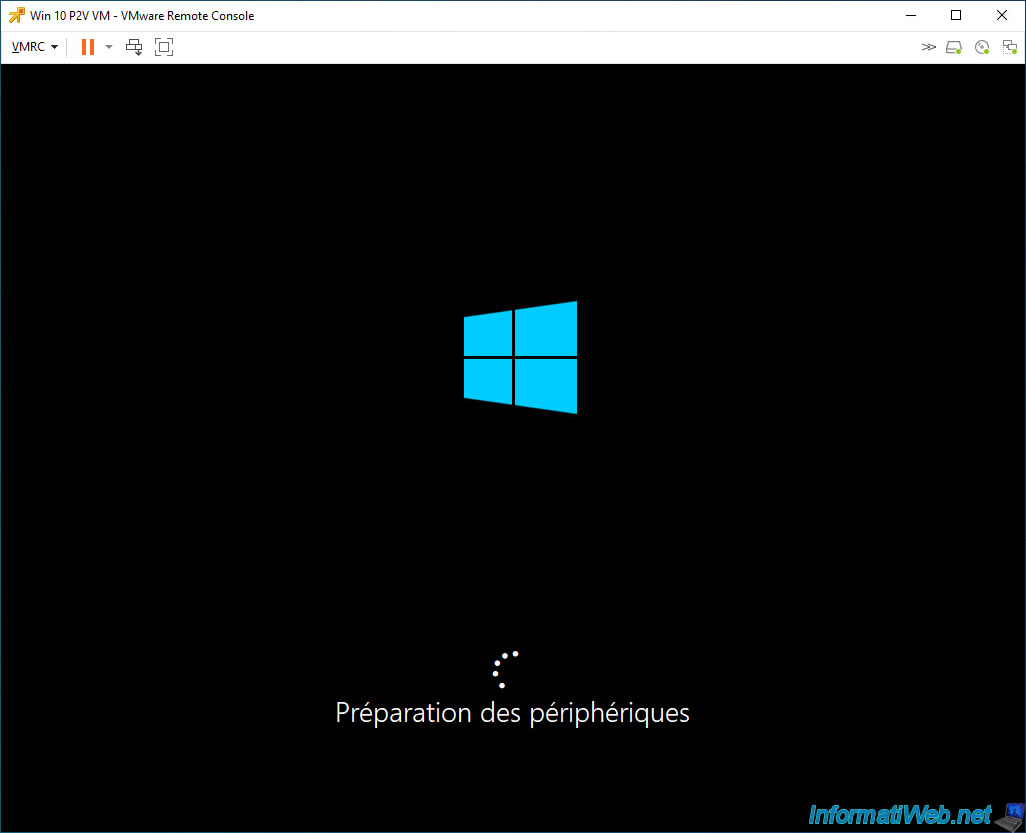
When starting your virtual machine, you will see the Windows logo, then the message "Preparing devices" (due to the change of hardware between your physical PC backed up via Acronis and your VM where you restored this backup).
Then, your Windows session will open normally.
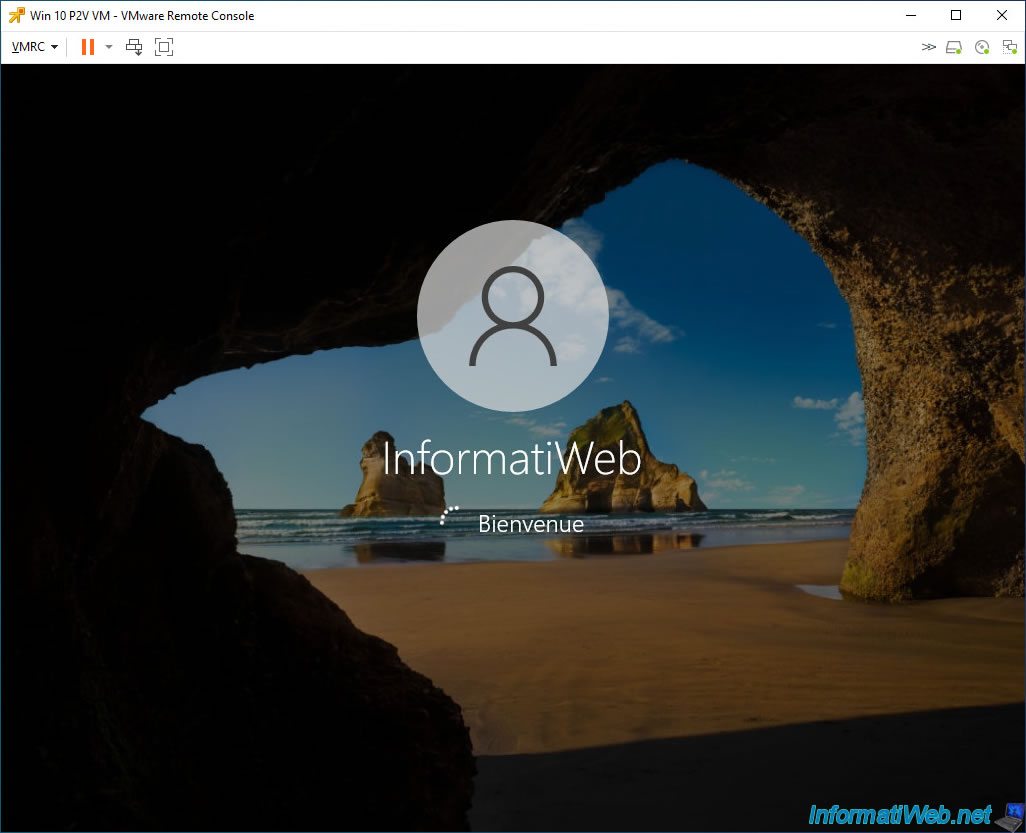
You will arrive on your Windows desktop without any problem.
Warning : do not use your virtual machine directly, because processes are running in the background and your VM will restart once automatically (after about 1 minute).

As expected, due to using Universal Restore, your VM will reboot automatically.

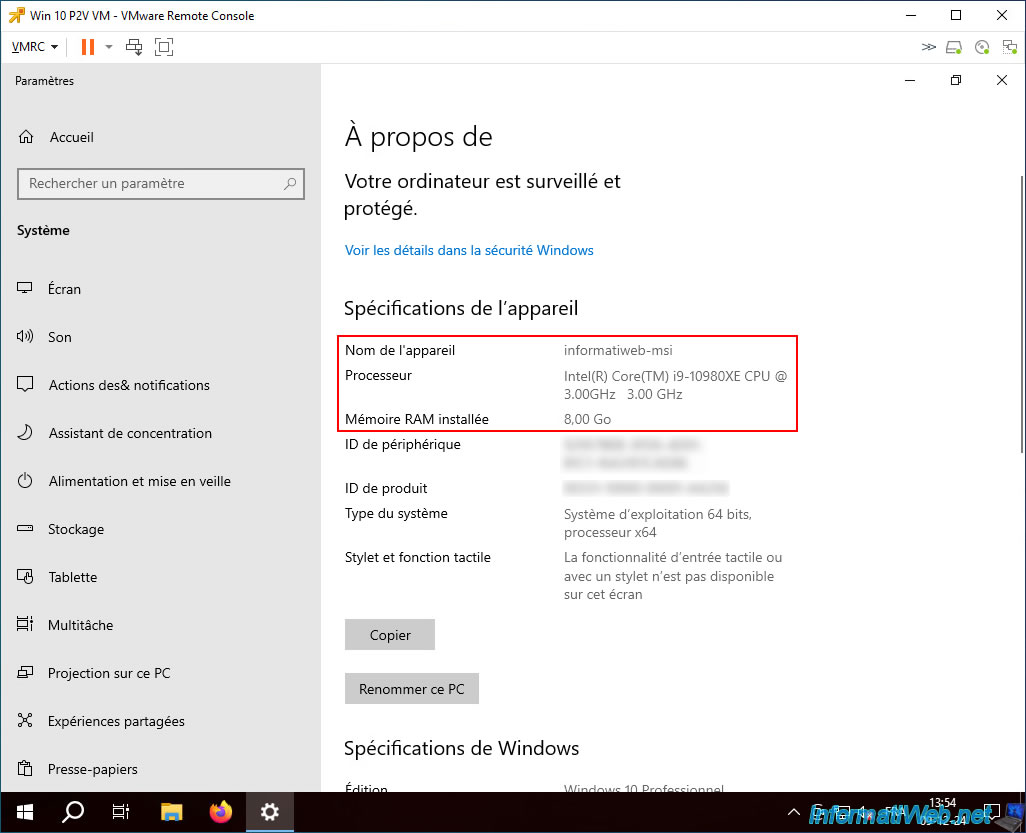
Now, you can use your VM and you can see that in our case it is indeed a copy of our physical PC "informatiweb-msi".
Obviously the processor and the amount of RAM installed are different since the hardware has changed.
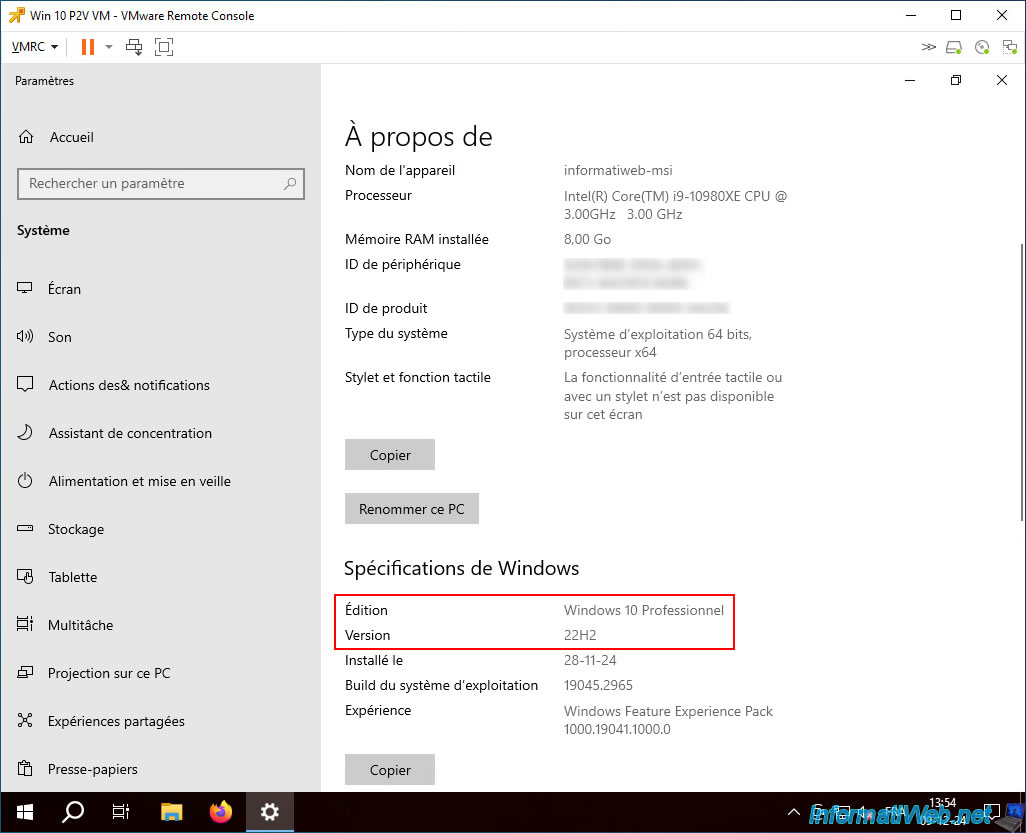
For the edition and version of Windows used, they are obviously identical to the physical PC saved previously.
8. Uninstall old drivers related to the hardware of the virtualized physical PC copied into your VM on VMware vSphere
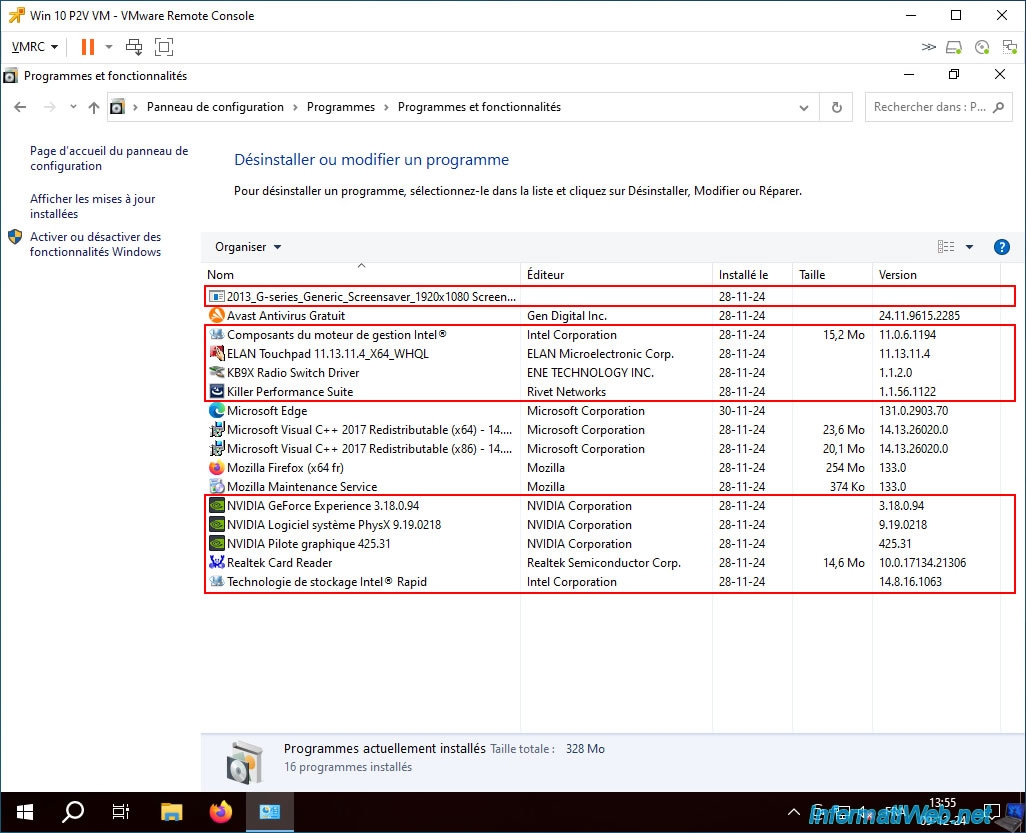
To avoid future bugs, we recommend uninstalling the physical PC drivers that were copied to your VM.
To do this, you can open the Windows Control Panel.
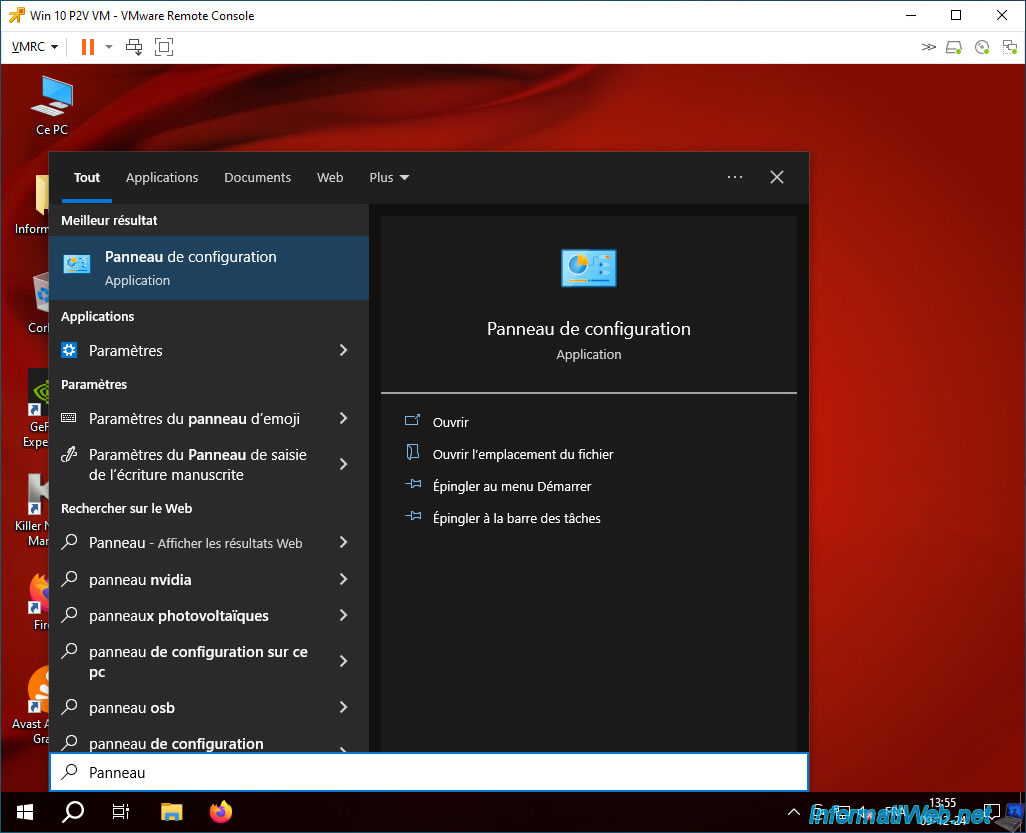
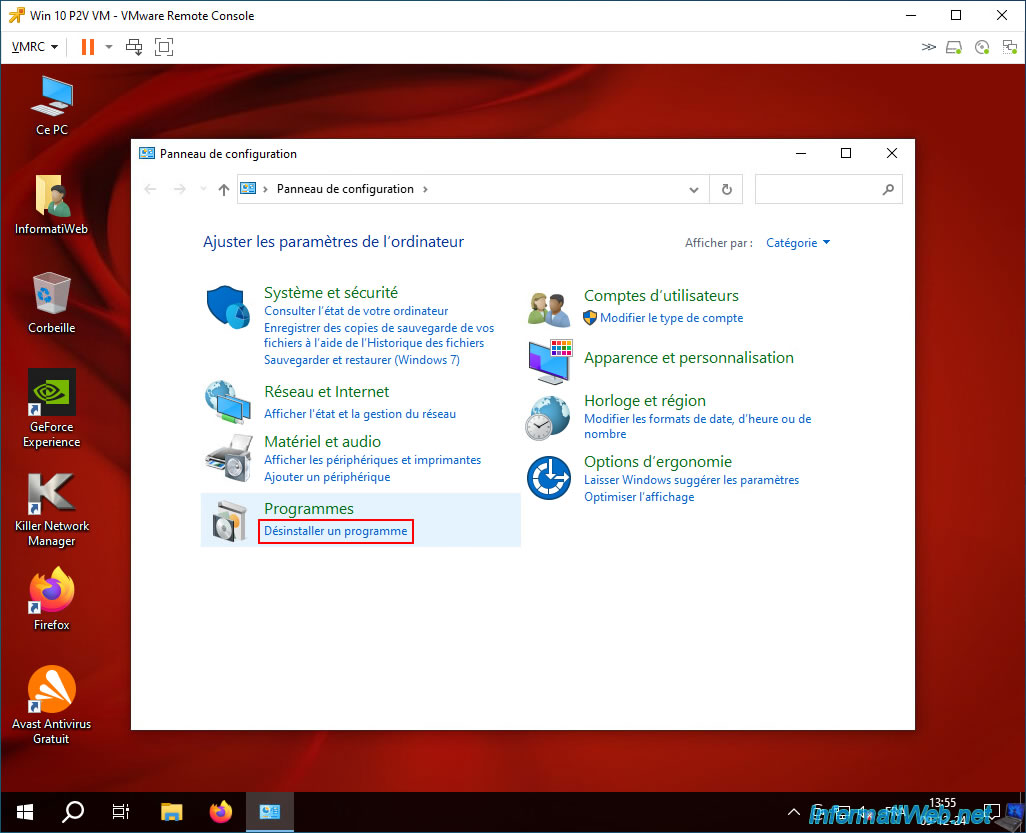
Then, click on the "Uninstall a program" link.
Uninstall unnecessary drivers that were copied into your VM by simply using their uninstallers.
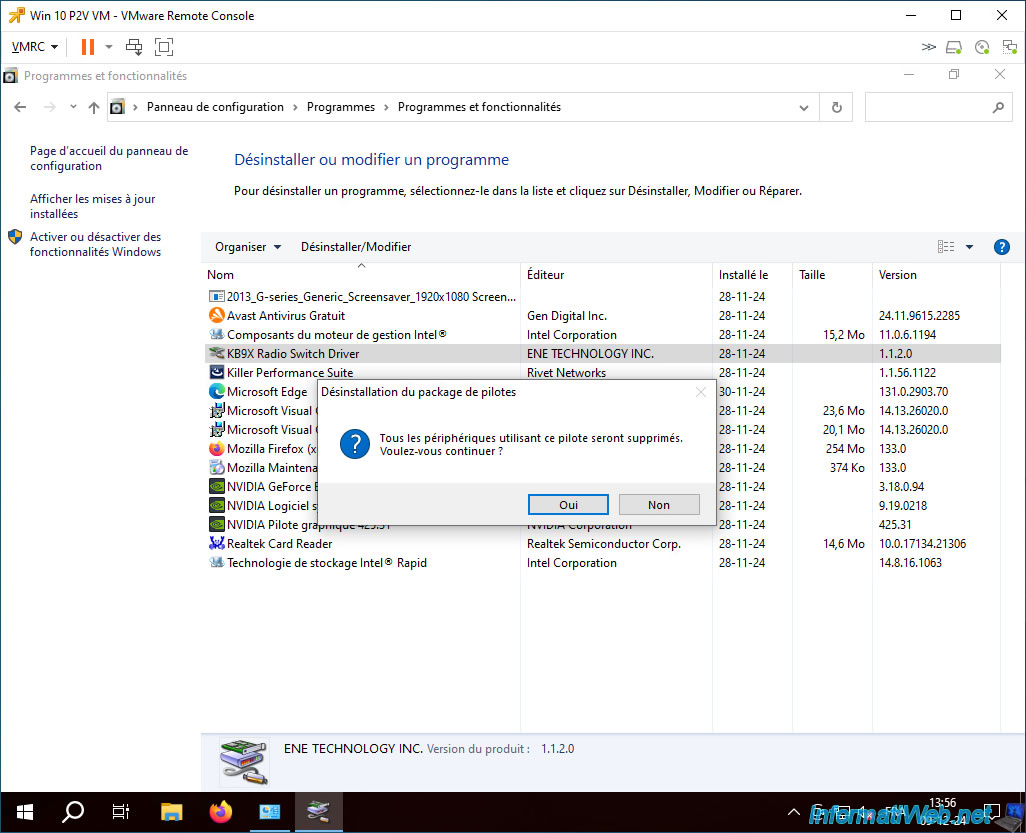
Uninstall each driver one by one and restart your VM only when they are all uninstalled.
Now, all your old drivers have been uninstalled.
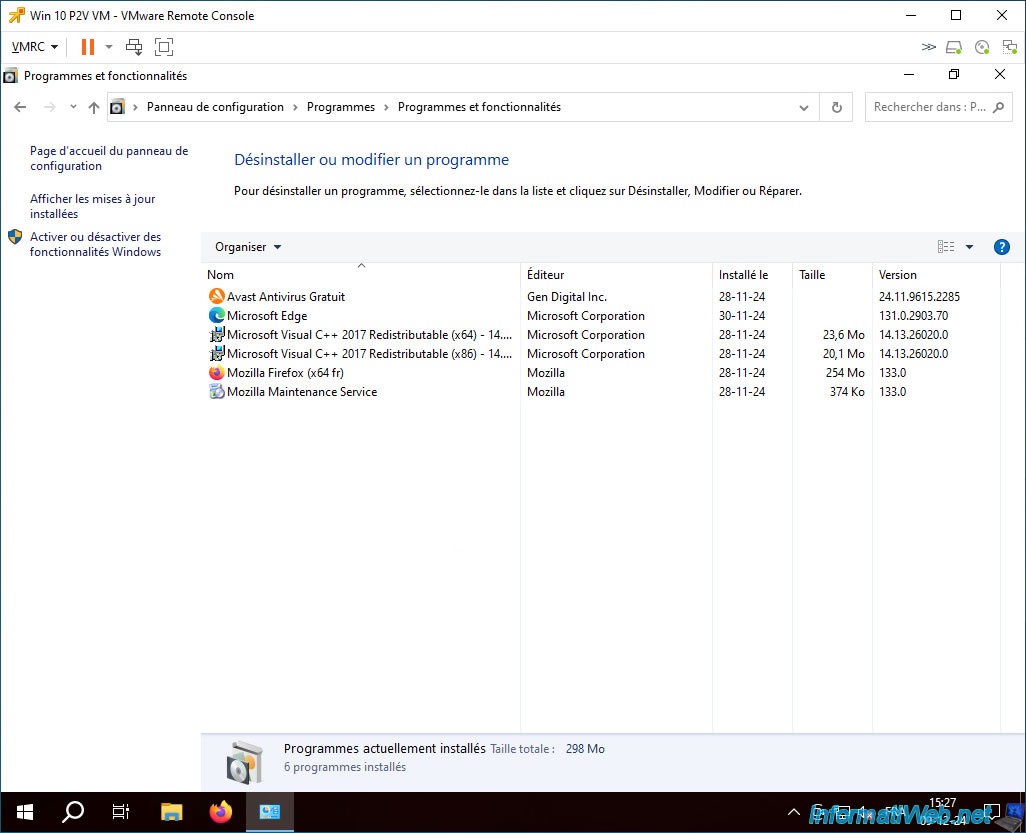
Restart your VM once.
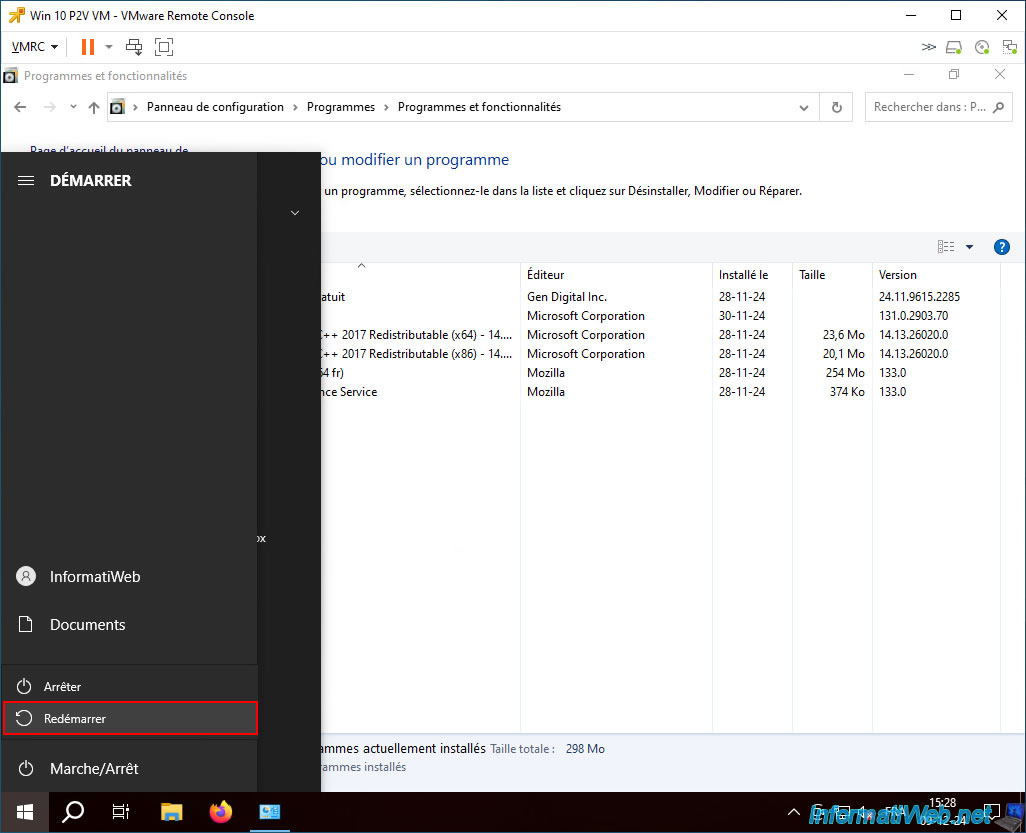
The icons corresponding to the drivers that had been copied into your VM have disappeared.

Share this tutorial
To see also
-
Backup 9/7/2026
Acronis True Image - P2V - Virtualize a physical PC to VirtualBox
-
Backup 9/21/2026
Acronis True Image - P2V - Virtualize a physical PC to VMware ESXi
-
Backup 2/23/2026
Acronis True Image - Rescue Media - Secure disk erase
-
Backup 12/1/2025
Acronis True Image - Synchronize a folder between 2 PCs (Cloud instead of local)
No comment