Virtualize a physical PC to VMware Workstation Pro (P2V) using Acronis True Image (Cyber Protect Home Office) and Acronis Universal Restore
- Backup
- Acronis True Image, Acronis Universal Restore
- 15 September 2026 at 07:02 UTC
-

- 5/8
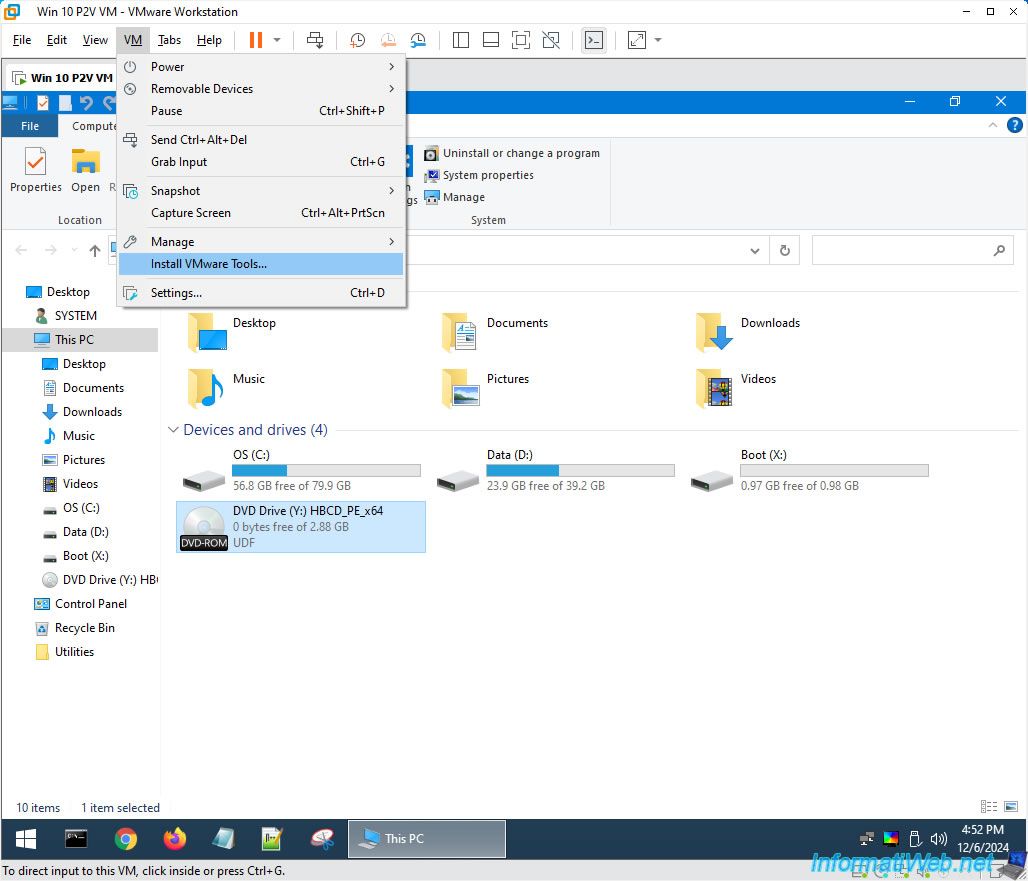
Since Windows PE (in this case based on Windows 10) runs entirely in your computer's RAM, you can safely remove the Hiren's Boot CD PE ISO from this DVD drive and insert the VMware Tools ISO instead. To do this, simply click "VM -> Install VMware Tools".
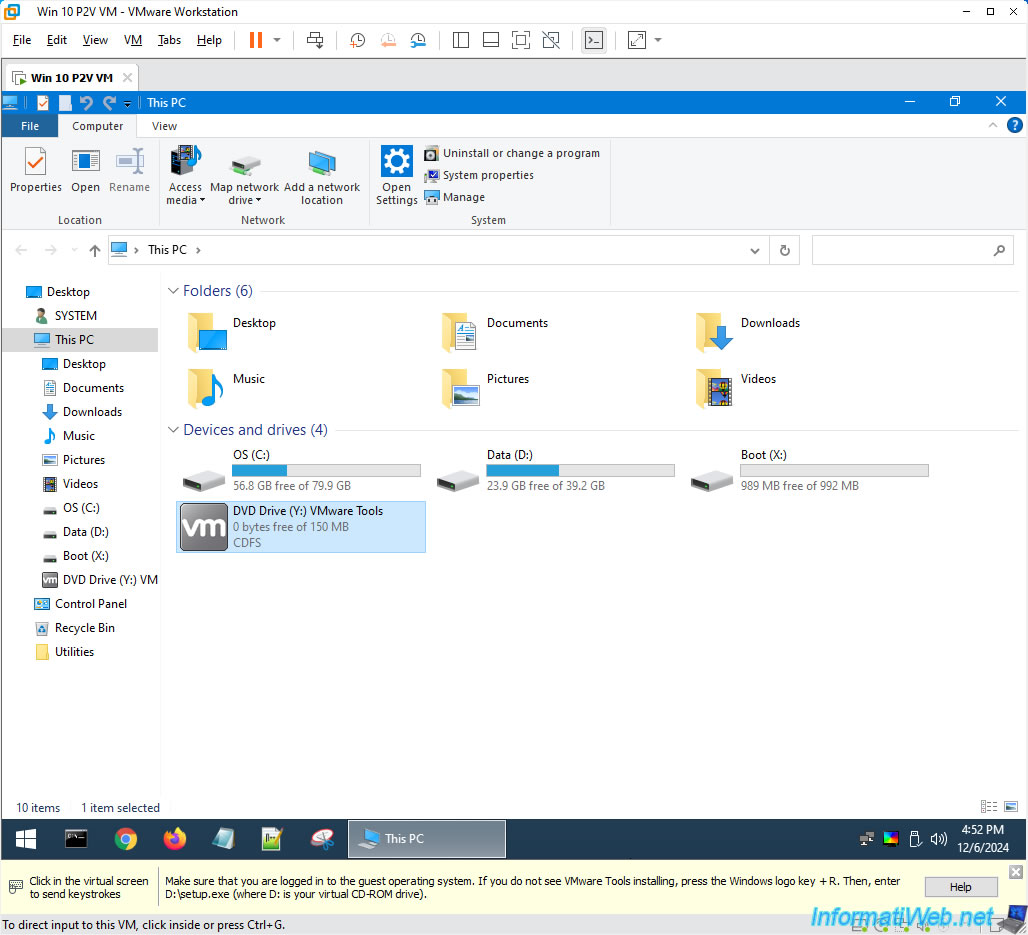
Now, the name of the DVD drive is "VMware Tools".
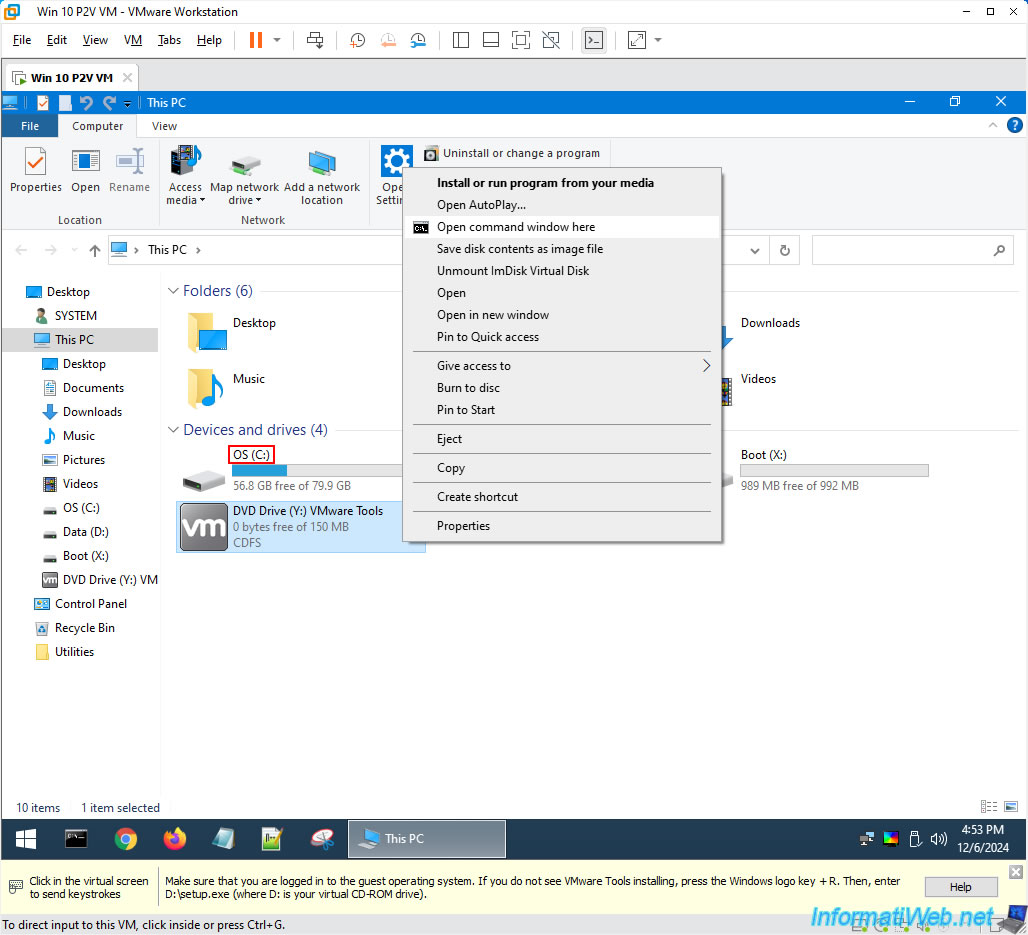
Right click "Open command windows here" on this DVD drive so that the command prompt uses the DVD drive as the current directory (by default).
Note that the "OS (C:)" partition corresponds to the "C" partition of our VM's virtual hard drive.
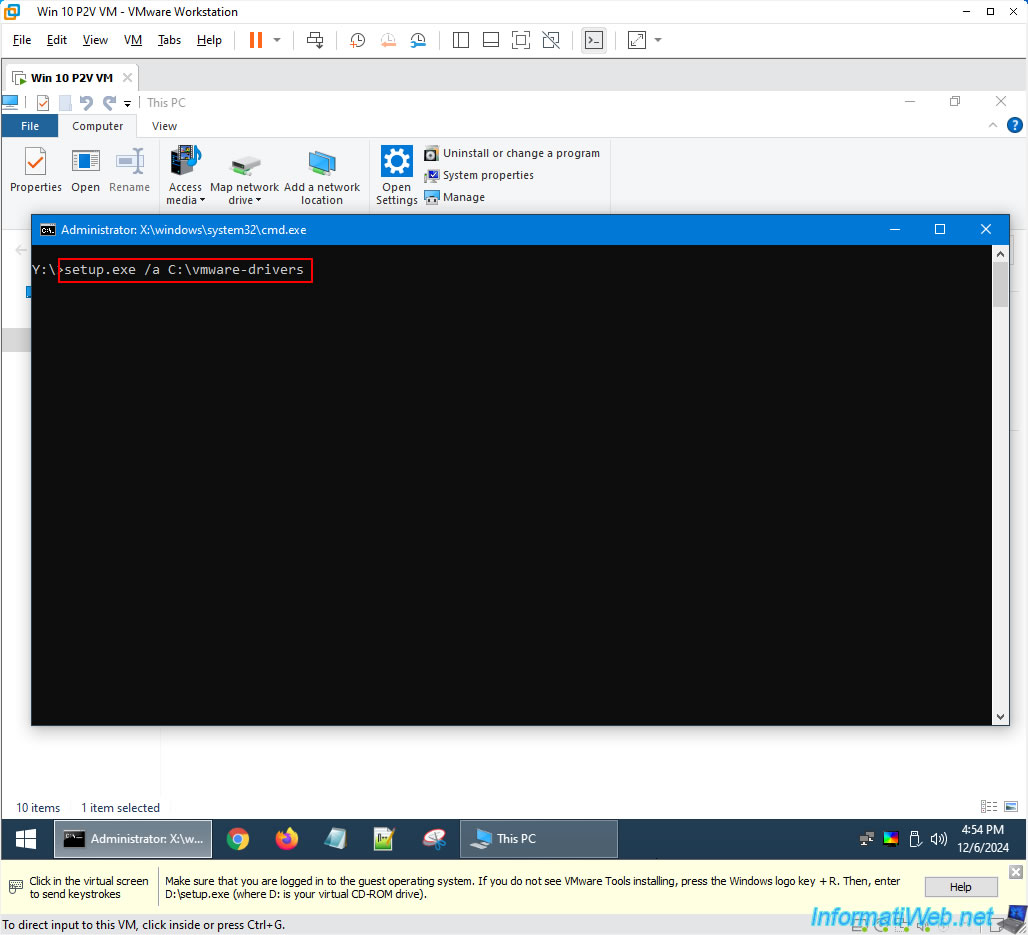
As expected, you are by default in the location "Y:\" (which corresponds to the DVD drive letter in this Windows PE environment).
To extract the VMware Tools drivers and store them in a location where they will be preserved despite rebooting your VM, type the command below.
Batch
setup.exe /a C:\vmware-drivers
Notes :
- the letter "C" refers to the "C" partition of our virtual hard drive.
- the folder will be created automatically by the VMware Tools installer if it does not exist.
Warning : you can't extract VMware Tools drivers to the Windows PE "X:\" partition, because its contents are located in your computer's RAM.
The contents of this "X:\" partition will therefore be lost when you stop or restart your VM.
The VMware Tools installer appears and tells you that it will create a server image at the specified network location.
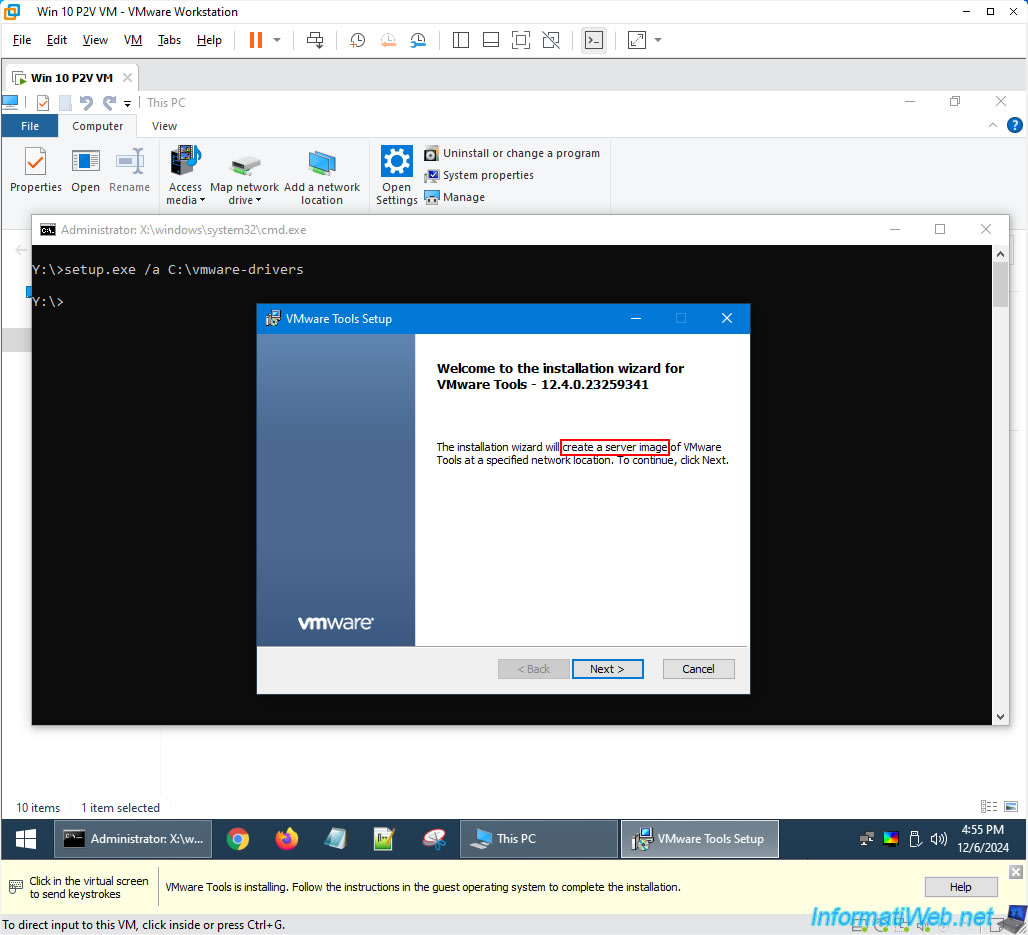
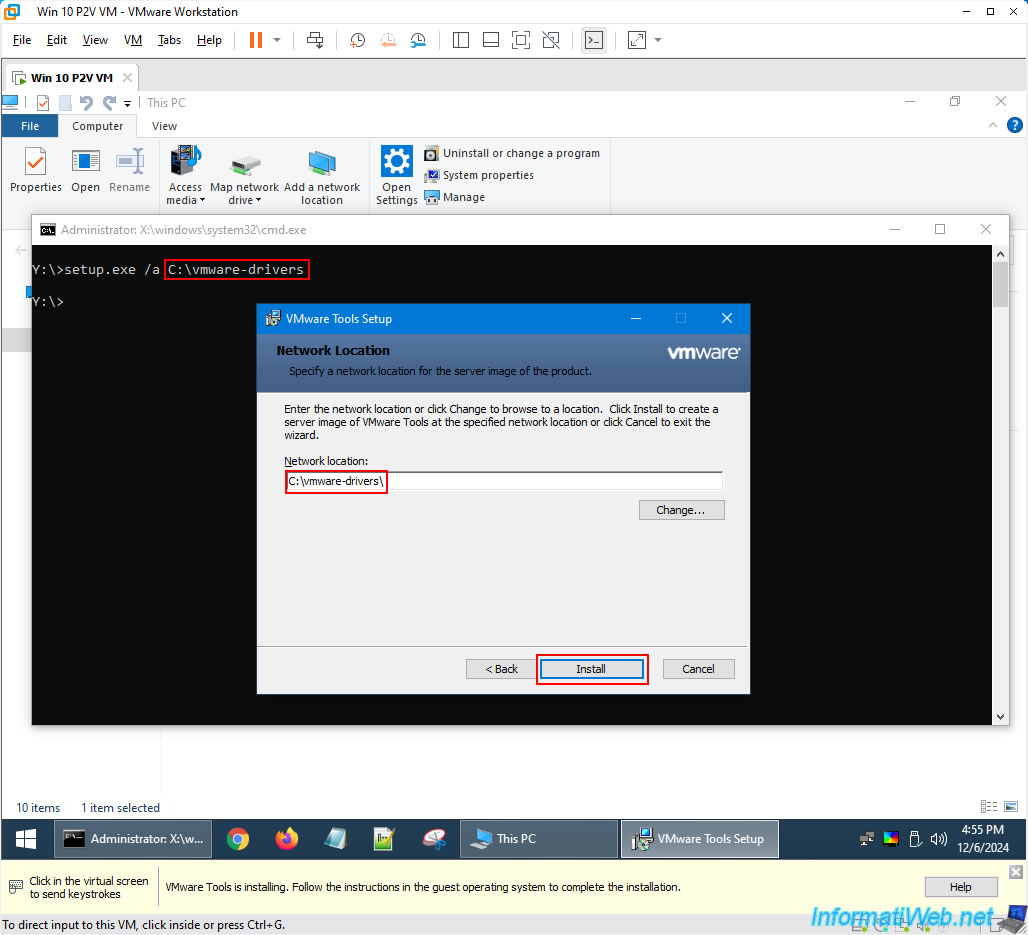
The default path used by this installer will be the one previously specified in the command prompt.
So, just click "Install".
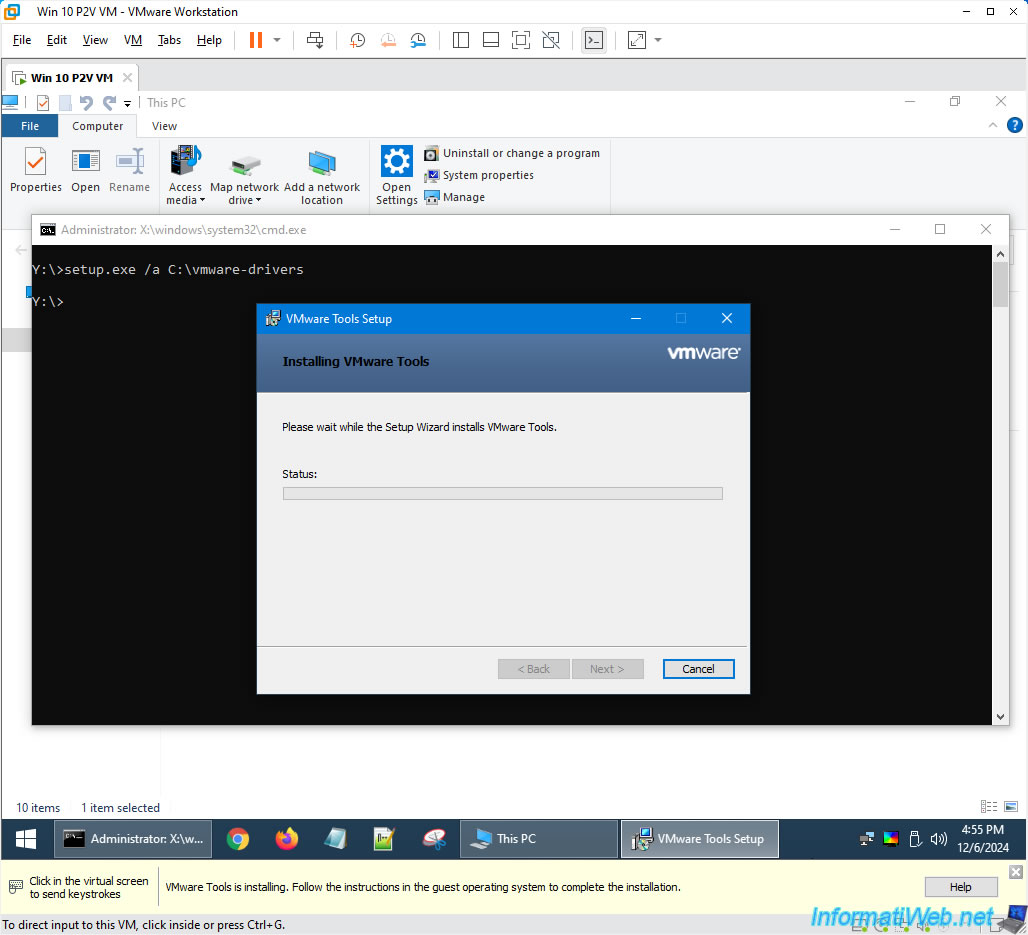
Wait while the installer extracts its files, including the VMware drivers, to the desired folder.
Once the installer is complete, click "Finish".
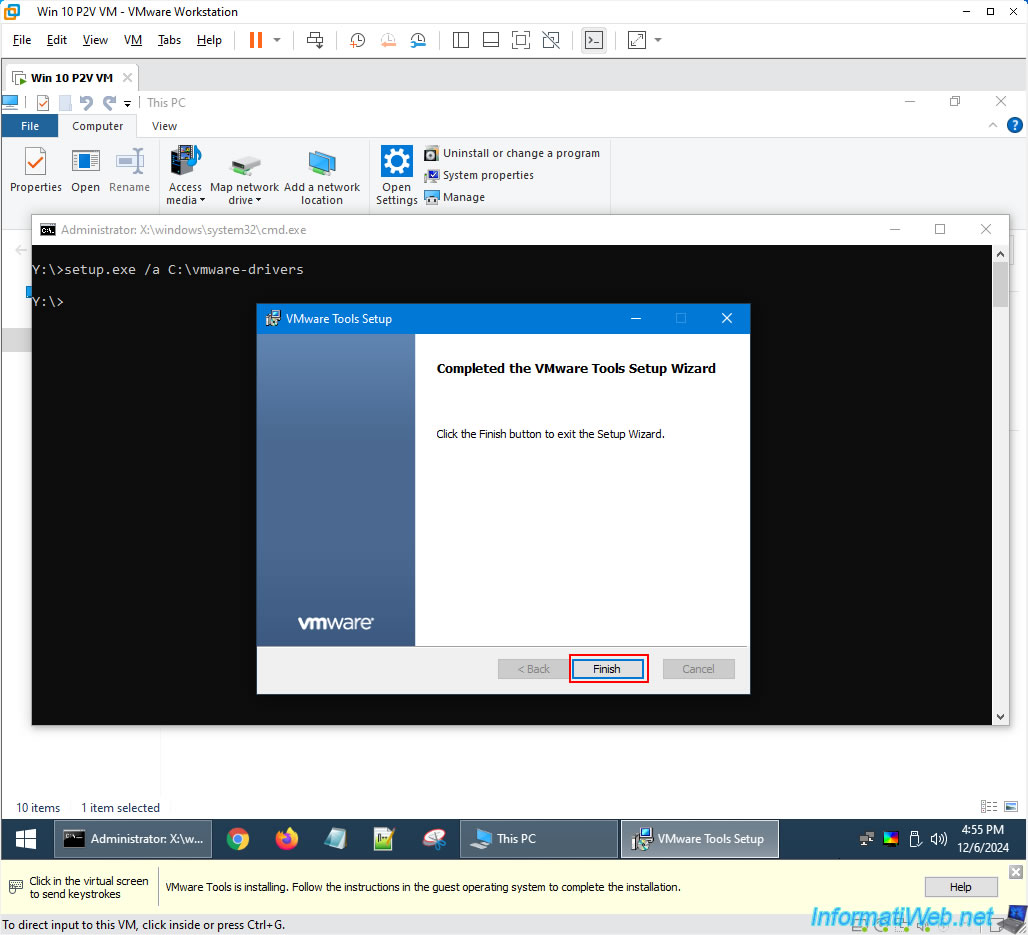
The VMware Tools ISO will be automatically removed from your DVD drive and the Hiren's BootCD PE ISO will be inserted back into that DVD drive.
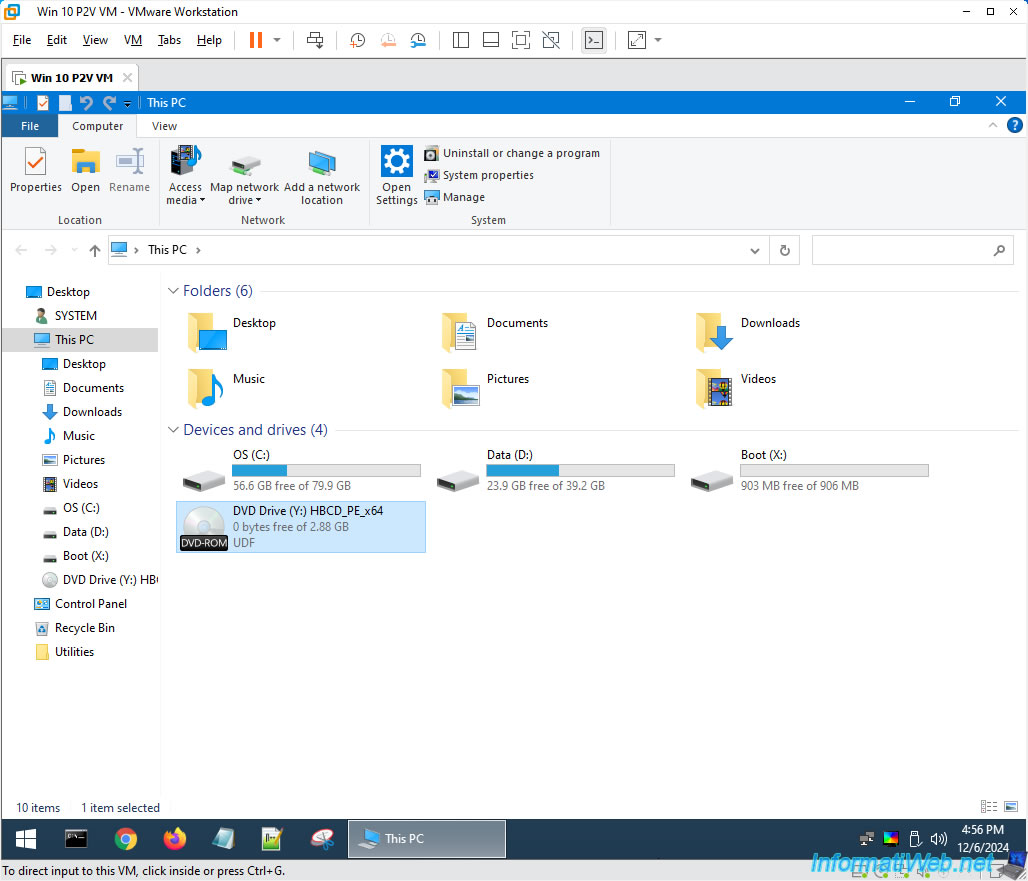
If you go to the "C:" partition, you will see that the VMware Tools installer created a "vmware-drivers" folder.
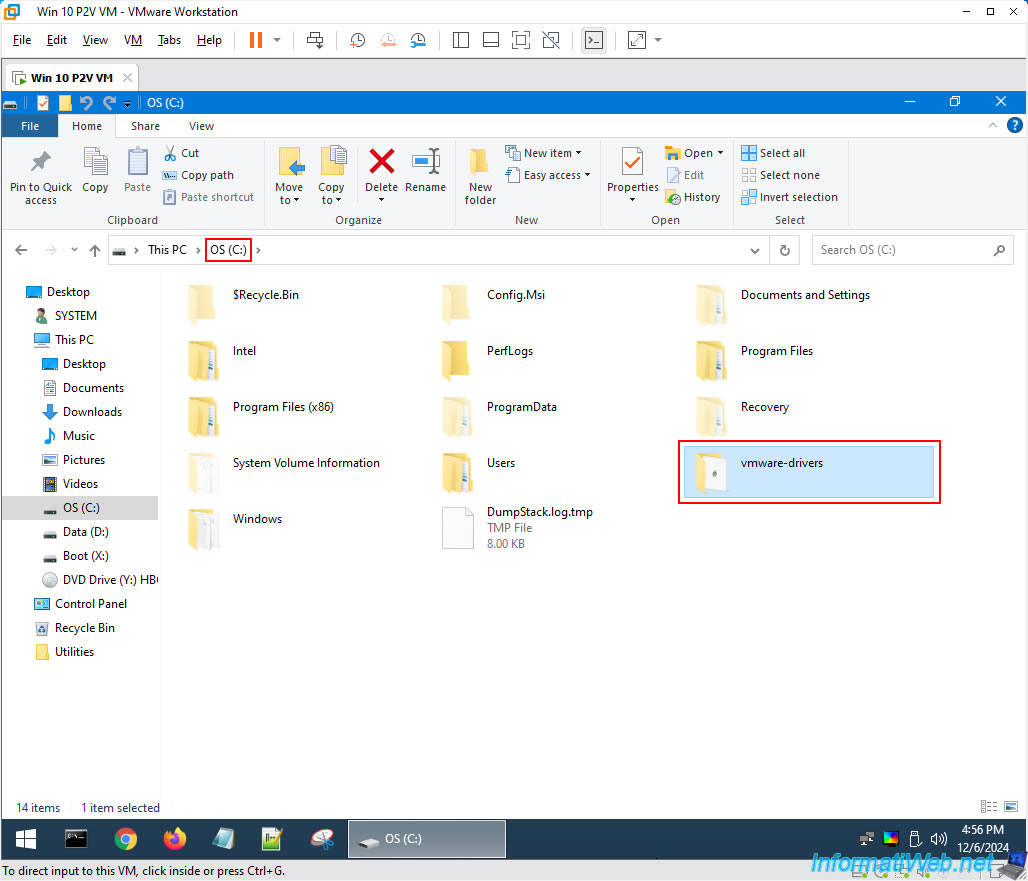
In the folder "C:\vmware-drivers\VMware\VMware Tools\VMware\Drivers", you will see that several driver folders are present.
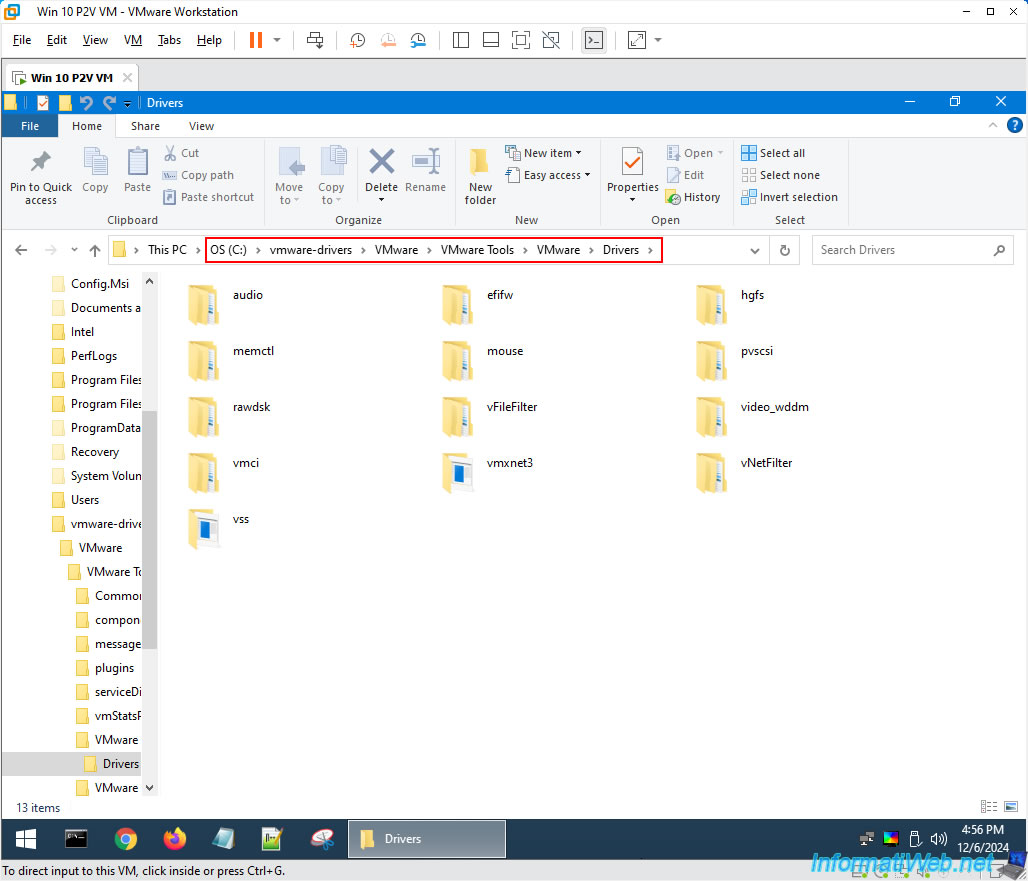
Including a "video_wddm" folder containing drivers for the graphics part of your virtual machine.
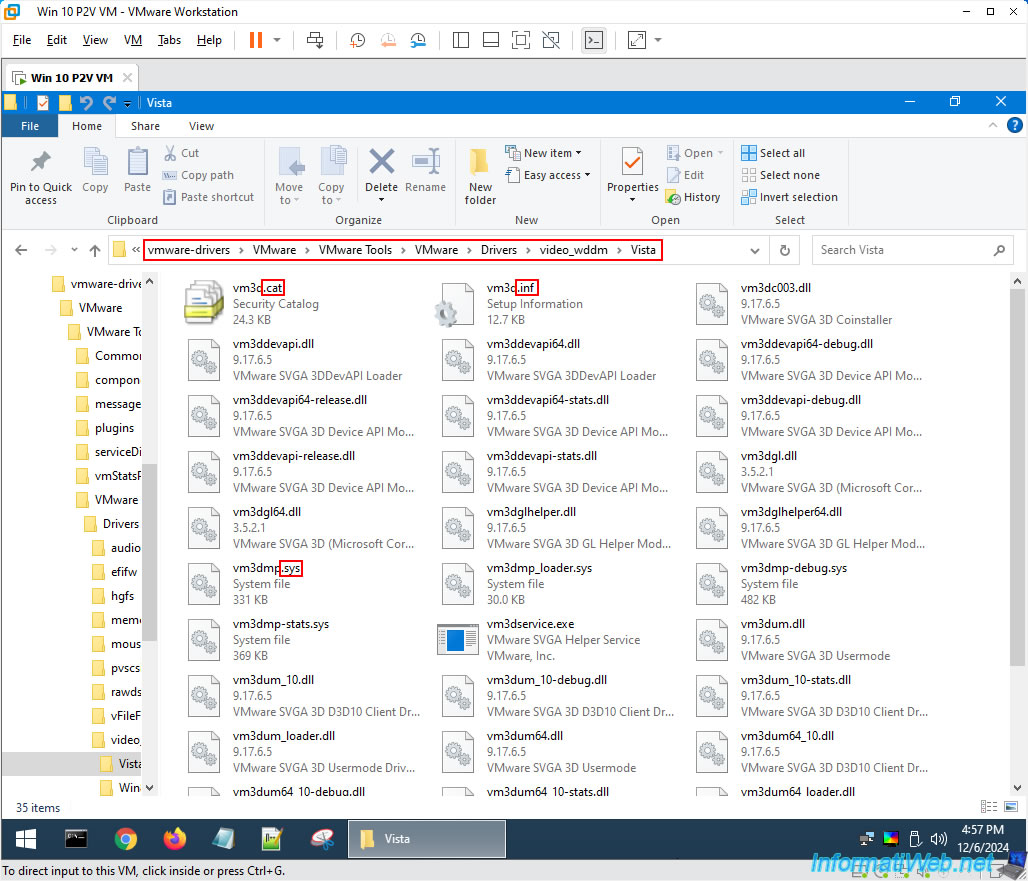
Note: as expected, these folders contain configuration files (.inf) allowing the installation of the drivers concerned, system files (.sys) or in other words the drivers themselves and optional security catalog files (.cat).
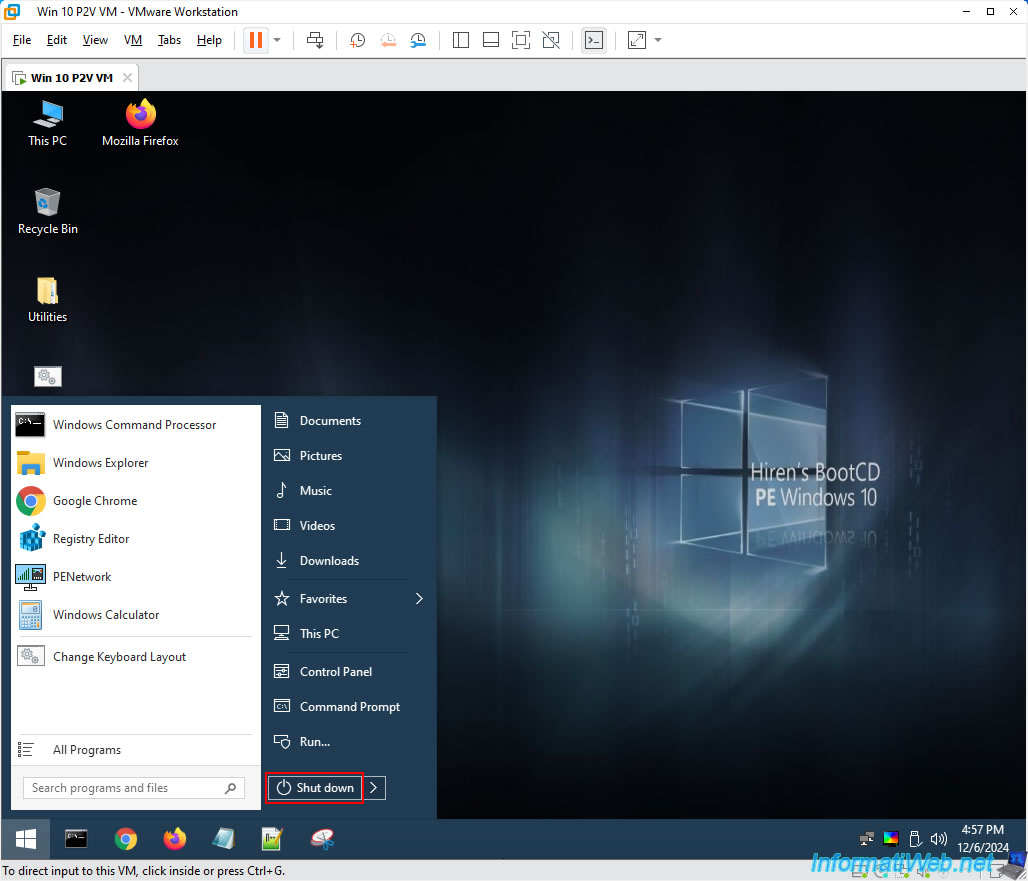
Now, shut down your virtual machine by opening the Windows PE start menu and clicking "Shut down".
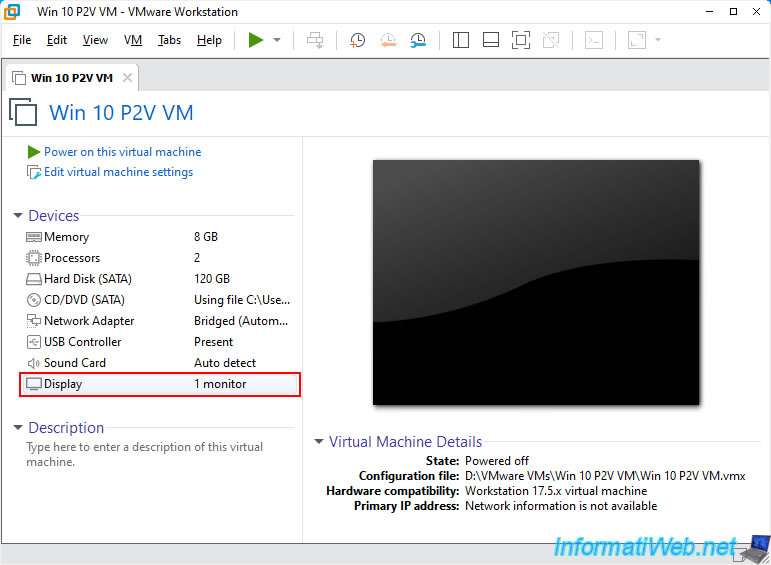
Once your virtual machine is shut down, restore its display settings by clicking on its "Display" device.
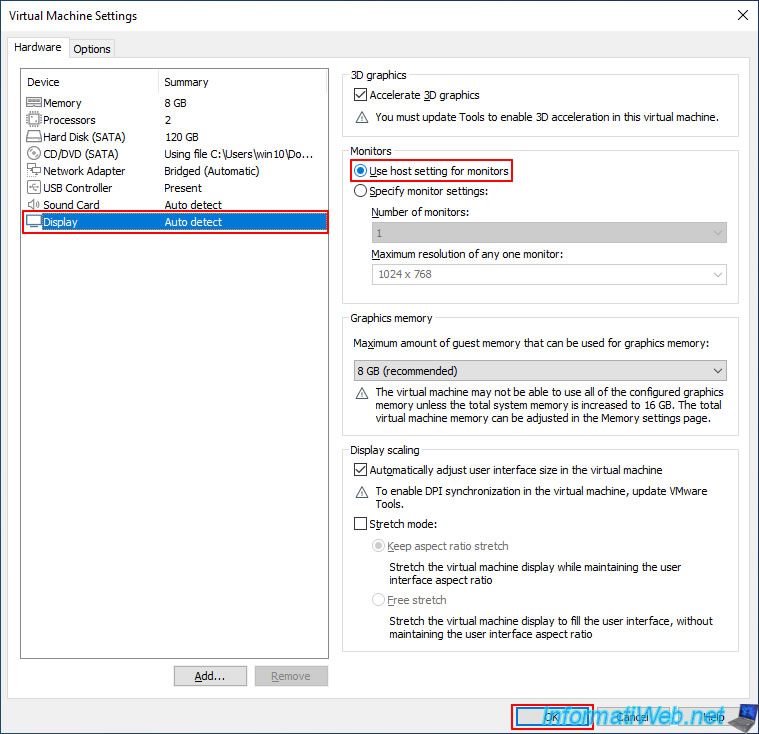
Select the default option "Use host setting for monitors" and click OK.
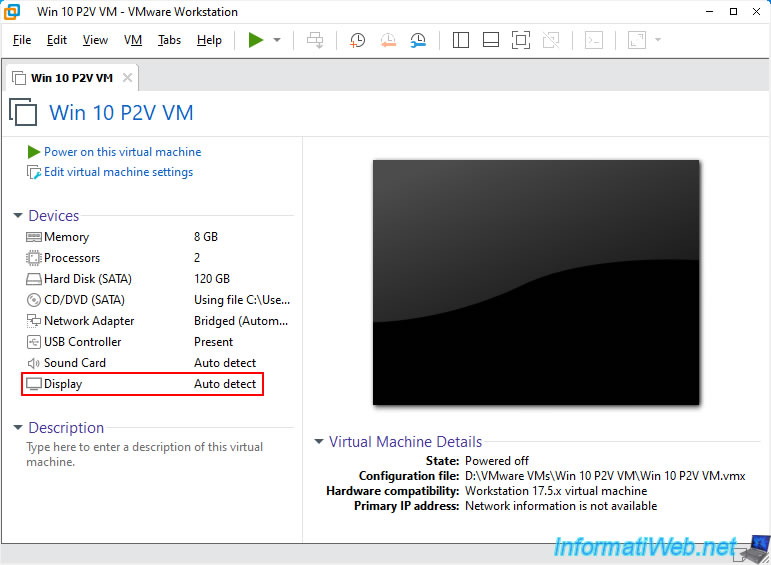
Now, the value of the "Display" device is "Auto detect" again.
Just for reference, be aware that extracting VMware Tools drivers from the Acronis Universal Restore ISO does not work.
Hence the use of the live CD "Hiren's BootCD PE" in version 1.0.2.
Indeed, if you try to open the command prompt from the Acronis Universal Restore ISO and type the command "setup.exe /a c:\extract", you will see a popup "cmd.exe - Difference in computer types" appear with the error message below.
Plain Text
The image file D:\setup.exe is valid, but corresponds to a different type of computer than this one.
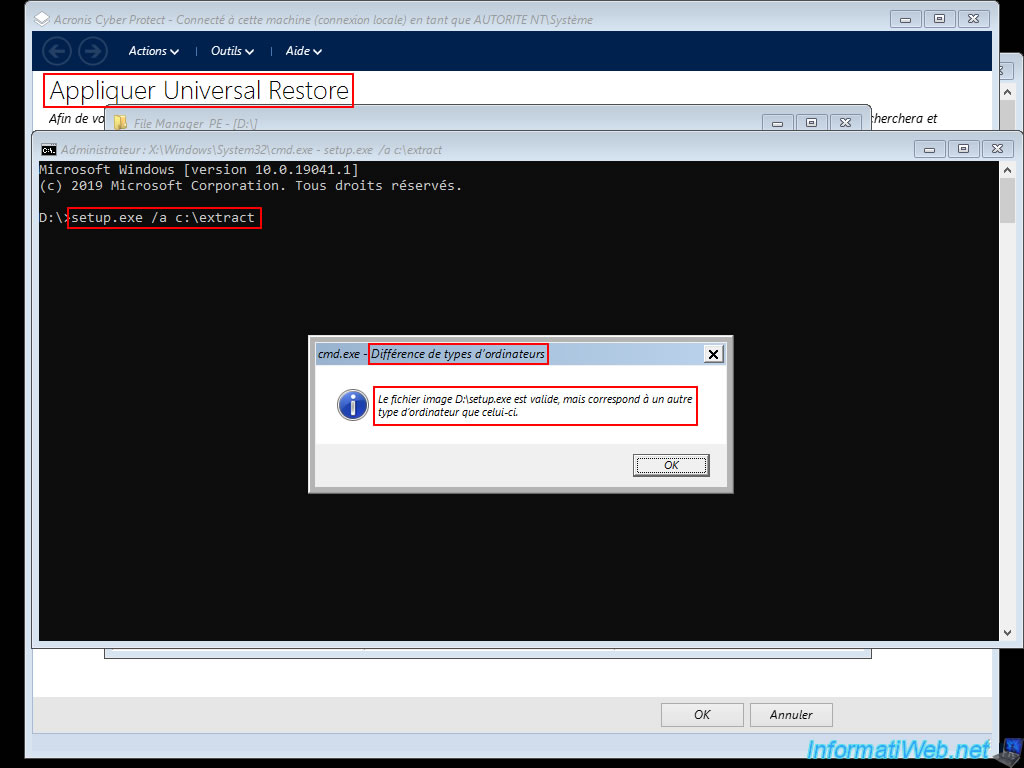
Once the popup is closed, you will also see an error message appear in the command prompt.
Plain Text
This version of D:\setup.exe is not compatible with the version of Windows you are currently running. Check your computer's system information and then contact the software publisher.
If you try to use the 64-bit version of the VMware Tools installer, a small "Installing VMware Products" window will appear at the bottom of the screen for a few seconds and then disappear and nothing else will happen.
However, you will notice that the VMware Tools ISO has been automatically removed from your VM's CD/DVD drive.
In short, it is impossible to extract the VMware Tools drivers from this Acronis ISO.
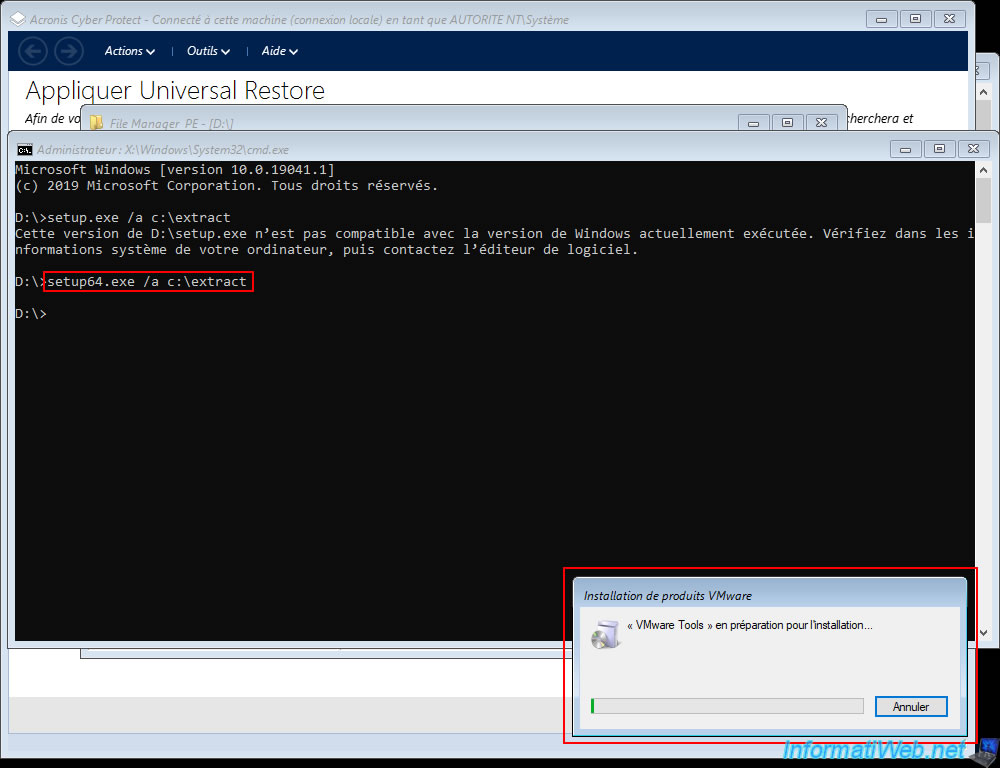
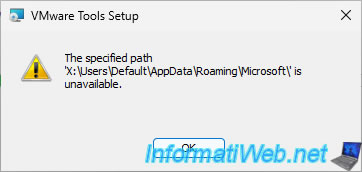
For the latest version (v1.0.8) of Hiren's BootCD PE, it uses a Windows PE environment based on Windows 11 and trying to extract VMware Tools drivers on this too recent version of this live CD would fail with the error below.
Plain Text
The specified path 'X:\Users\Default\AppData\Roaming\Microsoft\' is unavailable
Share this tutorial
To see also
-
Backup 9/7/2026
Acronis True Image - P2V - Virtualize a physical PC to VirtualBox
-
Backup 2/2/2026
Acronis True Image - Rescue Media - Create media (Win PE version) on Win 8.1
-
Backup 8/4/2025
Acronis True Image - Search for files in a backup
-
Backup 5/11/2026
Acronis True Image - Universal Restore Media - Create media (Win PE version based on Win RE)
No comment