Virtualize a physical PC to VMware Workstation Pro (P2V) using Acronis True Image (Cyber Protect Home Office) and Acronis Universal Restore
- Backup
- Acronis True Image, Acronis Universal Restore
- 15 September 2026 at 07:02 UTC
-

- 4/8
4. Extract drivers from VMware Tools (recommended for using Acronis Universal Restore)
When you use Acronis Universal Restore later in this tutorial, you will have the option to specify a folder containing the necessary drivers for your virtual machine.
However, the drivers are not visible in the VMware Tools ISO of VMware Workstation Pro.
Therefore, you will need to extract the VMware Tools drivers via a Windows PE environment to be able to specify the desired folder later to Acronis Universal Restore.
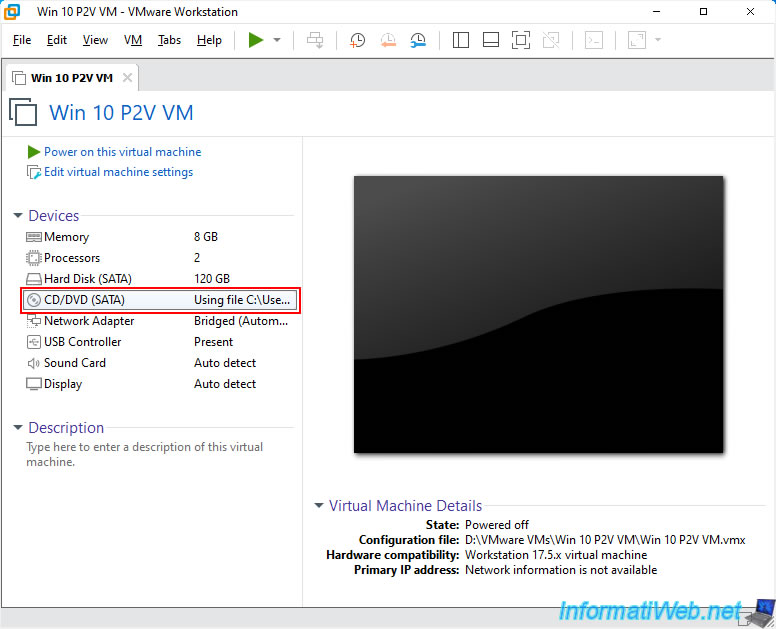
To do this, click on the "CD/DVD (SATA)" device of your virtual machine.
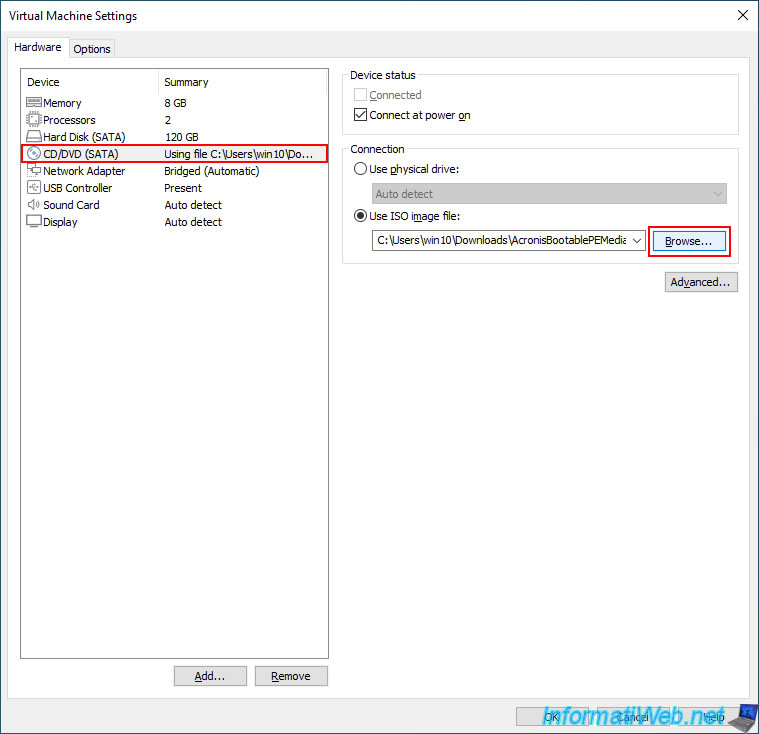
On the right, click on "Browse".
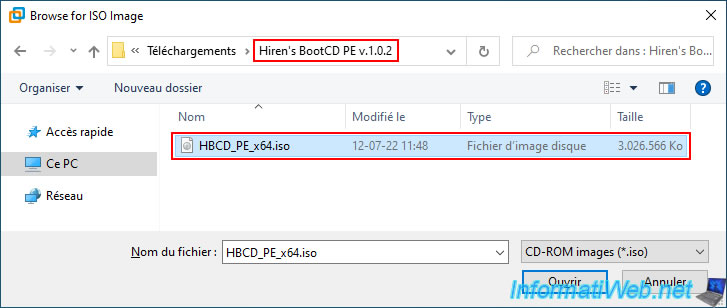
To extract the VMware Tools drivers, you will need the "Hirens's BootCD PE" live CD in version 1.0.2 (see link in the orange sentence).
Indeed, you need a Windows PE environment that also has a taskbar.
Warning : it is necessary to use version 1.0.2 of Hirens's BootCD PE to follow this tutorial, because this version uses a Windows PE environment based on Windows 10.
However, the latest version of this live CD (currently v1.0.8) uses a Windows PE environment based on Windows 11, which will cause you the error "The specified path 'X:\Users\Default\AppData\Roaming\Microsoft\' is unavailable." when you try to extract the drivers from the VMware Tools iso.
Error that will not occur with version 1.0.2 of this live CD based on Windows 10.
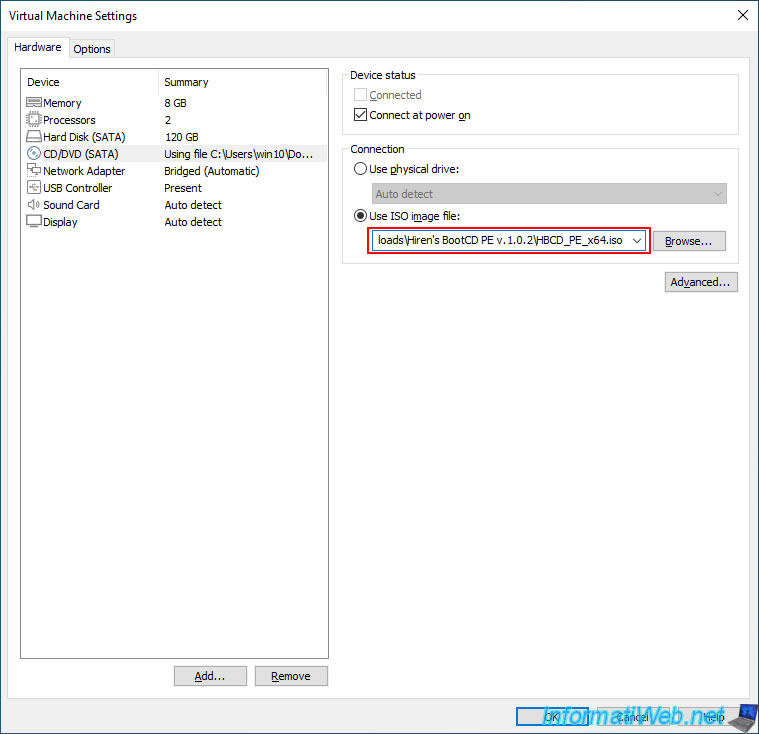
Once Hiren's BootCD PE v1.0.2 ISO is selected, click OK.
To avoid a graphical bug with Hiren's BootCD PE v1.0.2 that can appear strange in different cases (depending on your version of VMware Workstation Pro and the version of the virtual hardware of this VM), you will need to change the "Display" device.
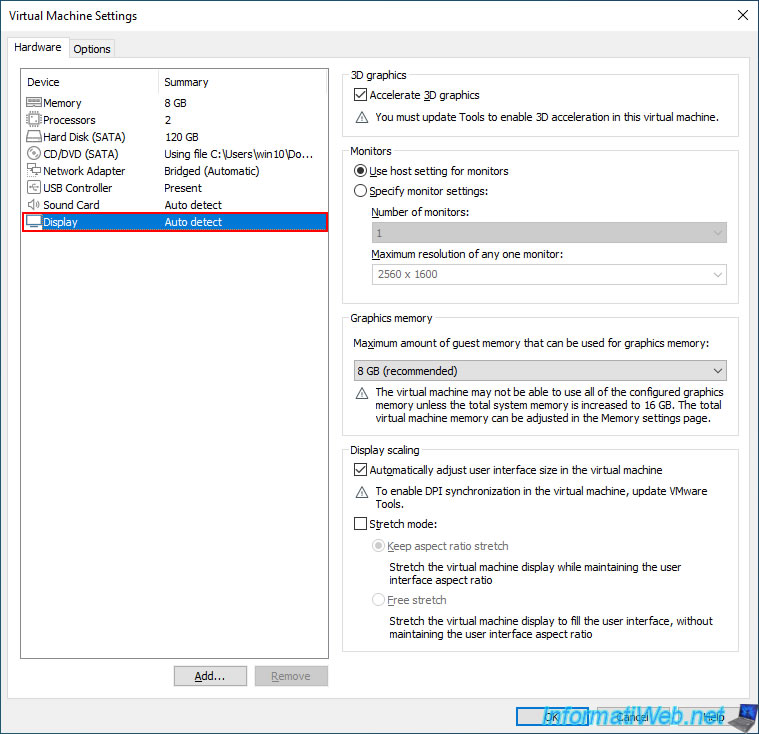
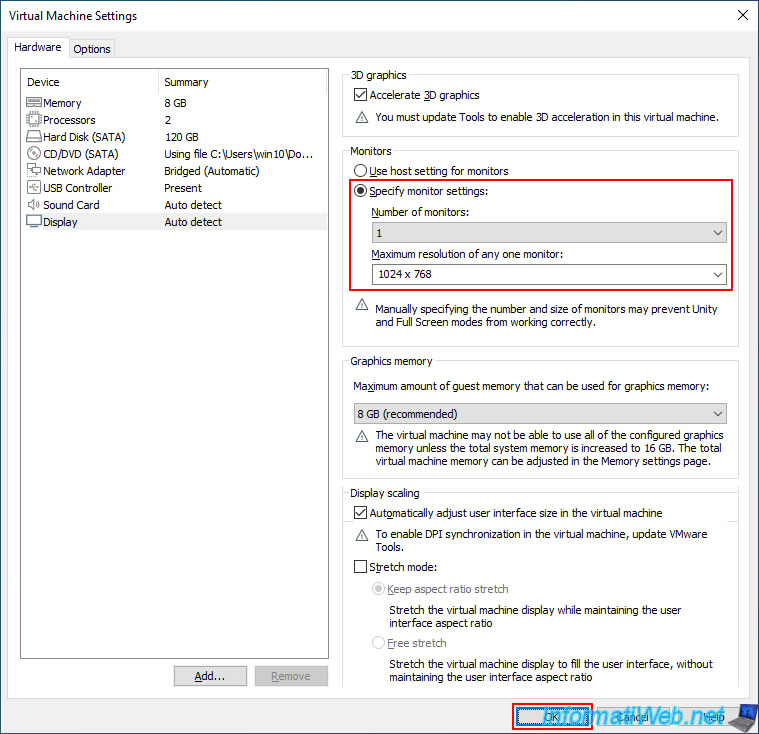
To do this, in the "Display" section of your VM's virtual hardware:
- select "Specify monitor settings".
- select "Number of monitors: 1".
- select a small resolution from the "Maximum resolution of any one monitor" list.
For example: 800 x 600 or 1024 x 768.
Then, click OK.
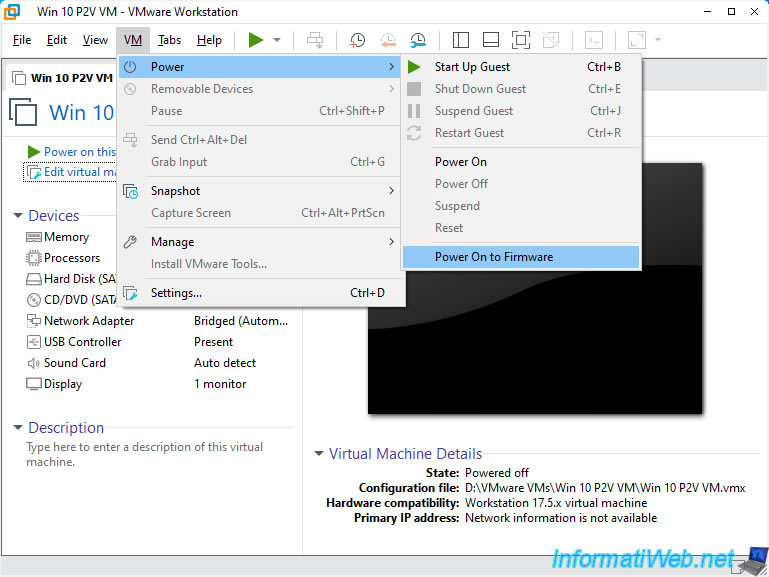
Now, boot your virtual machine to your firmware (BIOS or UEFI firmware) by going to: VM -> Power -> Power On to Firmware.
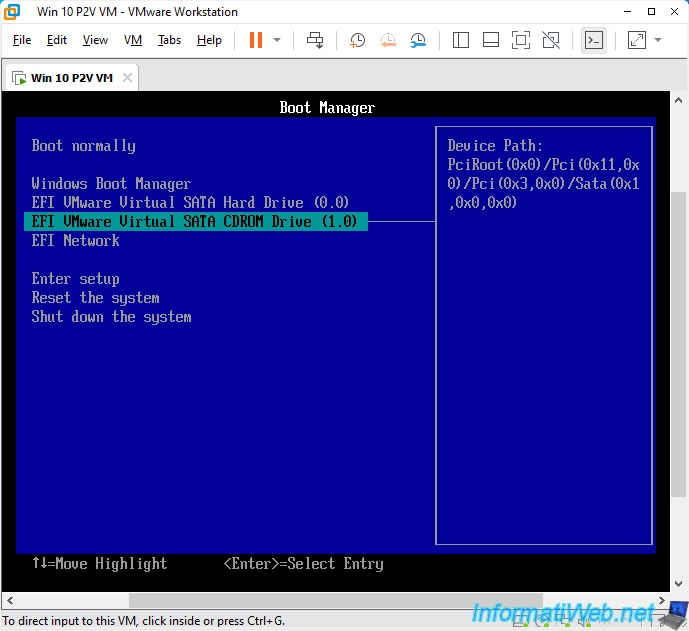
Select your VM's CD/DVD drive "EFI ... CDROM Drive" and press Enter.
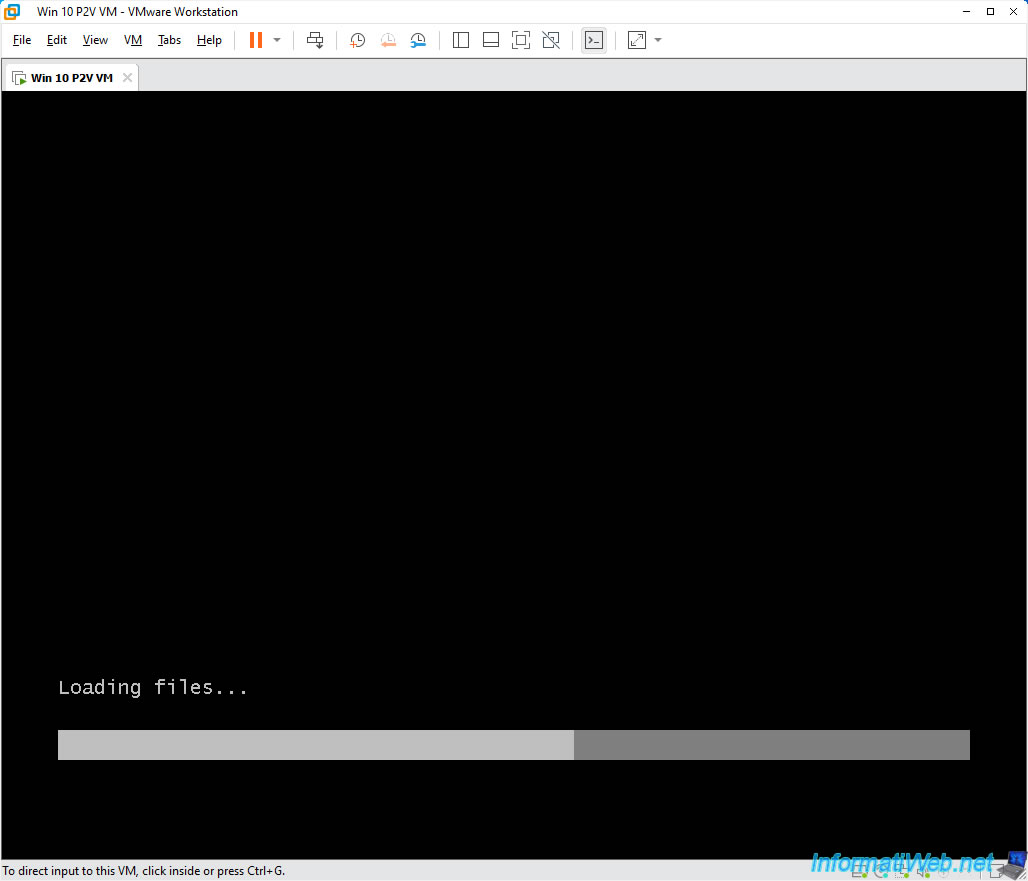
The message "Loading files ..." appears.
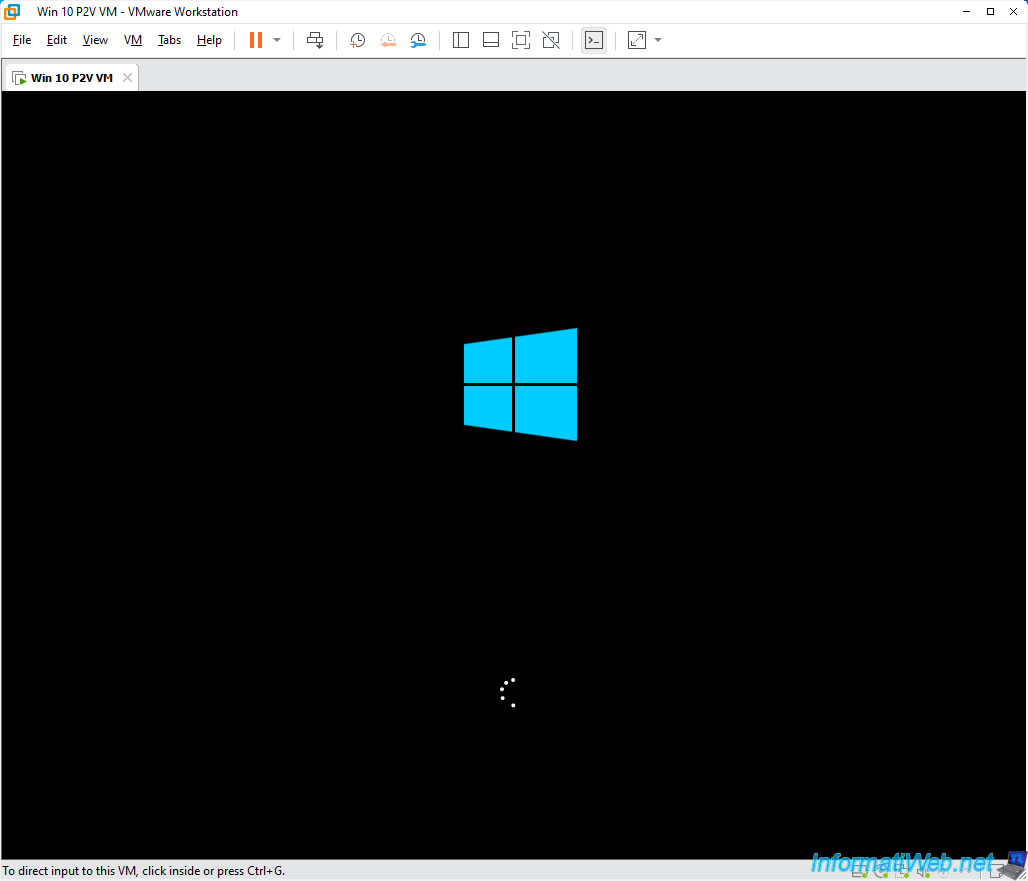
Then, the Windows logo will appear.
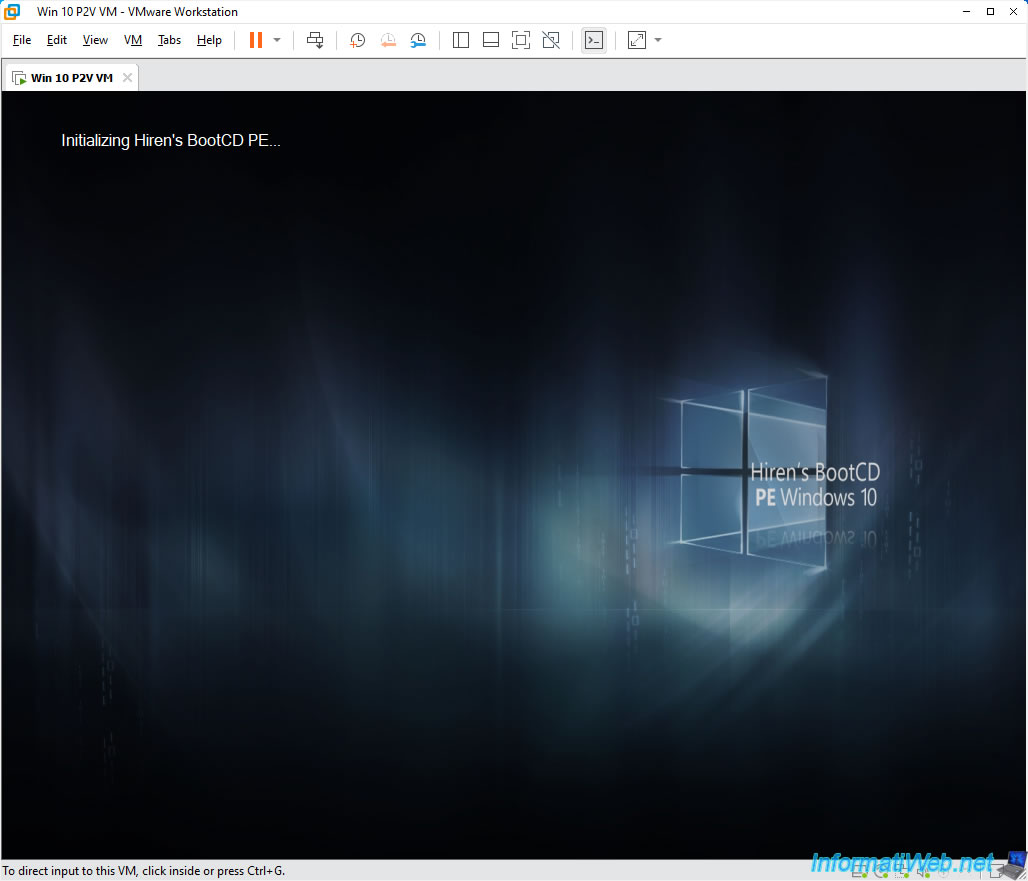
The "Initializing Hiren's BootCD PE..." message will appear in the top left.
As you can see from the Hiren's BootCD PE wallpaper and the appearance of the Windows taskbar, you are on Windows 10.
Note: as a reminder, it is necessary to use version 1.0.2 of Hiren's BootCD PE to be on Windows 10.
Because this is no longer the case with the latest version (1.0.8) of Hiren's BootCD PE.
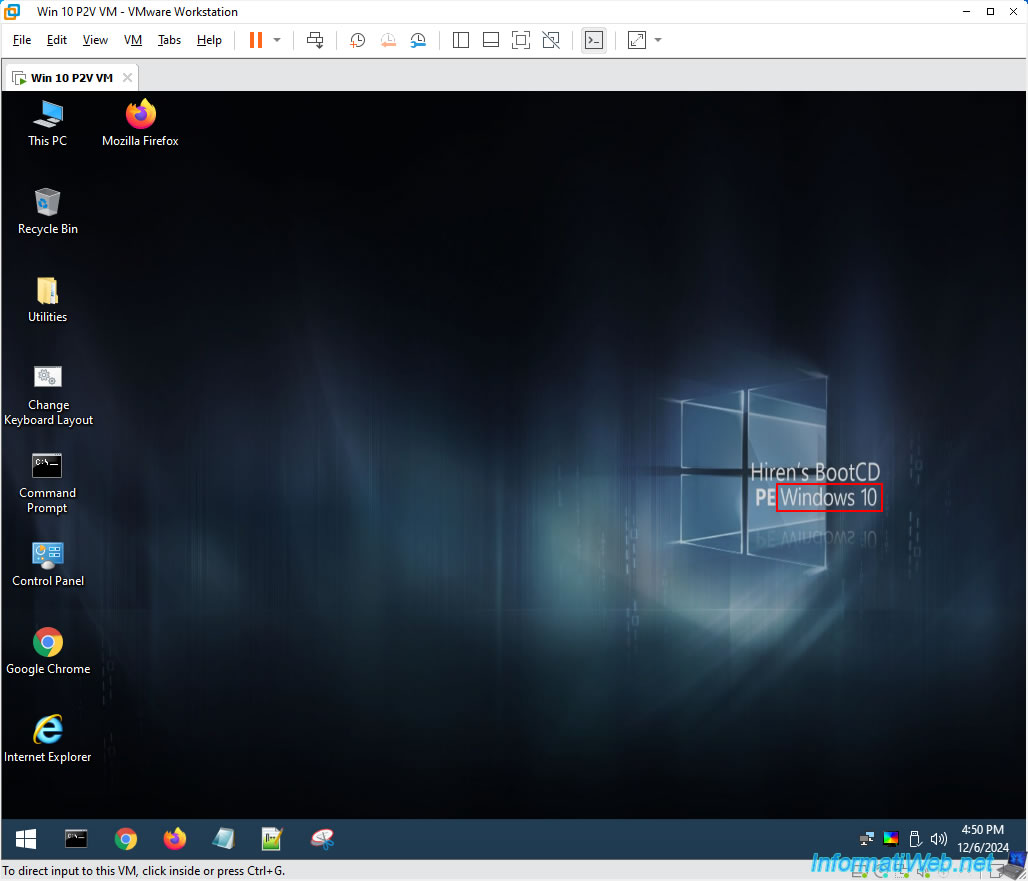
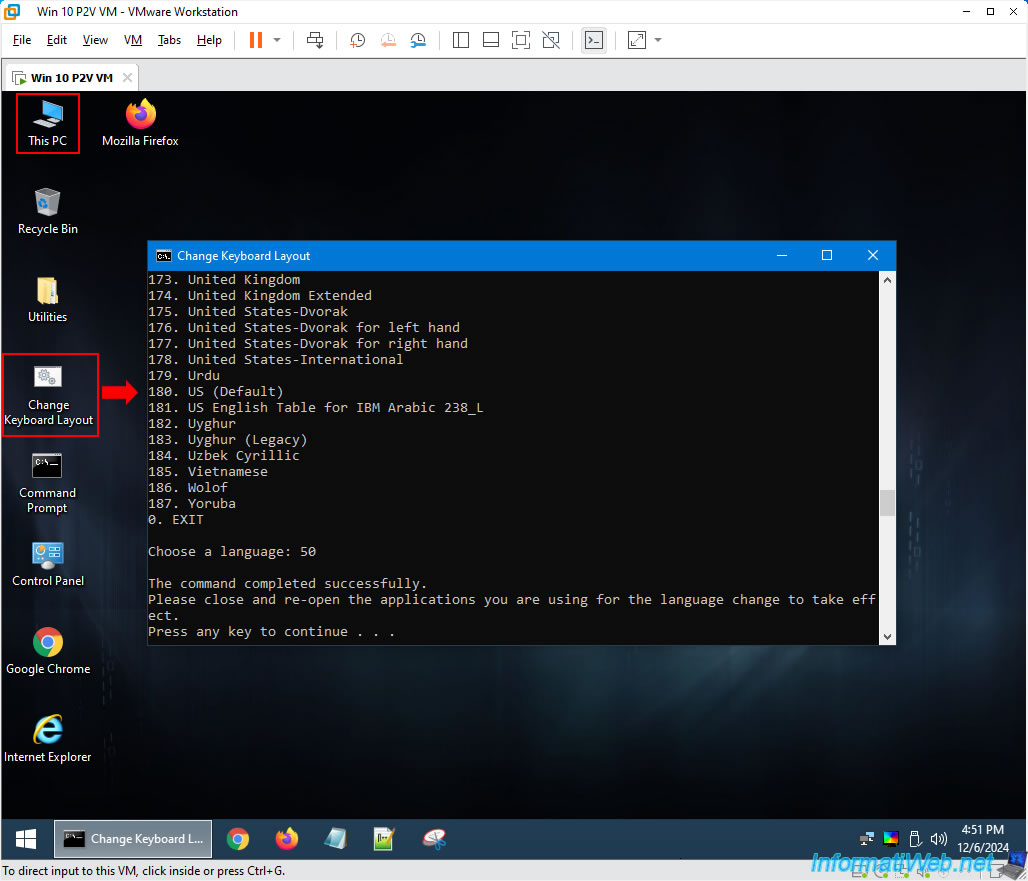
Double-click the "Change Keyboard Layout" shortcut to change the keyboard language (default is English (QWERTY)).
- For the "French (France)" keyboard, type "50", then press Enter.
- For the "French (Belgium)" keyboard, type "16", then press Enter.
- For other languages, refer to the displayed list.
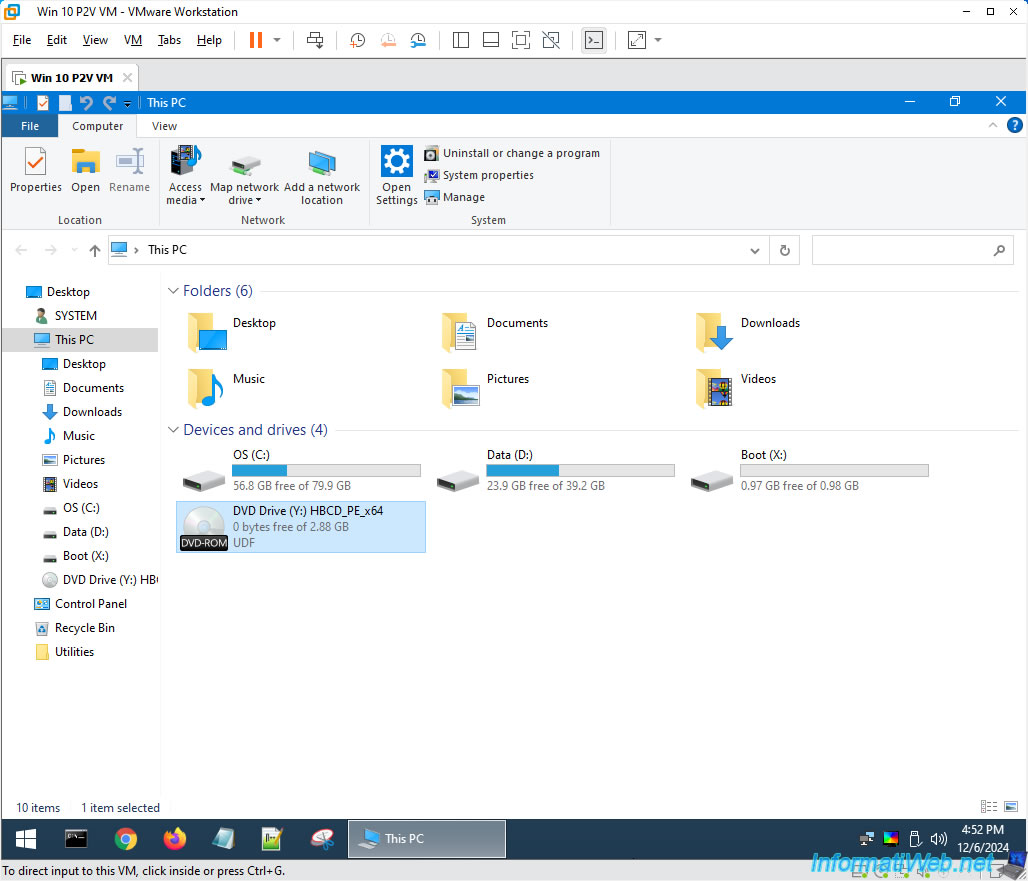
Next, open File Explorer by double-clicking the "This PC" shortcut.
At the moment, you can see that the live CD "HBCD PE" is in your VM's DVD drive.
Share this tutorial
To see also
-
Backup 10/2/2025
Acronis True Image - Clean up backup versions of a PC
-
Backup 7/21/2025
Acronis True Image - Create backups (via the version chain scheme)
-
Backup 2/9/2026
Acronis True Image - Rescue Media - Create media (Win PE version) on Win 8
-

Backup 8/7/2025
Acronis True Image - Search for files in a Cloud backup
No comment