Create Acronis True Image (Cyber Protect Home Office) rescue media in Windows PE version (based on Win ADK) on Win 8.1
- Backup
- Acronis True Image
- 02 February 2026 at 09:27 UTC
-

- 2/2
Once these 2 Microsoft components are downloaded and installed on your Windows 8.1 computer, the "Acronis Media Builder" wizard will automatically move on to the next step.
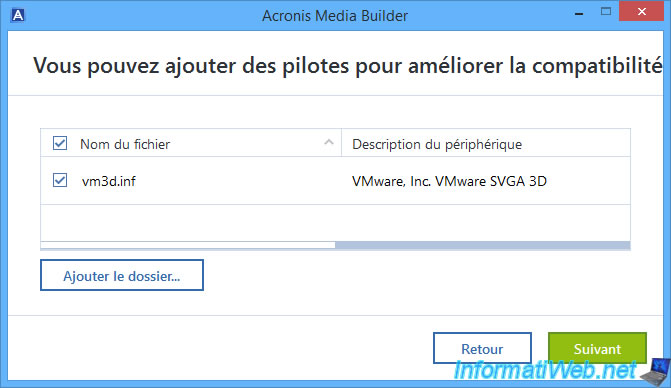
As expected, this will allow you to add drivers to your Acronis rescue media.
This will allow you to add the driver for your network card, for example, if it is not natively supported by this rescue media.
By default, the "Acronis Media Builder" tool will include the graphics driver for your graphics card (in our case, that of our VMware VM).
Warning : you will need to provide drivers intended for Windows 10, because Acronis Media Builder will use the Windows ADK intended for Windows 10.
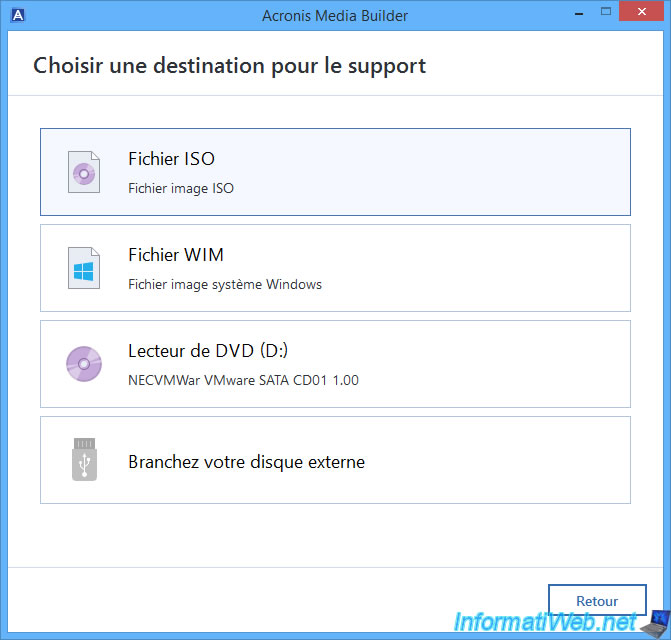
For the destination, we chose "ISO File" in our case.
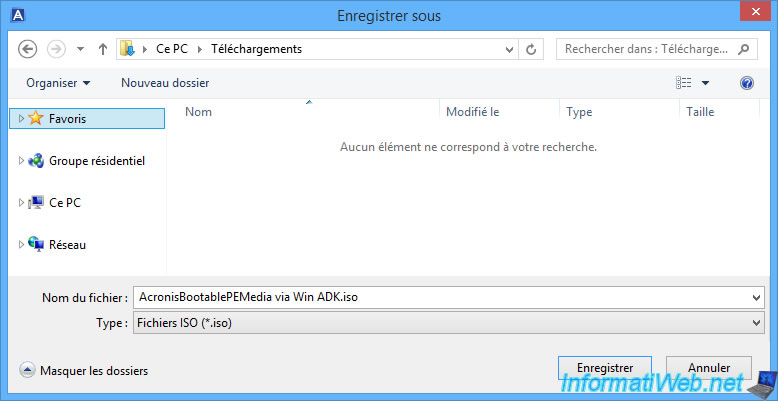
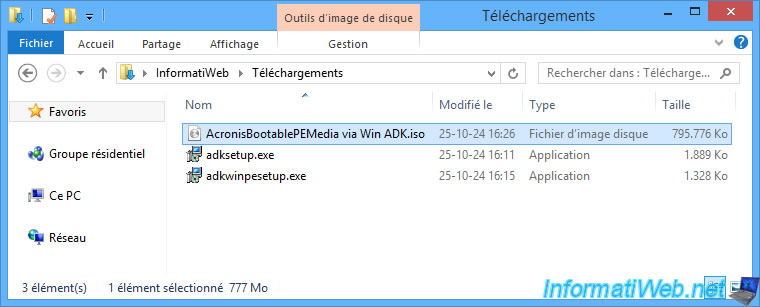
For the ISO file name we have specified "AcronisBootablePEMedia via Win ADK.iso".
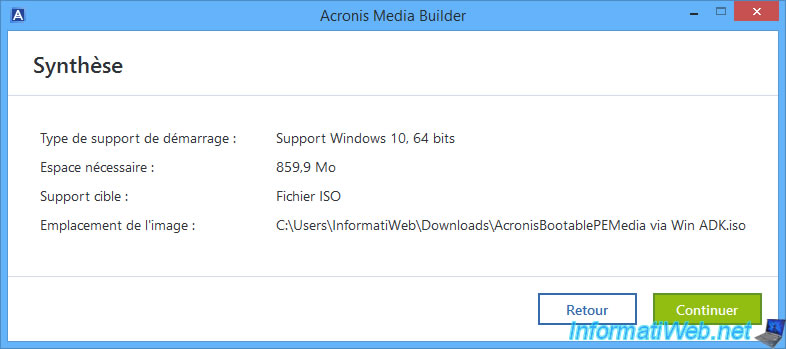
As you can see, Acronis Media Builder will create Windows 10, 64-bit media (which matches the version of Windows ADK installed) even though your computer is running Windows 8.1.
Click "Continue".
At the beginning of the creation of your Acronis rescue media, the message "Mounting .wim file" will appear.
This is possible thanks to the DISM utility (included in the Windows ADK that you have just installed) and which allows you to modify the Windows PE environment (installed as a 2nd Microsoft component just now) in command line.

Acronis Media Builder will install additional packages into this Windows PE environment.
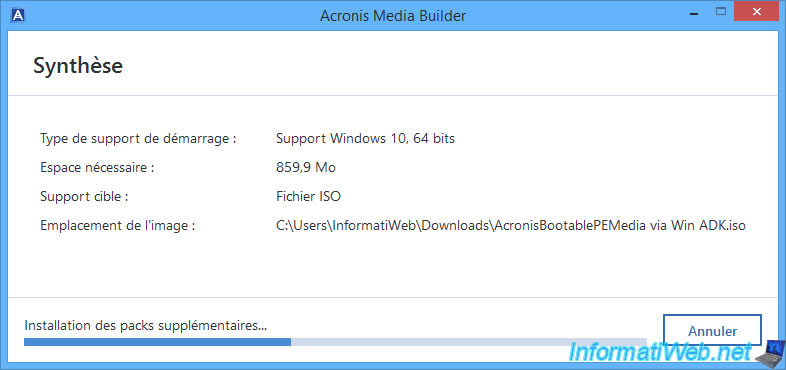
Acronis Media Builder will also add the desired drivers into this Windows PE environment.
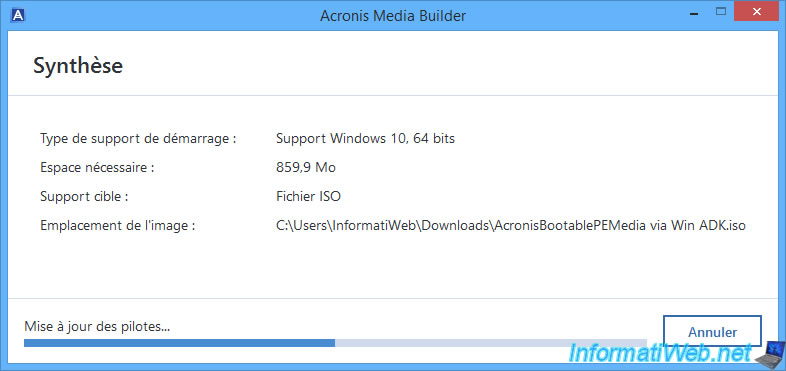
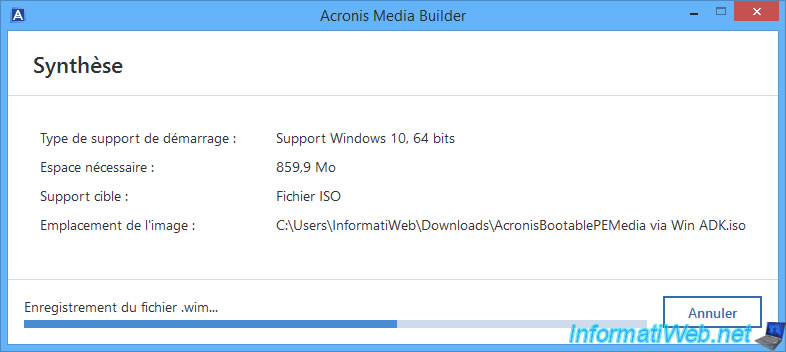
Then, save the new WIM file to add it to your Acronis rescue media.
Finally, Acronis Media Builder will create the ISO file containing this updated WIM file with Acronis tools.
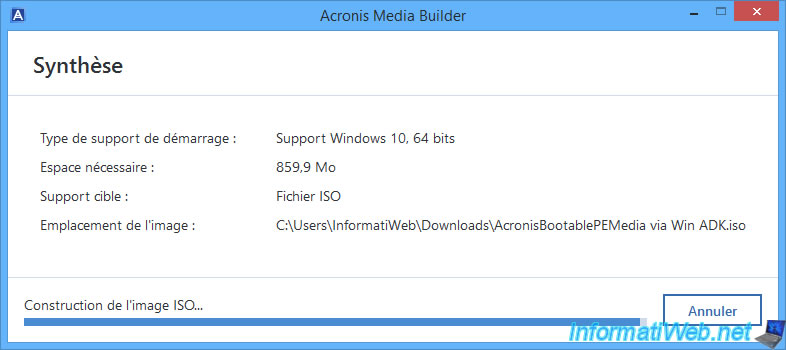
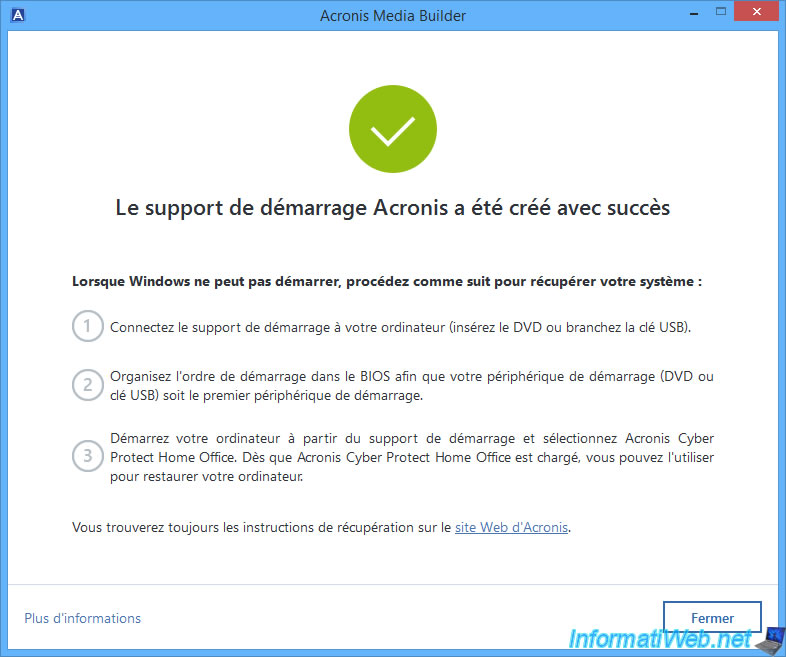
Once your Acronis bootable media is created, click "Close".
Burn this ISO image referring to our "Burn a CD/DVD" tutorial if needed.
2. Boot to your custom Acronis rescue media
Once you have burned your Acronis rescue media ISO image to a CD, configure your motherboard's boot order to boot from your CD/DVD drive first.
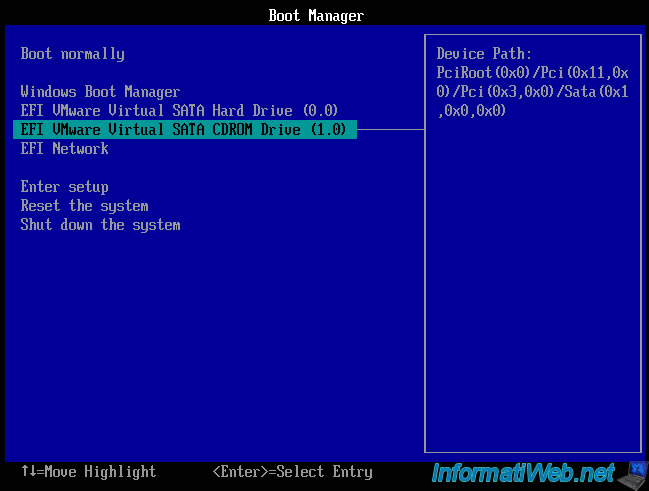
If the message "Press any key to boot from CD or DVD" appears, press Enter.

The loading logo appears when your computer starts on your Acronis rescue media.

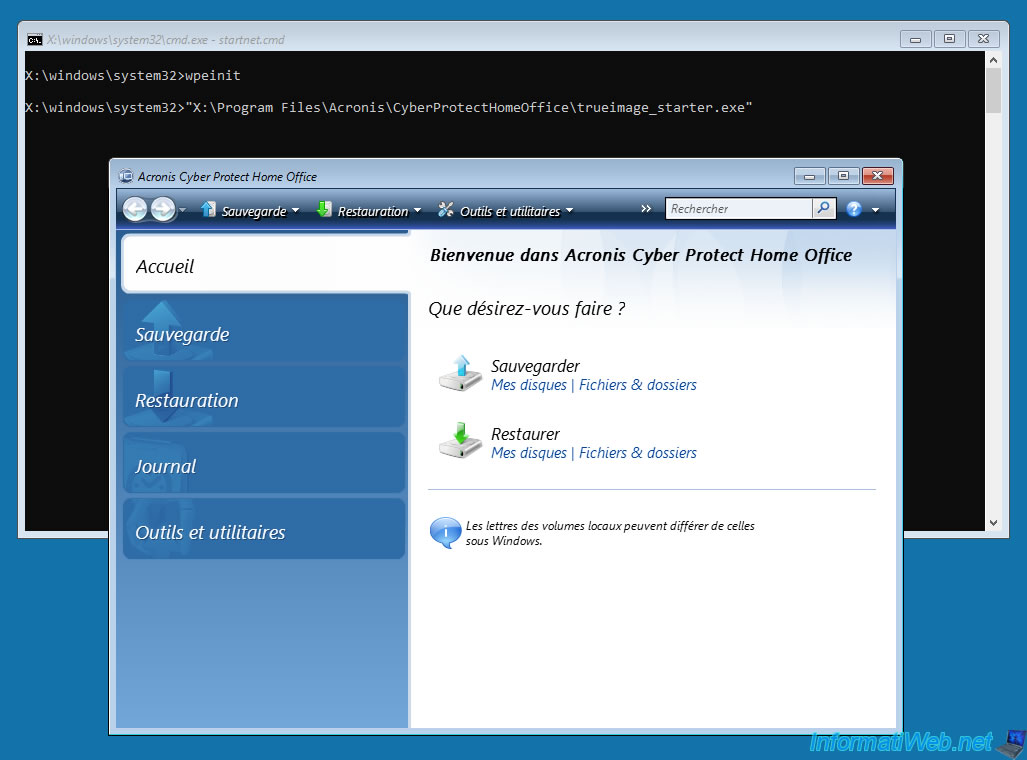
Then, a command prompt will appear and the "Acronis Cyber Protect Home Office (True Image)" tool will appear.
Share this tutorial
To see also
-
Backup 10/2/2025
Acronis True Image - Clean up backup versions of a PC
-
Backup 7/21/2025
Acronis True Image - Create backups (via the version chain scheme)
-

Backup 11/17/2025
Acronis True Image - Synchronize a folder to Acronis Cloud
-

Backup 6/29/2026
Acronis True Image - Third-party tools
No comment