Create and use Universal Restore bootable media with Acronis True Image (Cyber Protect Home Office)
- Backup
- Acronis True Image, Acronis Universal Restore
- 04 May 2026 at 13:20 UTC
-

- 3/4
6. Apply Acronis Universal Restore on the destination PC
In order for the operating system (Windows) installed on the newly restored disk on your destination PC to boot without problems despite the hardware change, you will need to apply Acronis Universal Restore on it.
To do this, restart your computer and boot again from your Acronis bootable media.
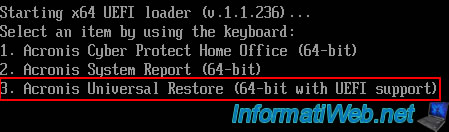
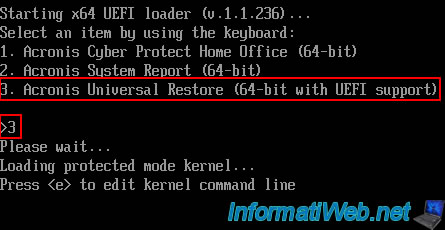
This time, choose the option "3. Acronis Universal Restore (64-bit with UEFI support)" by pressing the number 3 on your numeric keypad.
Please wait a few seconds while this program "Acronis Universal Restore" loads.

The Acronis Universal Restore logo will appear for a few seconds.

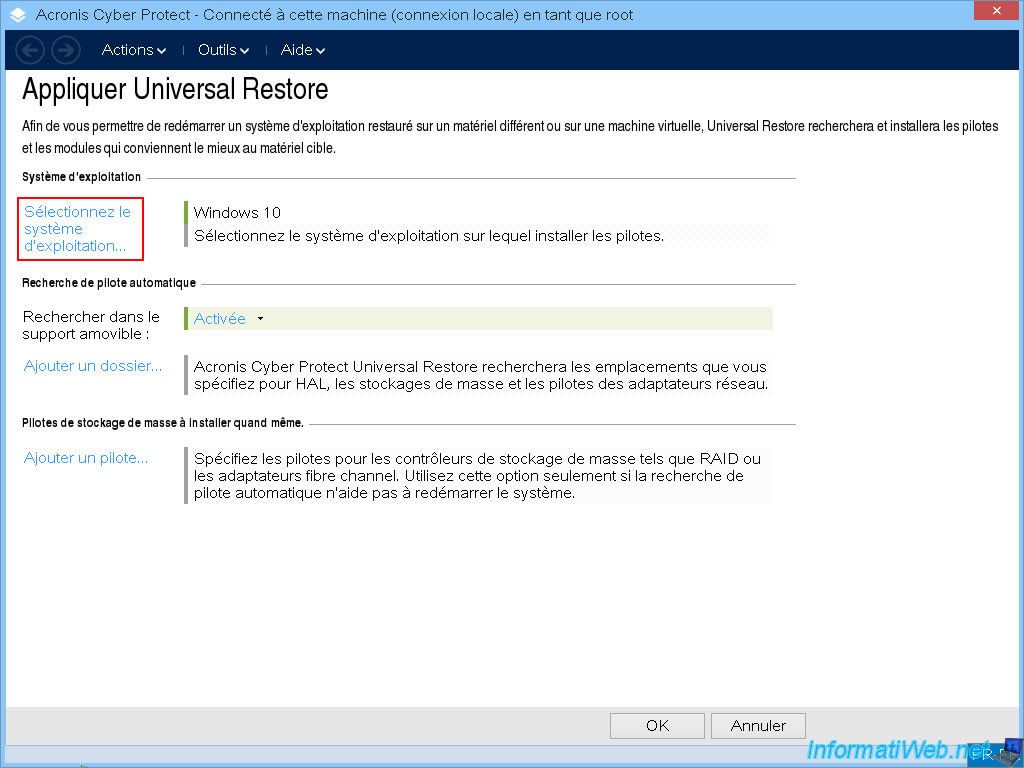
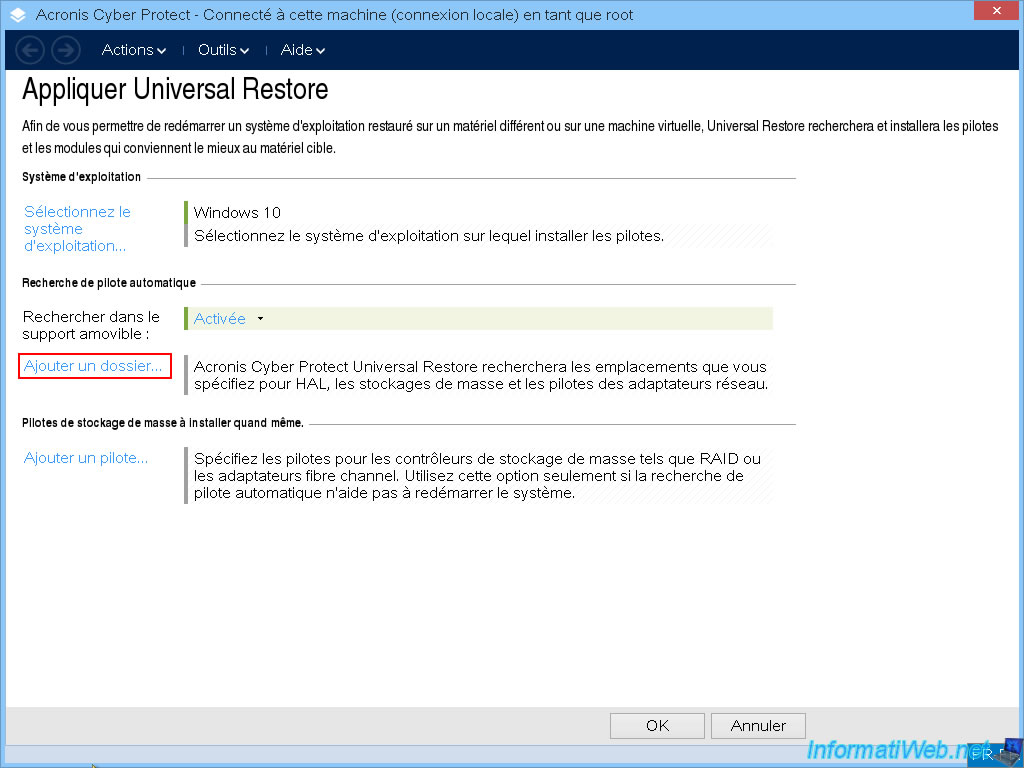
A program will appear on your entire screen with the title "Apply Universal Restore".
As you can see, in our case, Acronis Universal Restore has already detected that it is Windows 10.
However, if it is necessary in your case, you can manually select the operating system on which you want to apply "Universal Restore" by clicking on "Select operating system".
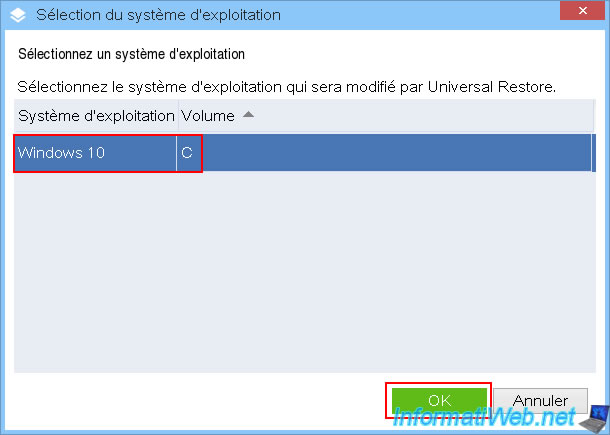
As expected, in our case, Acronis Universal Restore detects only the presence of Windows 10 on the "C" volume.
Select the desired operating system and click OK.
If needed, you can manually specify a folder where Acronis Universal Restore will search for drivers that could help increase the chances that your destination PC will reboot without problems despite the hardware change.
However, this is not mandatory.
To do this, click the "Add folder" link at the "Automatic driver search" step.
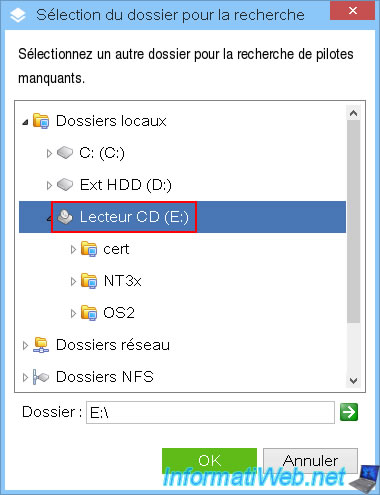
In the "Select folder to search" window that appears, select the folder where your drivers for this destination PC are stored.
For example: the CD of its motherboard or a USB stick where you would have downloaded and stored them in advance.
In our case, we have specified the CD/DVD drive where the VirtualBox Guest Additions CD is currently located.
Note that once the "Acronis Universal Restore" program is launched, the CD is no longer necessary, because everything runs in the RAM of your computer.
This allows you to insert a driver CD if you wish even though Acronis Universal Restore is launched on your computer from your bootable media.
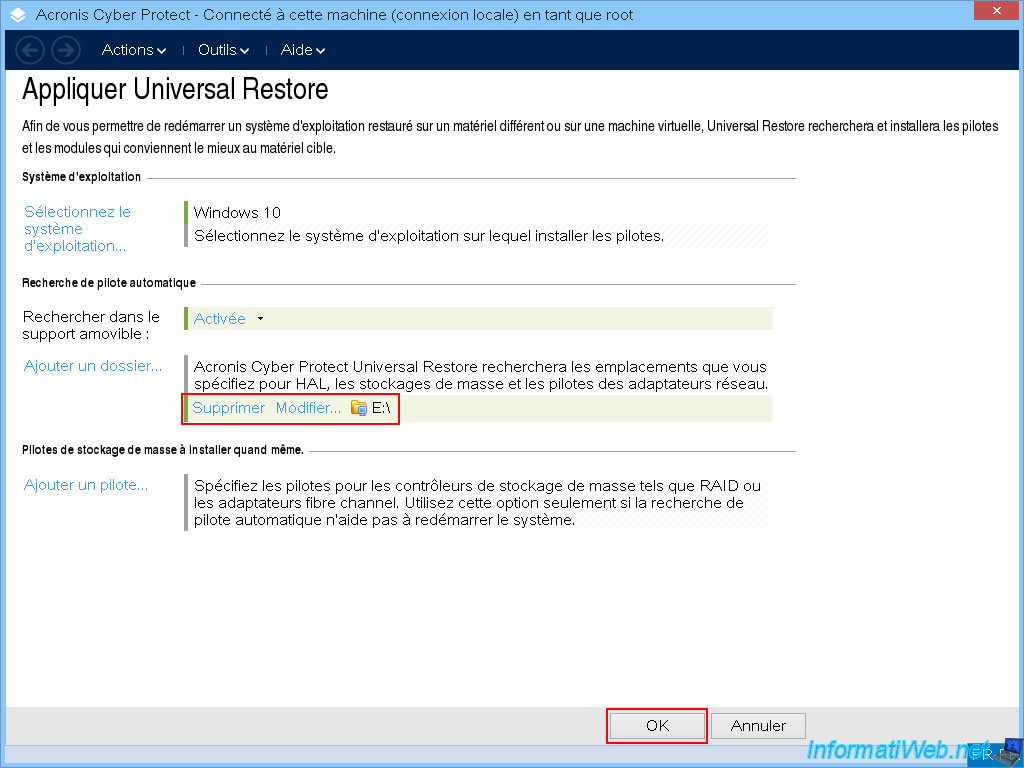
The selected folder appears with a green background in this "Automatic driver search" step.
Click "OK" to apply Universal Restore to your Windows installation (which you just restored using your Acronis backup).
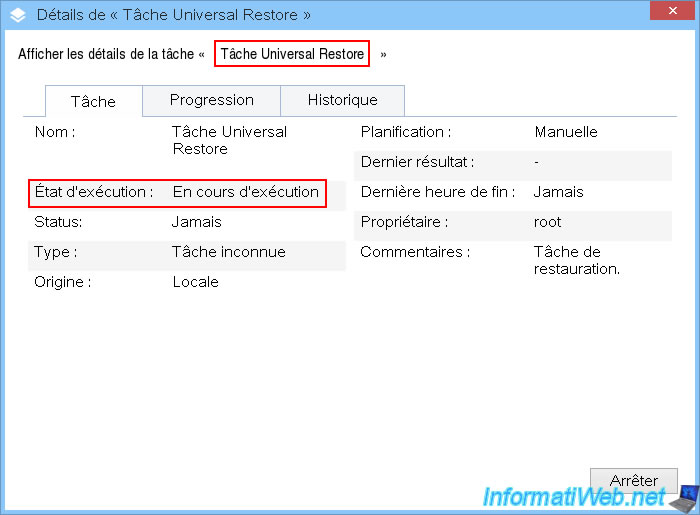
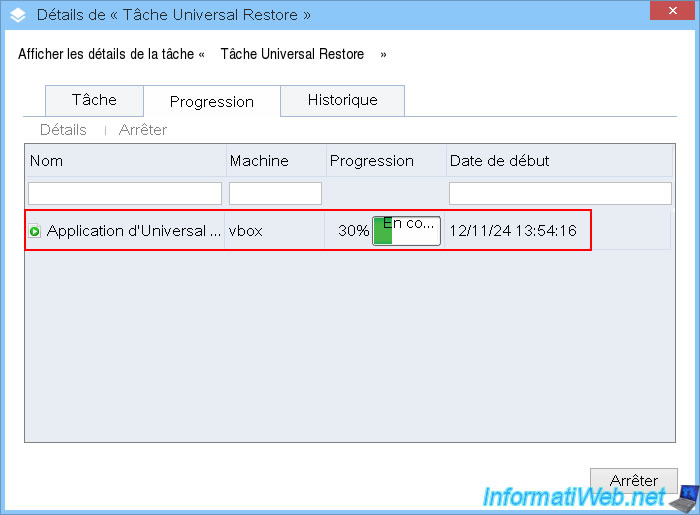
The "Universal Restore task" task will appear.
If you go to the "Progress" tab of this "Universal Restore Task" task, you will see the progress of the Universal Restore application.
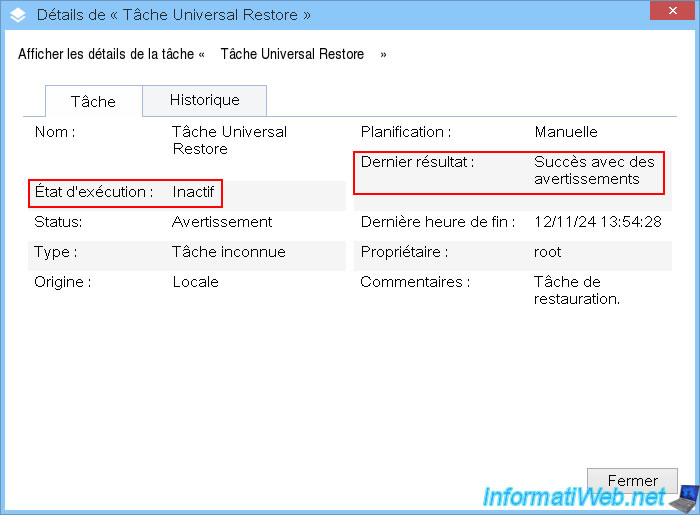
Once the "Universal Restore Task" task is completed, you will see that its execution status has changed to "Inactive" and you will also see its latest result.
In our case: Success with warnings.
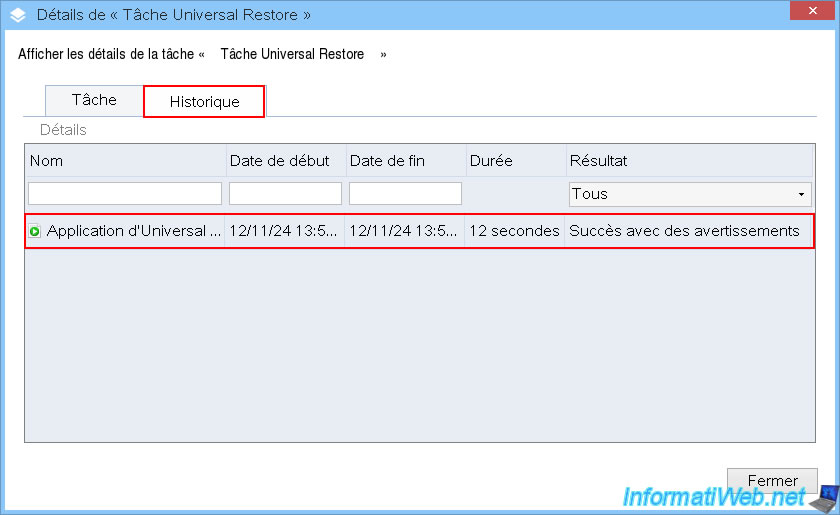
To see the warnings that occurred, go to the "History" tab and double-click on the "Applying Universal Restore" line.
As you can see, the same result appears.
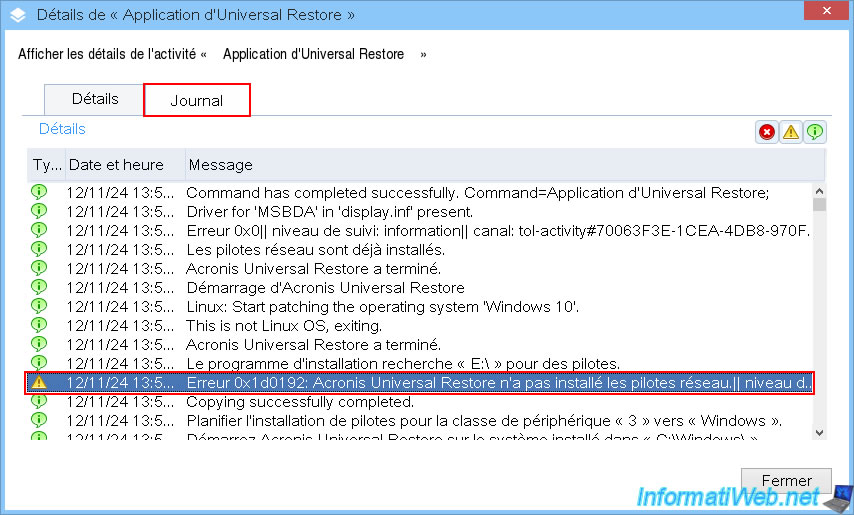
You will see a "Details of: Universal Restore Application" window appear.
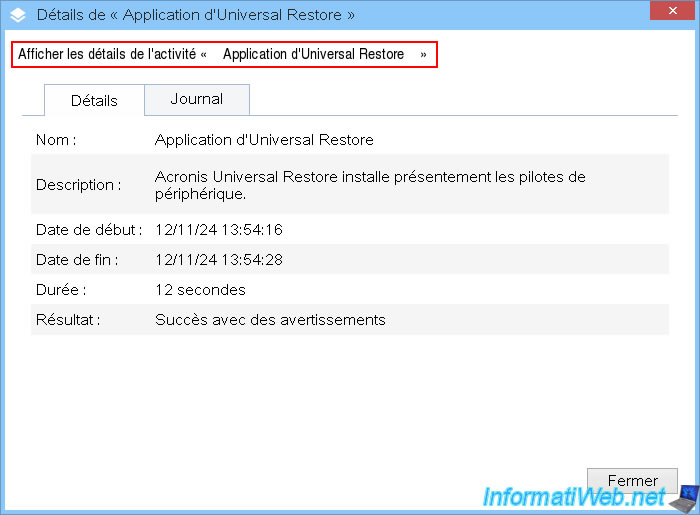
Go to the "Log" tab of this "Applying Universal Restore" activity and you will see a lot of information, including warnings that may have occurred during it.
In our case, Acronis Universal Restore simply tells us that it could not install the network drivers.
However, if you restart your computer, you will see that Windows starts without any problems (despite the hardware change).

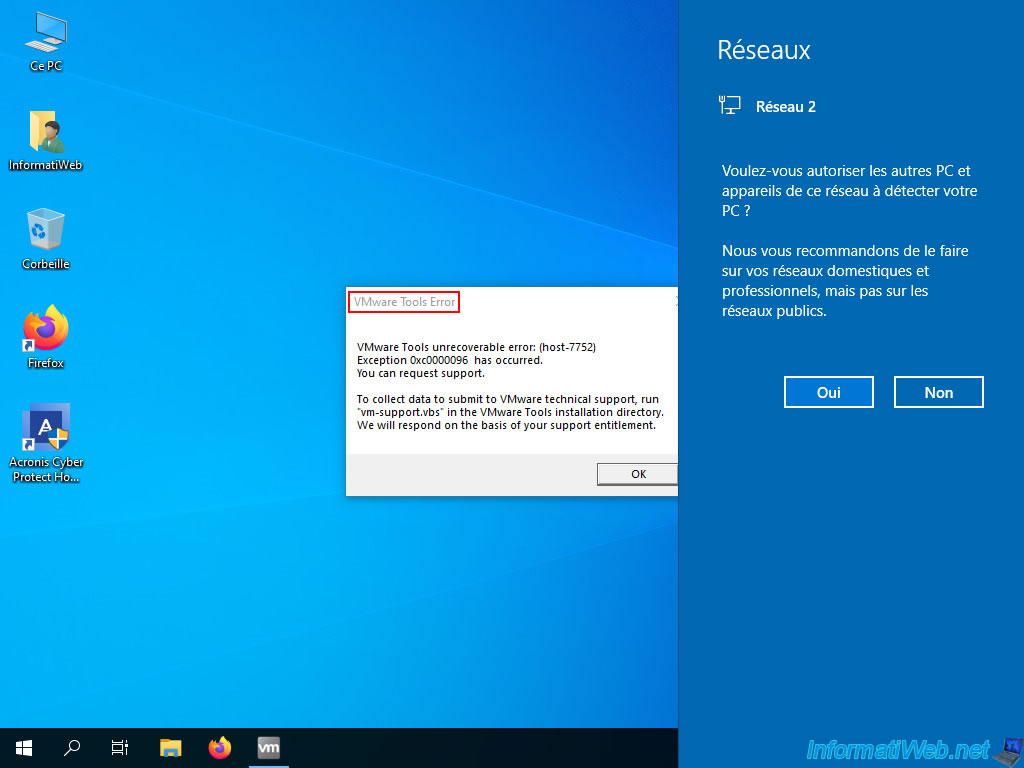
Of course, it's possible that a program related to the hardware of the source PC (as is the case for us with the "VMware Tools" program which concerned the virtual hardware of the VM created on VMware and whose backup was restored in a VirtualBox VM) produces an error.
However, you will just have to uninstall these programs that you no longer need.
A little later, your computer may automatically restart once by itself (due to the changes made by Acronis Universal Restore).

Then, Windows will restart properly.

Share this tutorial
To see also
-

Backup 10/20/2025
Acronis True Image - Archive your files locally
-

Backup 8/17/2026
Acronis True Image - Generate a report of your system
-
Backup 1/12/2026
Acronis True Image - Rescue Media - Create media easily (bootable USB key)
-
Backup 5/18/2026
Acronis True Image - Universal Restore Media - Create media (Win PE version based on Win ADK)
No comment