Create Universal Restore bootable media with Acronis True Image (Cyber Protect Home Office) in Windows PE version (based on Win AIK)
- Backup
- Acronis True Image, Acronis Universal Restore
- 25 May 2026 at 14:13 UTC
-

- 2/2
2. Create Acronis Universal Restore media based on Windows PE (Preinstallation Environment) 3.0
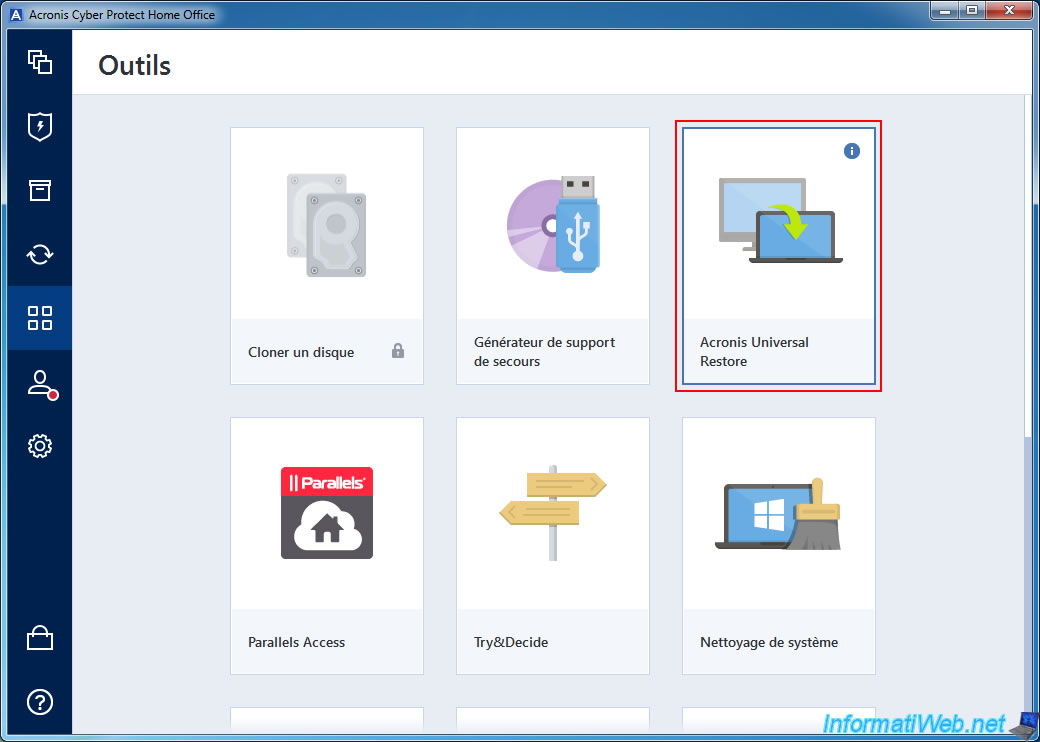
Now that the Windows Automated Installation Kit (AIK) is installed, close the "Bootable Media Builder" program and run the "Acronis Universal Restore" tool again.
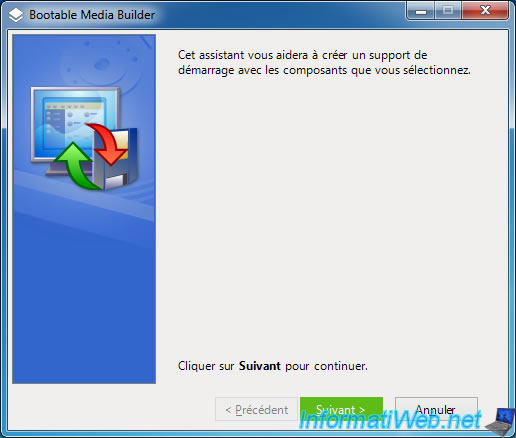
The "Bootable Media Builder" program appears.
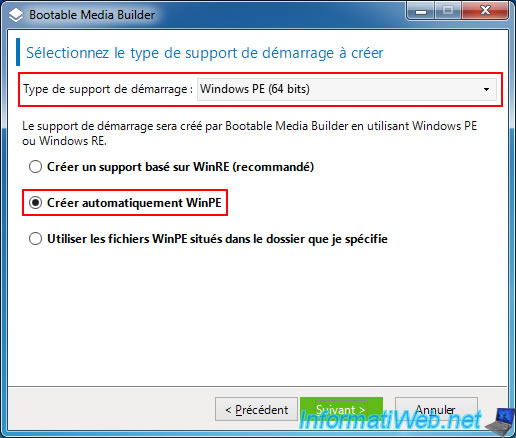
Select "Windows PE" or "Windows PE (64-bit)" depending on your processor architecture, then select the "Automatically create WinPE" option.
Warning : "Windows PE" (32-bit) works with all processors (x86 and x64), but "Windows PE (64-bit)" only works with 64-bit processors (x64).
That said, Windows PE is more efficient in 64-bit, so choose this architecture if your processor supports it.
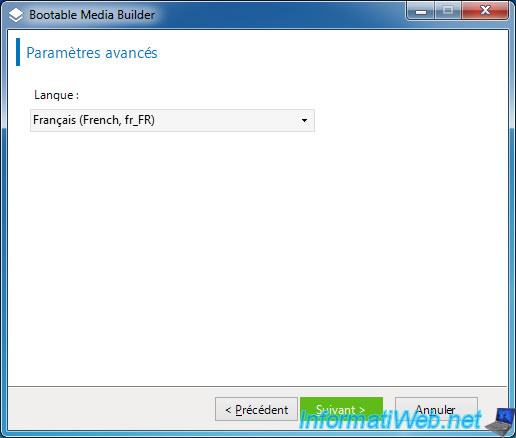
Select your language from the list to have the Windows PE 3.0 environment configured in your language.
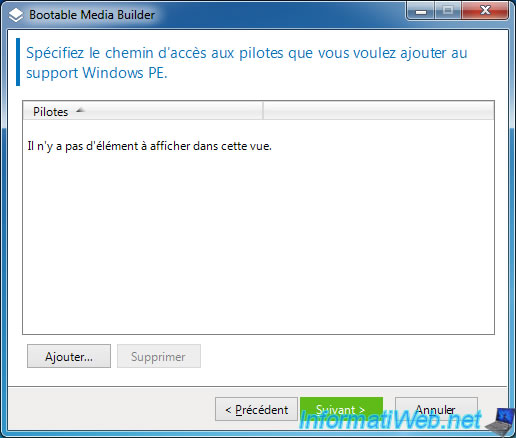
Add drivers to this Windows PE media if needed to support a RAID controller, for example.
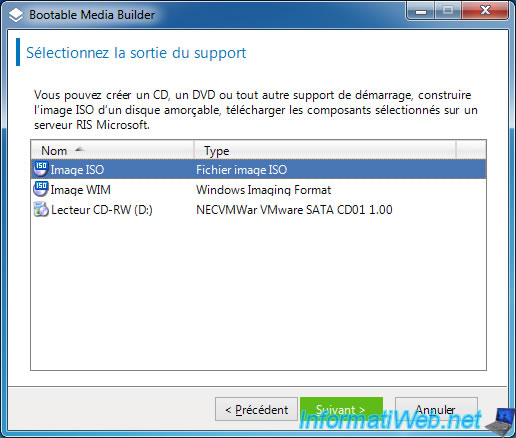
Select "ISO Image" as the media output.
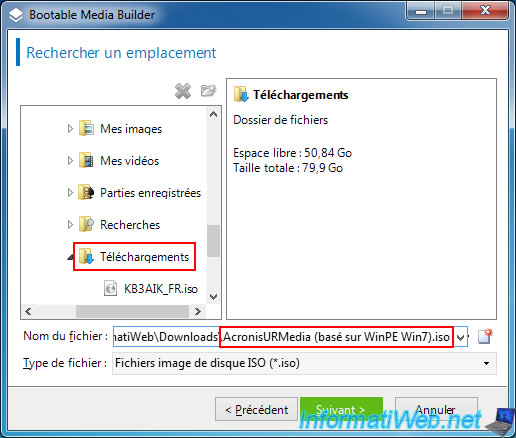
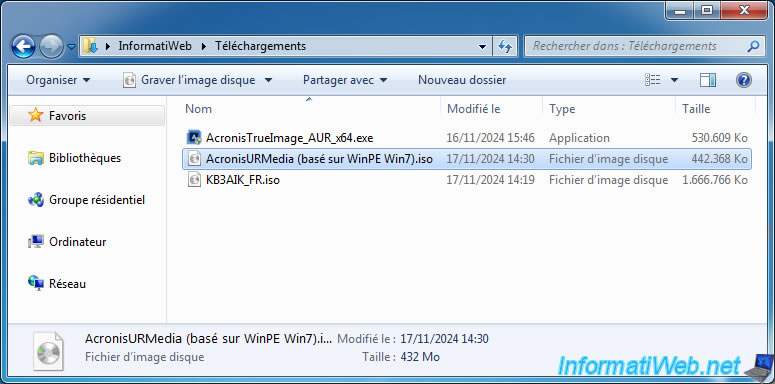
Select the folder where you want to store the ISO file that will be created and specify a name for it.
For example: AcronisURMedia (based on WinPE Win7).iso.
Click "Continue" to start creating this Acronis bootable media.
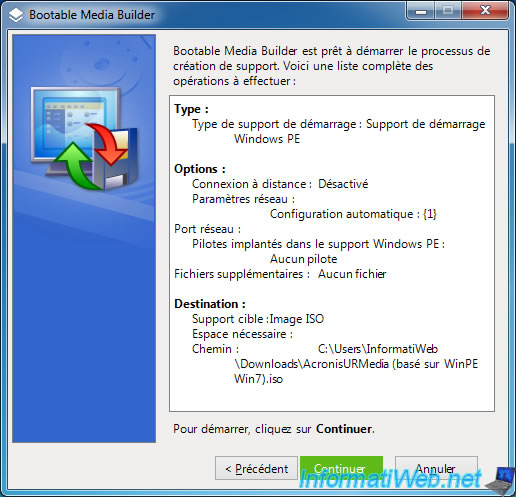
Acronis Bootable Media Builder will create a copy of the WIM file installed with the Automated Installation Kit (AIK).

Then Bootable Media Builder will modify the contents of this WIM file to add its own files inside (including the "Acronis Universal Restore" program).

Acronis Bootable Media Builder will use DISM commands (hence the title "Deployment Image Servicing and Management Tool" seen below).
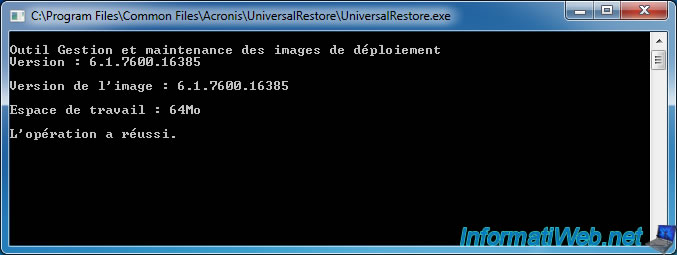
Once the contents of the WIM file are modified, it will be unmounted.

Finally, Acronis Bootable Media Builder will create the ISO file containing this modified WIM file.

Once your Acronis bootable media is created, click OK.

Burn the "AcronisURMedia (based on WinPE Win7).iso" file you just created onto a CD.
To do this, if necessary, refer to our tutorial: Burn a CD/DVD.
3. Boot to your Acronis Universal Restore bootable media (WinPE 3.0 based)
Once the CD is burned, configure your motherboard's BIOS or UEFI firmware boot order so that your computer boots to your CD/DVD drive first.
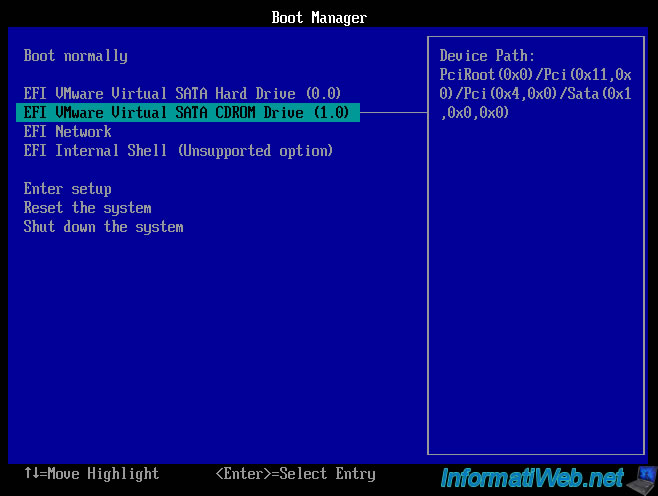
When the message "Press any key to boot from CD or DVD" appears, press Enter.

Wait while Windows PE loads the necessary files.

Then, the message "Starting Windows" will appear.

Please wait while Windows PE 3.0 boots.

A command prompt will appear and automatically launch the Acronis program.
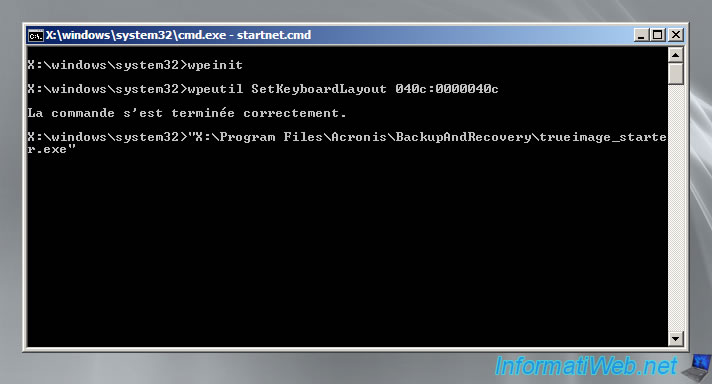
Then, the Acronis Universal Restore logo will appear for a few seconds.

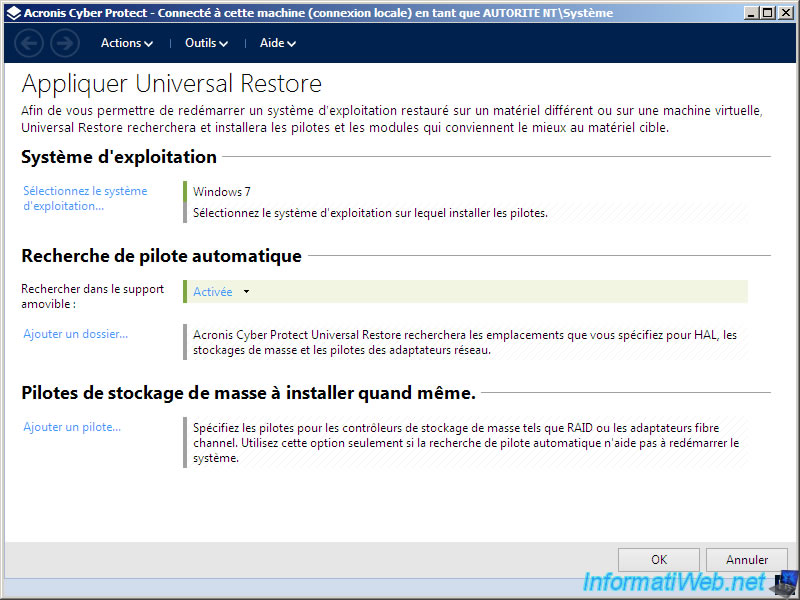
Finally, the program to apply Universal Restore will appear.
Share this tutorial
To see also
-
Backup 9/18/2025
Acronis True Image - Clean up Cloud smartphone backups
-
Backup 7/28/2025
Acronis True Image - Create full backups
-

Backup 8/21/2025
Acronis True Image - Replicate encrypted backups to Acronis Cloud
-

Backup 8/7/2025
Acronis True Image - Search for files in a Cloud backup
No comment