Back up your PC for free with the OEM version of Acronis True Image offered by Seagate
- Backup
- Acronis True Image
- 19 October 2026 at 13:32 UTC
-

- 3/4
5. Back up your computer using Seagate DiscWizard
To back up your computer, go to the "Backup" section.
A new backup will appear automatically.
Click "Select Source".
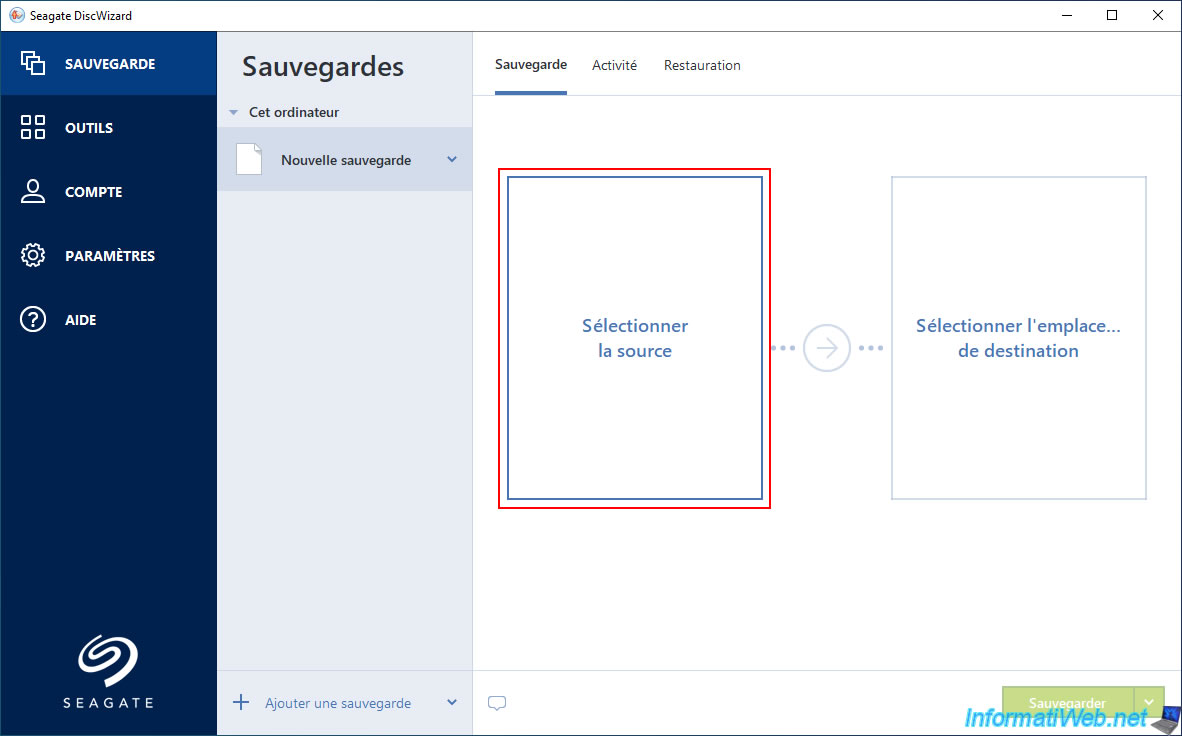
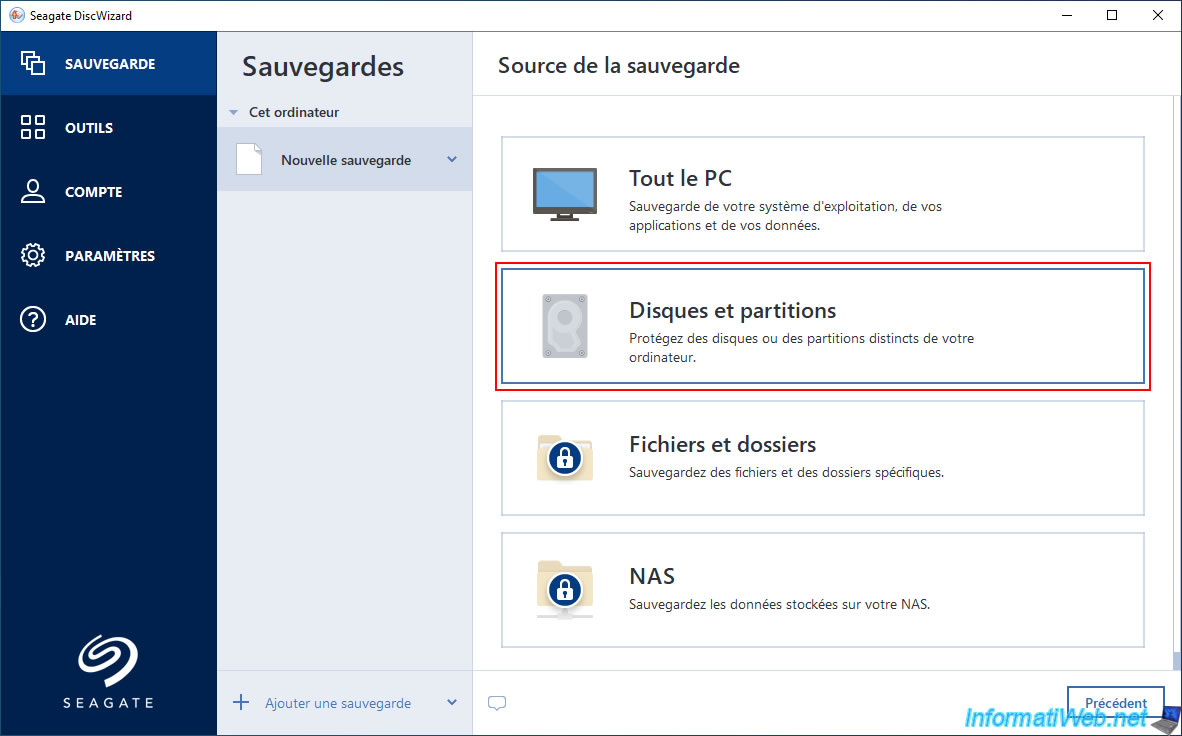
To back up your entire computer, click "Entire PC".
In our case, since we have multiple drives on this computer, we prefer to back up only the one where Windows is installed.
To do this, click "Disks and partitions".
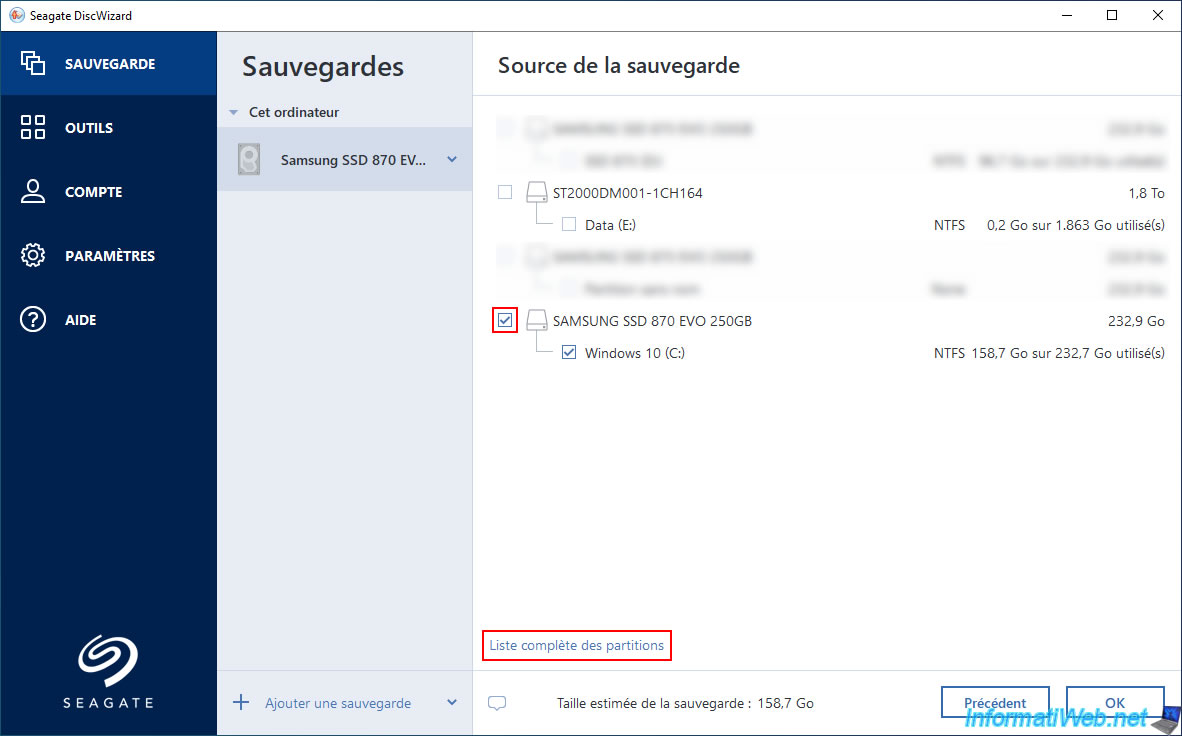
Select the source disk to back up.
In our case, the "SAMSUNG SSD 870 EVO 250GB" disk where Windows is installed.
Note: to view all partitions (especially if it's the disk where Windows is installed), click the "Full Partition List" link in the bottom left corner.
As expected, the "EFI System Partition" located on the disk where Windows is installed also appears.
Click OK.
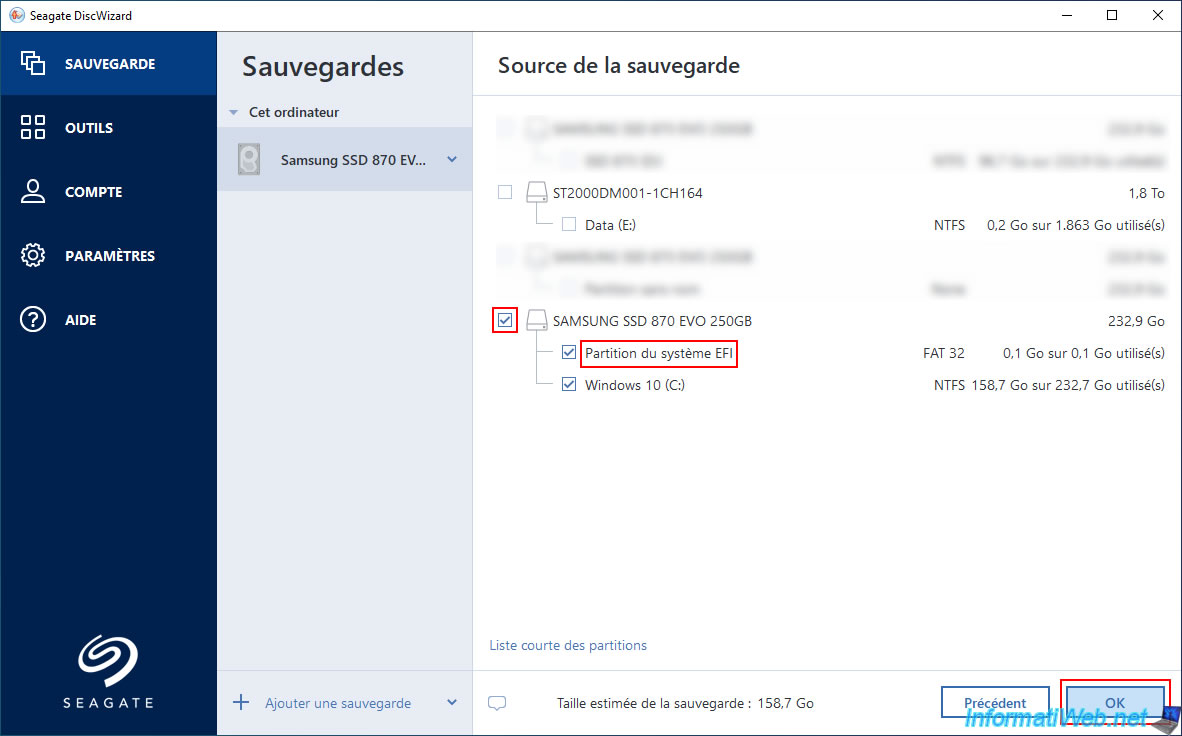
The disk selected as the backup source appears on the left.
Next, click the "Select destination location" option on the right.
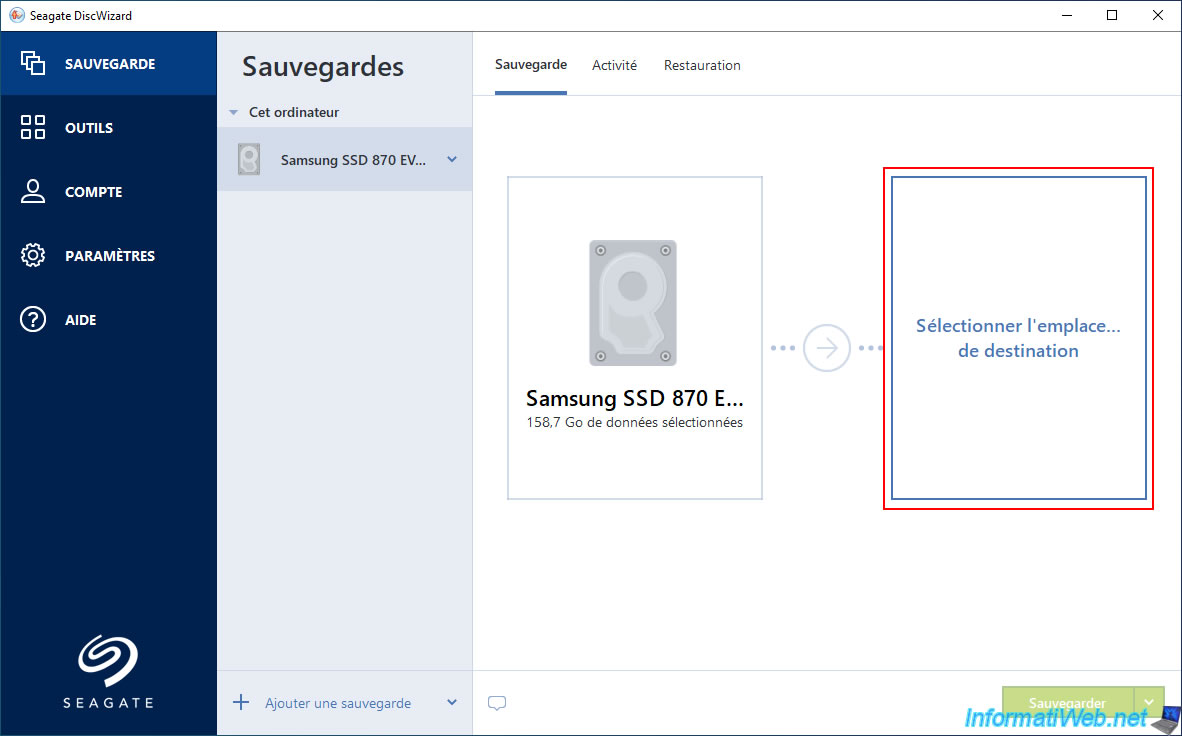
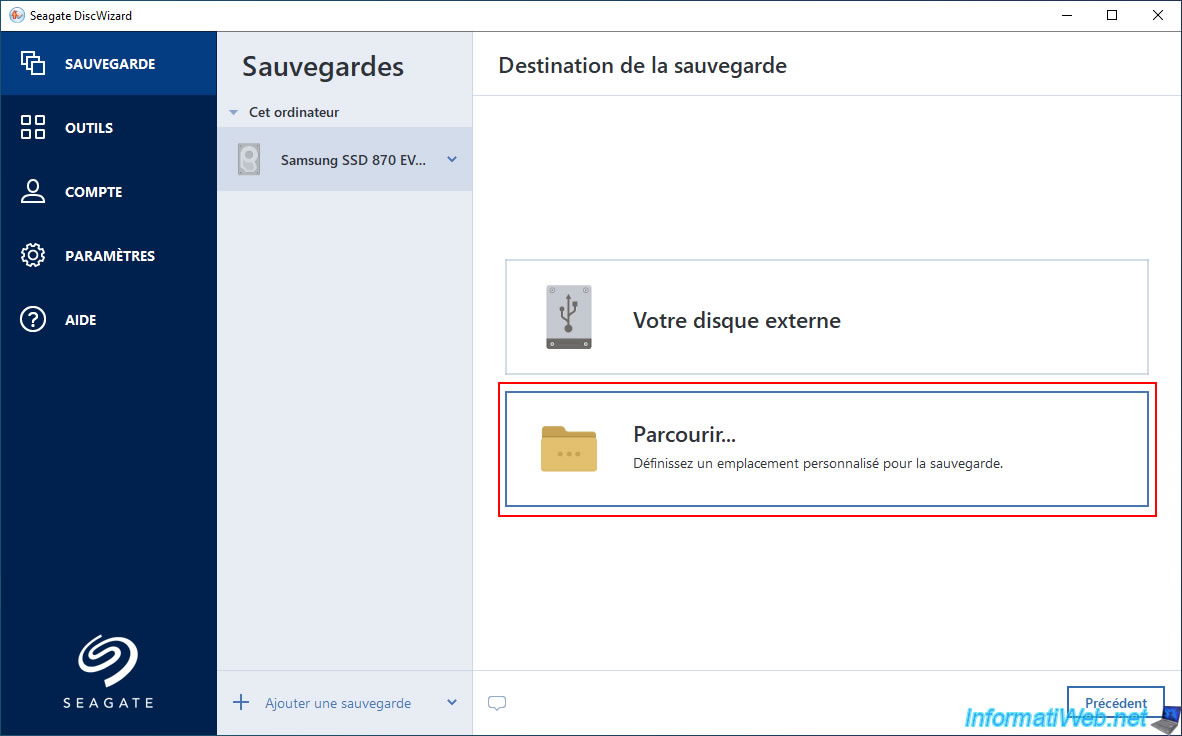
Next, choose whether you want to store your backup on an external hard drive (as we've done with Acronis True Image in the past) or elsewhere (by clicking "Browse").
In our case, we clicked "Browse".
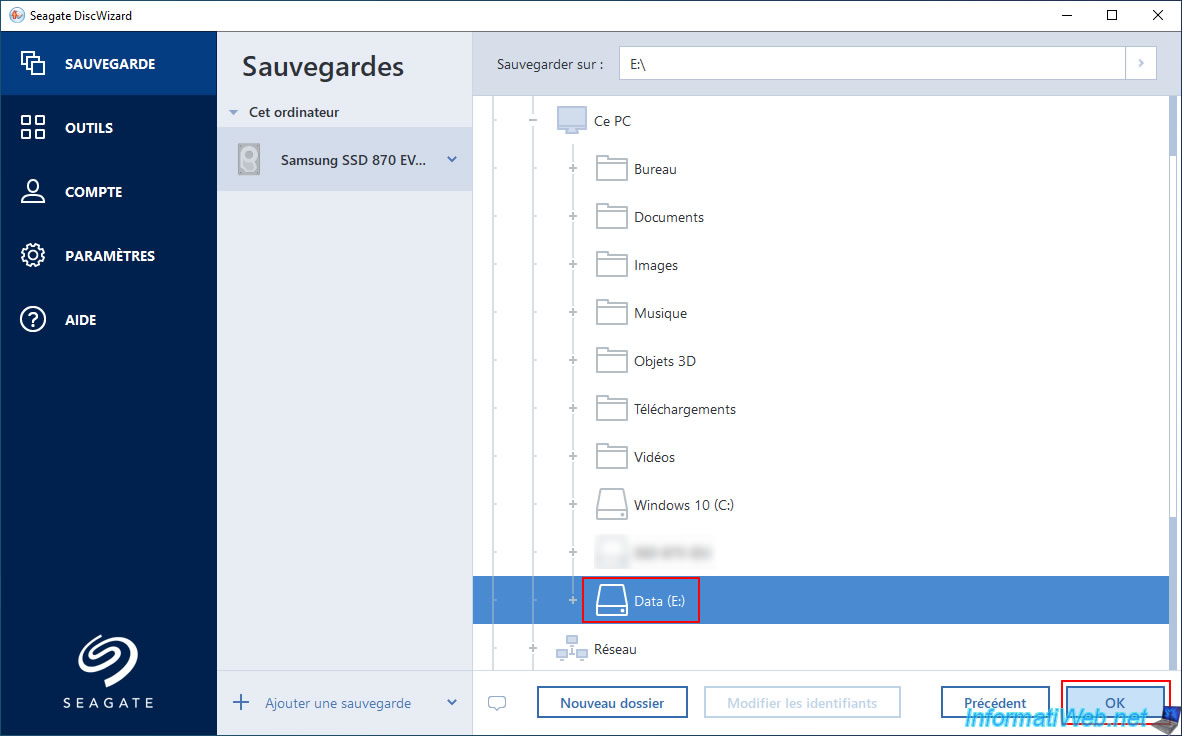
For the backup destination, we selected our "Data (E:)" partition, which corresponds to the Seagate hard drive that is currently empty.
Then, click OK.
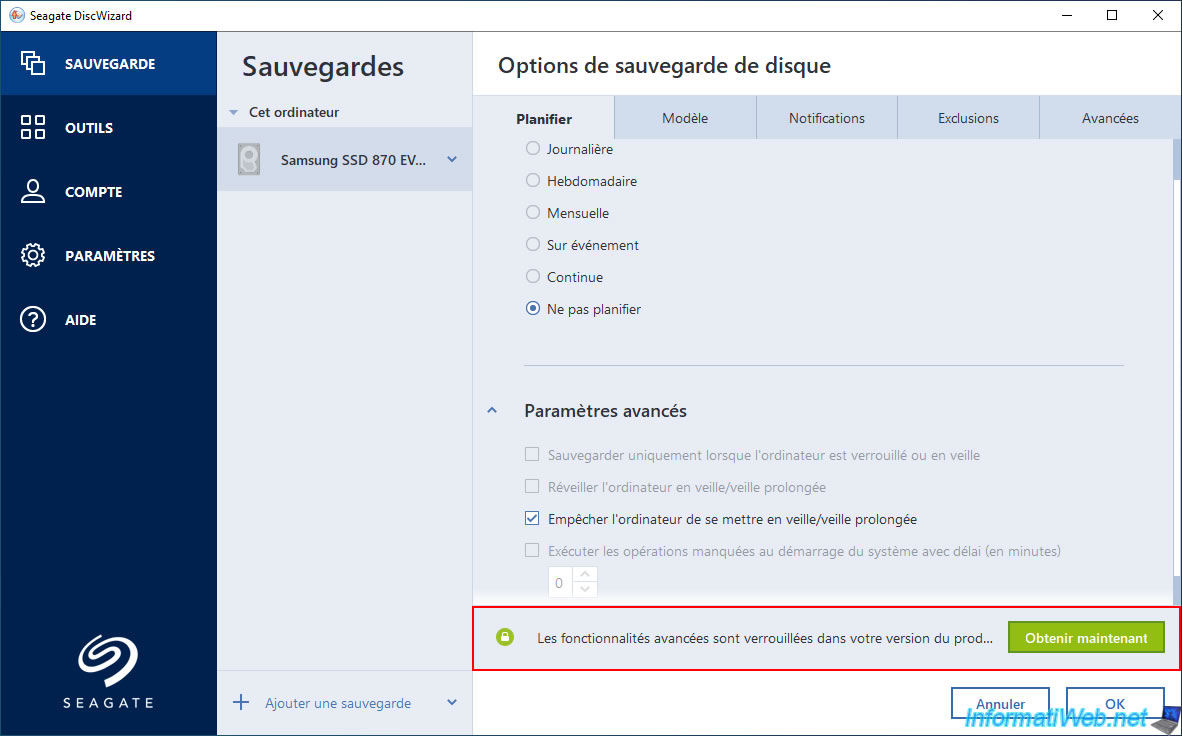
If you wish, you can see the few backup options available by clicking on the "Options" button (bottom right).
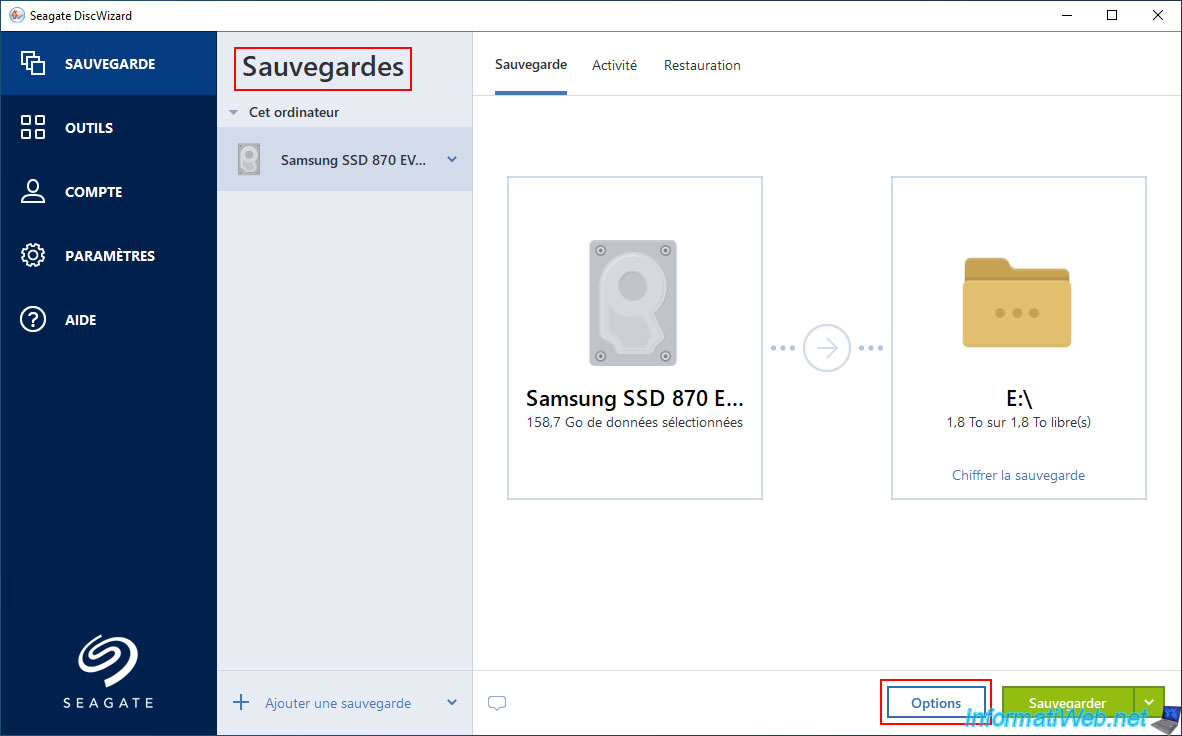
As expected, Seagate DiscWizard's backup options are limited.
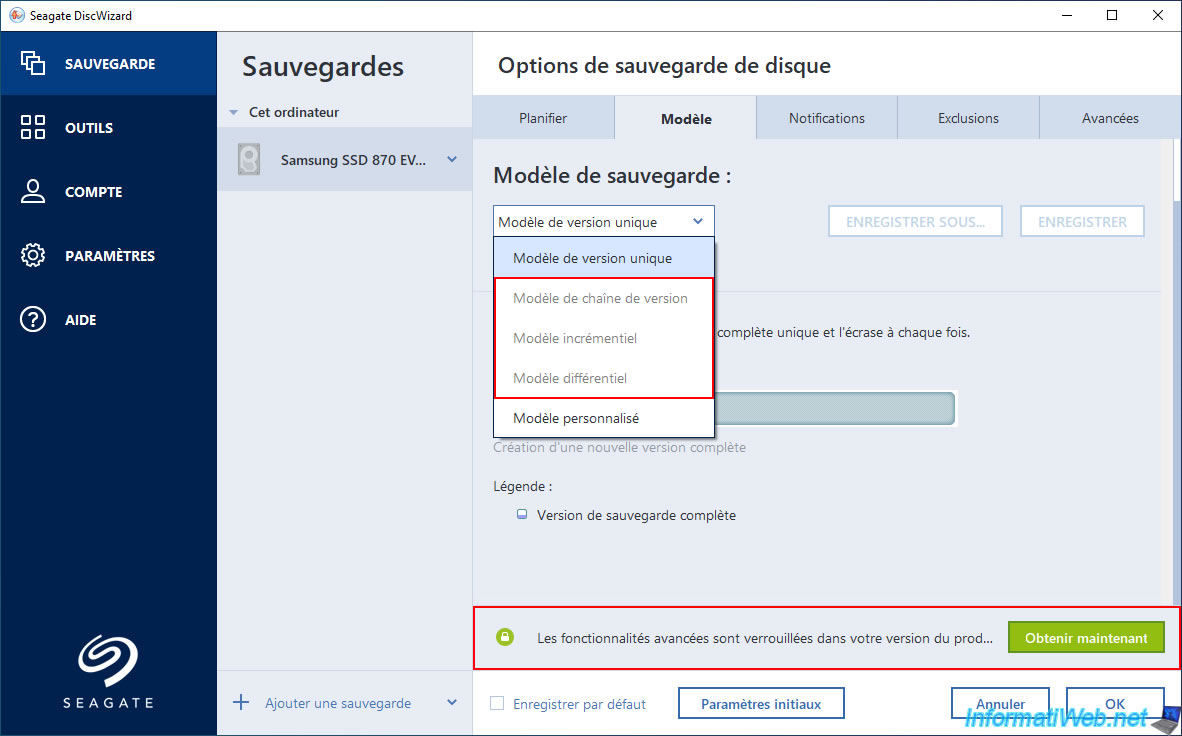
Advanced features are locked to your version of the product.
Indeed, if you go to the "Template" tab, you'll notice that the backup templates are very limited.
In short, you'll be limited to creating only single versions.
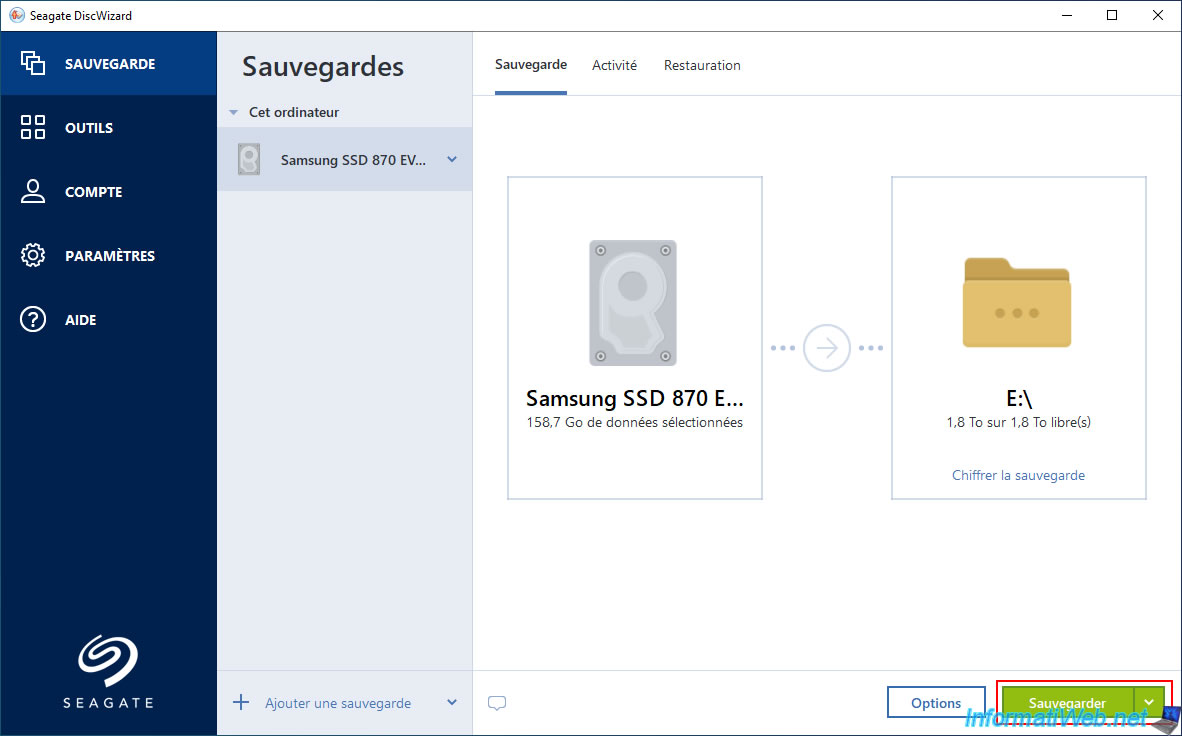
To return to the "Backup" interface, click "Cancel" or "OK" (if you've made any changes to these backup options).
Next, click the "Backup" button (in green).
Please wait while the data is being prepared.
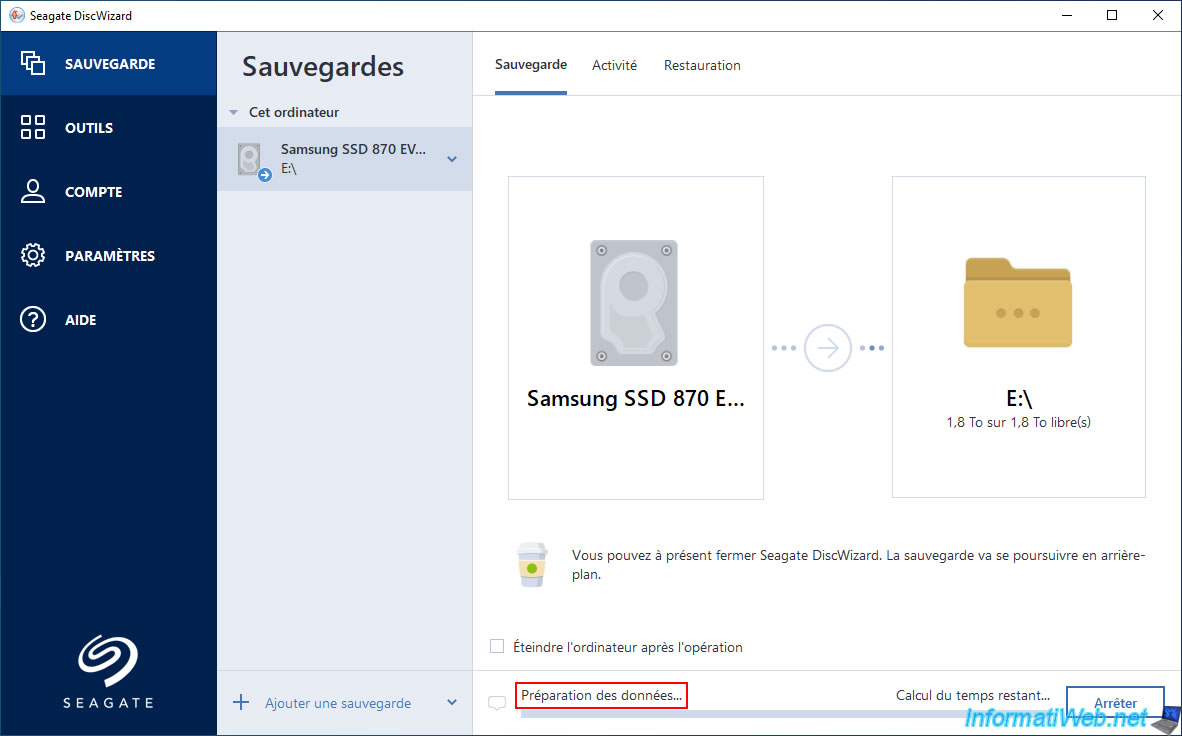
Then, wait while your computer or the desired disk is being backed up.
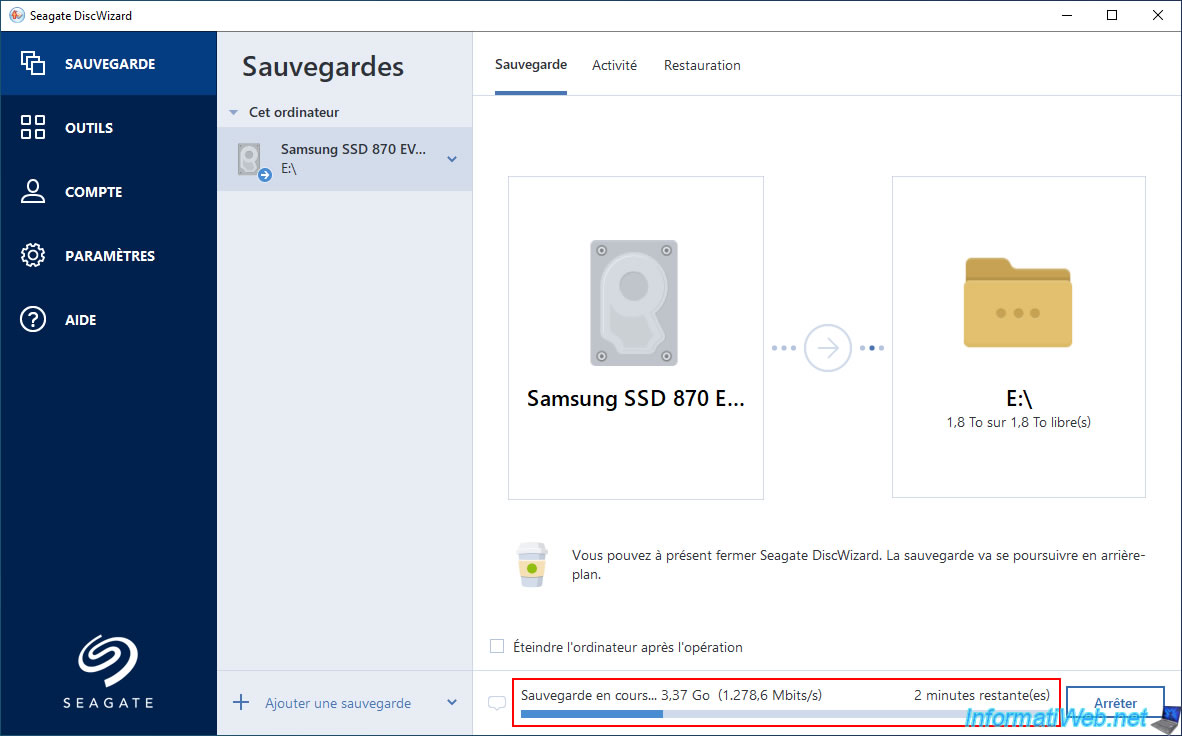
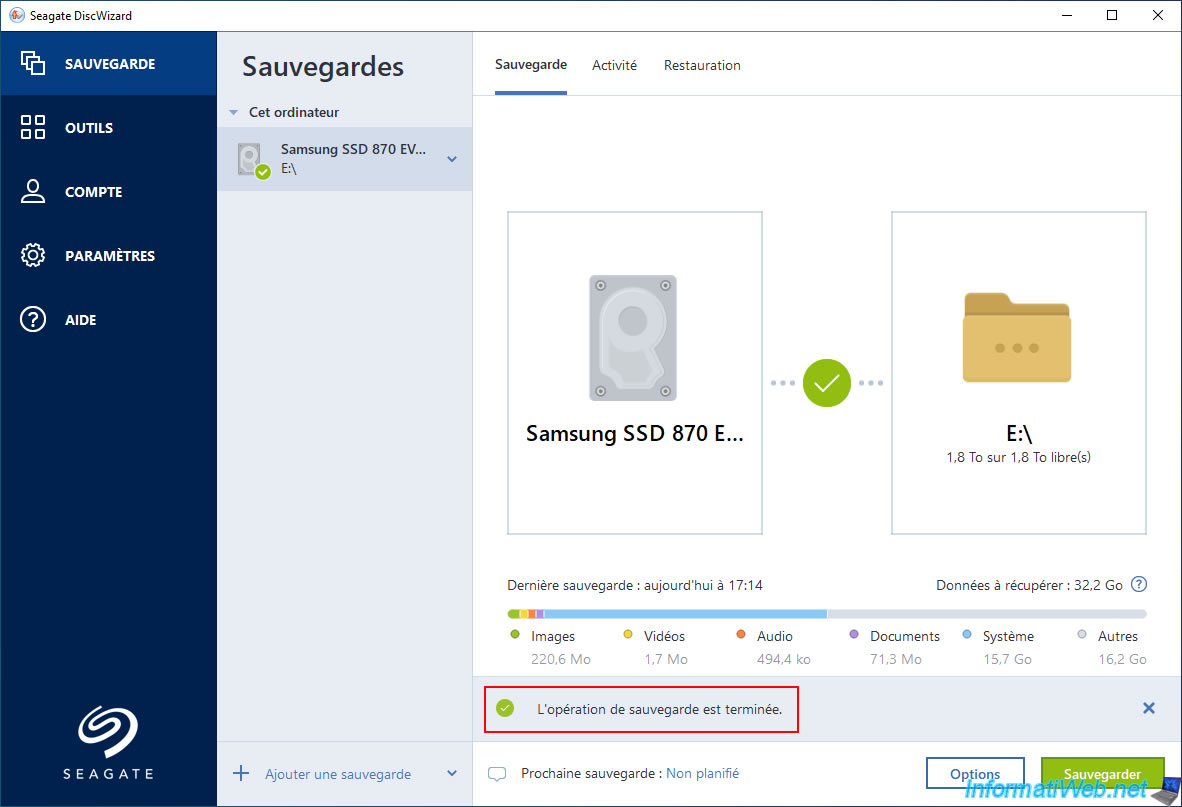
Once the backup is complete, the message "The backup operation is complete" will appear.
Share this tutorial
To see also
-

Backup 11/3/2025
Acronis True Image - Archive your files on Acronis Cloud
-
Backup 6/15/2026
Acronis True Image - Create an Acronis Secure Zone
-
Backup 2/9/2026
Acronis True Image - Rescue Media - Create media (Win PE version) on Win 8
-
Backup 5/4/2026
Acronis True Image - Universal Restore Media - Create and use media
No comment