Back up your PC for free with the OEM version of Acronis True Image offered by Seagate
- Backup
- Acronis True Image
- 19 October 2026 at 13:32 UTC
-

- 4/4
6. Restore your computer using Seagate DiscWizard
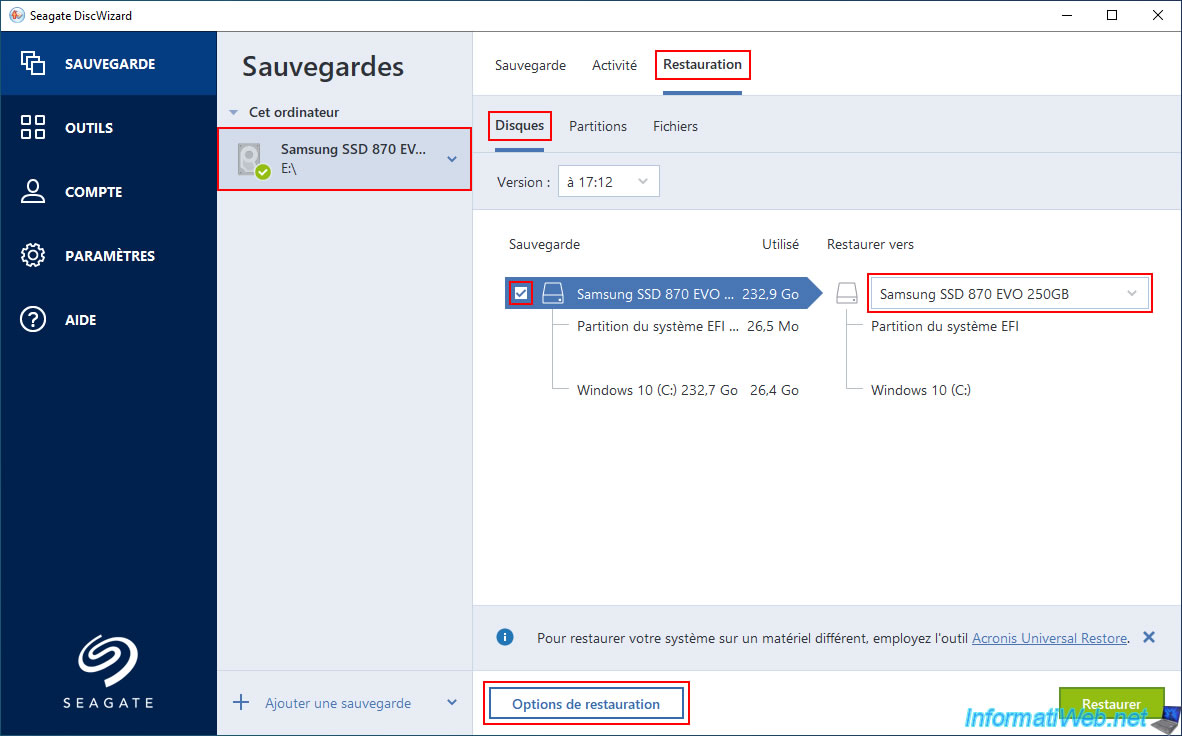
To restore your computer using a backup created with Seagate DiscWizard, select your backup and then go to the "Restore" tab.
Next, go to the "Entire PC" or "Disks" sub-tab, depending on the type of source you selected when creating your backup.
If you backed up a disk, simply check the box for the disk displayed on the left, and Seagate DiscWizard will automatically select the correct destination disk (by default, the same as the source disk in that backup).
To view the available restore options, click the "Restore Options" button (displayed at the bottom).
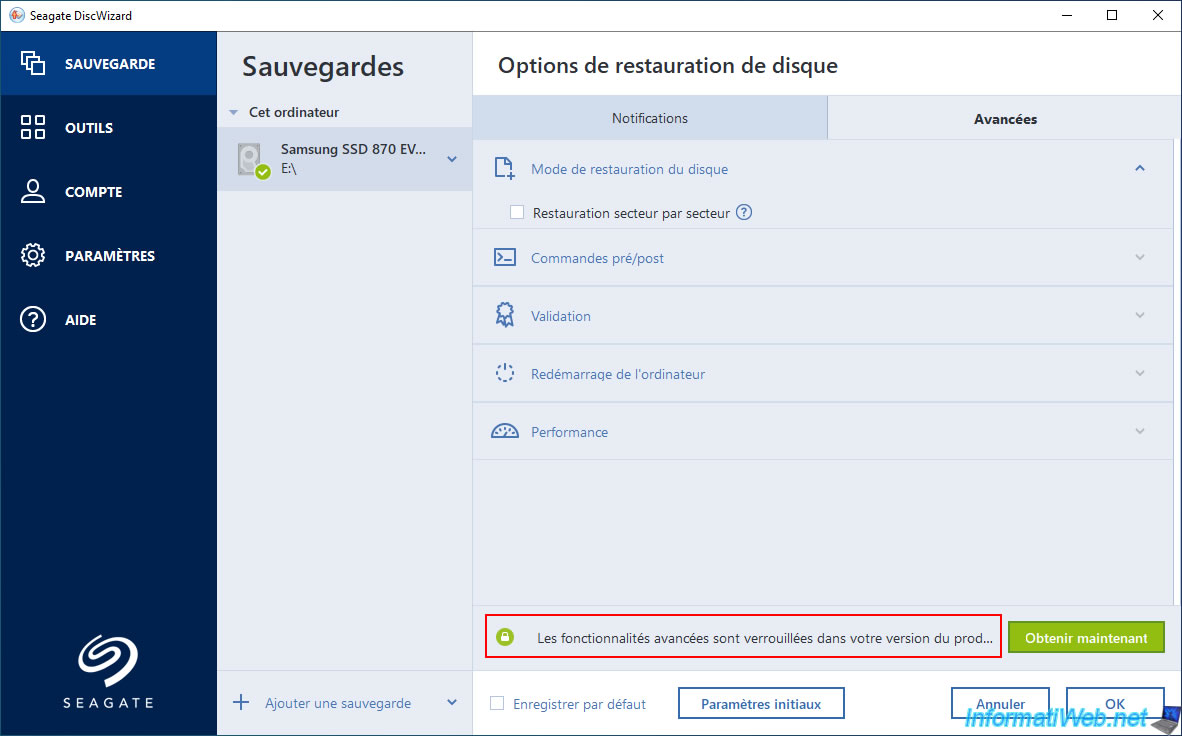
Again, you may see the message "Advanced features are locked..." appear at the bottom of the Seagate DiscWizard restore options.
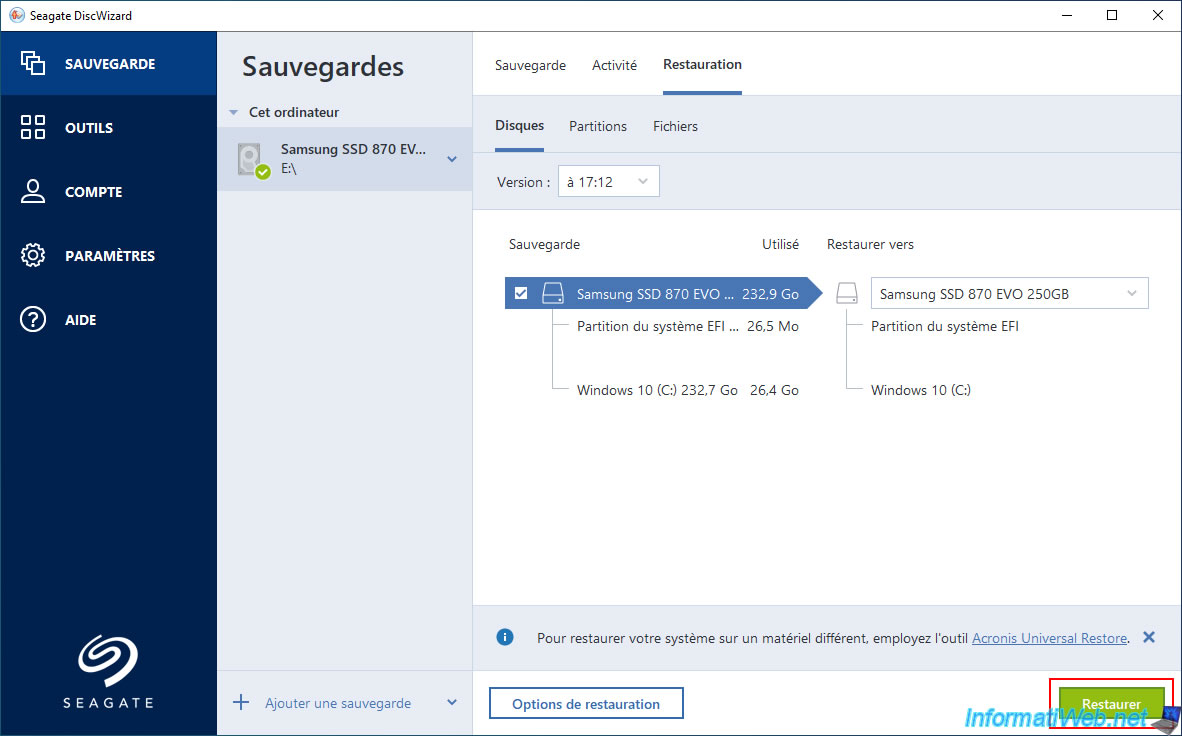
To start restoring your PC or disk, click the "Restore" button (in green).
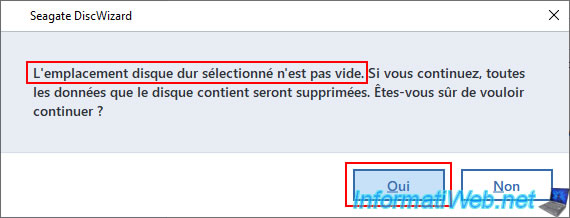
Seagate DiscWizard will display a warning stating that the disk selected as the destination is not empty (which is normal).
So, click "Yes" to ignore the warning.
Warning : all data on the disk selected on the right (Restore to) will be overwritten and replaced with the contents of the backup.
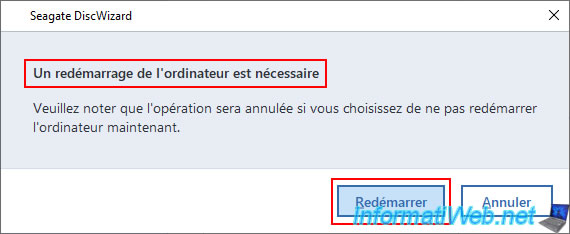
Next, if this is the drive where Windows is installed, the message "A restart of the computer is required" will appear.
Click "Restart".
Please wait while your computer restarts.

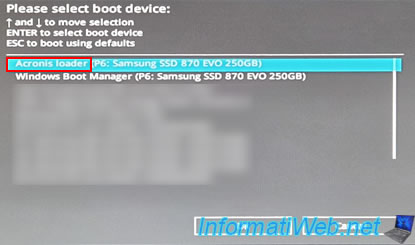
Your computer will automatically restart in the Acronis program (outside of Windows).
If you access your motherboard's boot menu during this restart, you will see an "Acronis Loader" option.
This option only appears during this restart.
The message "Starting x64 UEFI loader" appears.

Then, the message "Loading, please wait" appears.

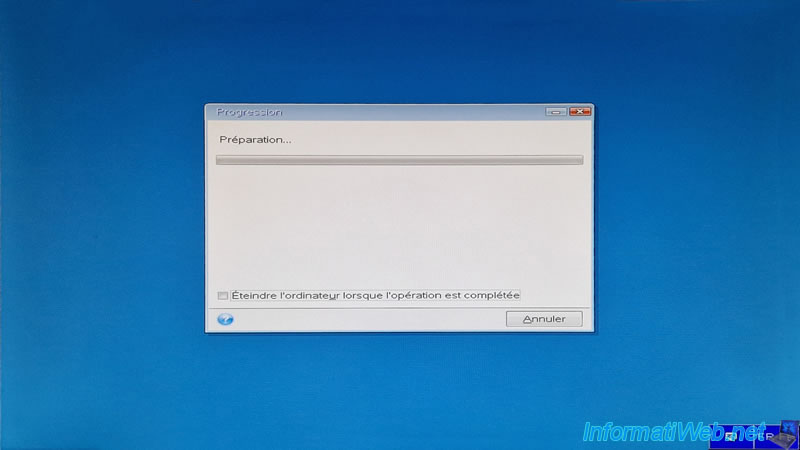
A progress window with the message "Preparing" will appear on a blue background.
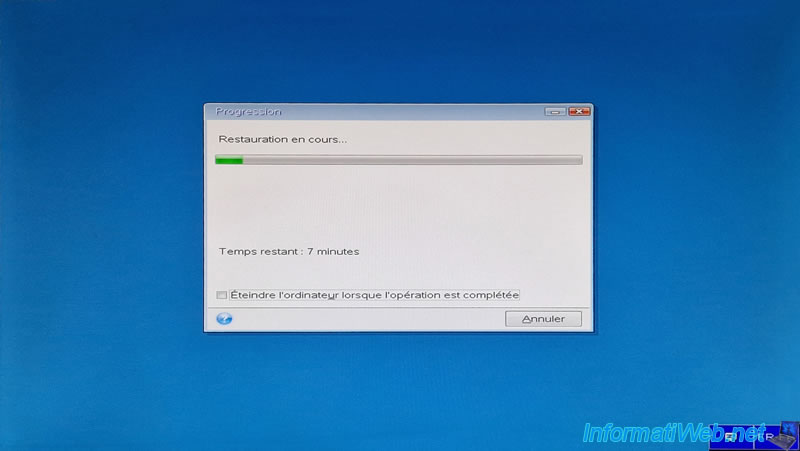
Next, you will see the message "Restoring..." appear while your computer or disk is being restored.
At the end of the restore process, your computer will automatically restart in Windows.
Note: if Windows starts in UEFI mode, your motherboard logo will appear instead of the Windows logo when your computer starts.

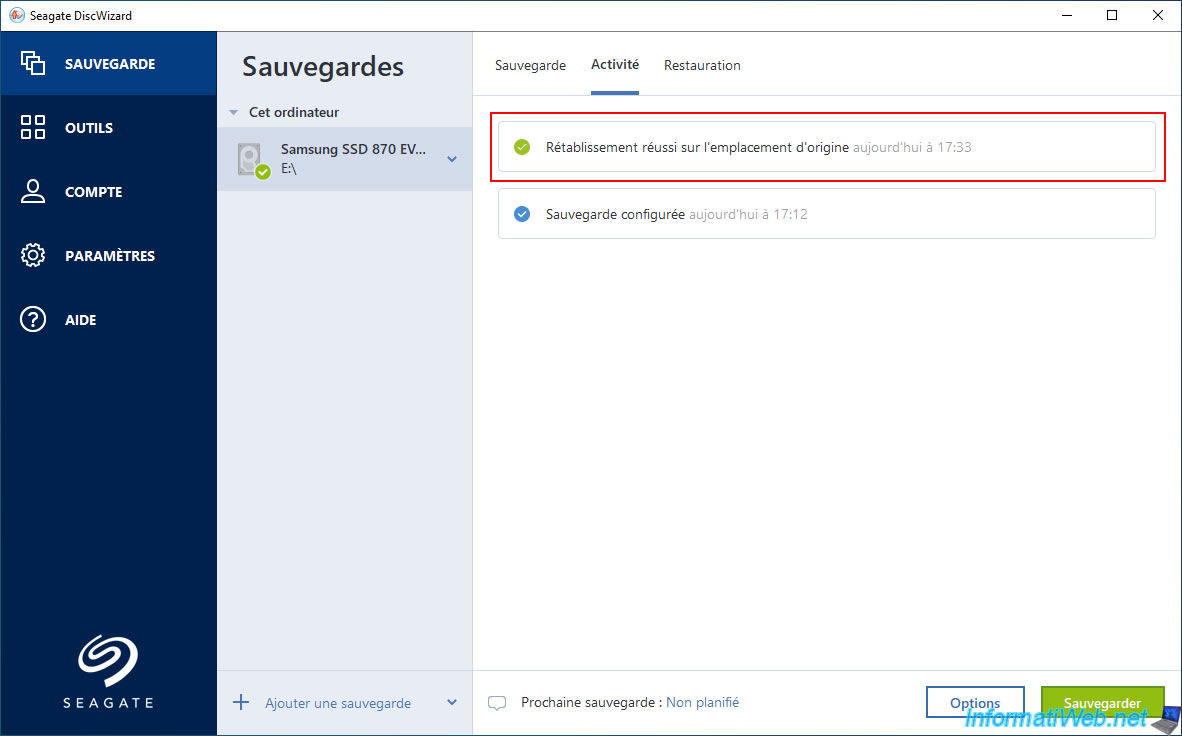
Once back in Windows, if you go to the "Activity" tab of your backup, you will see the message "Successful restoration to the original location".
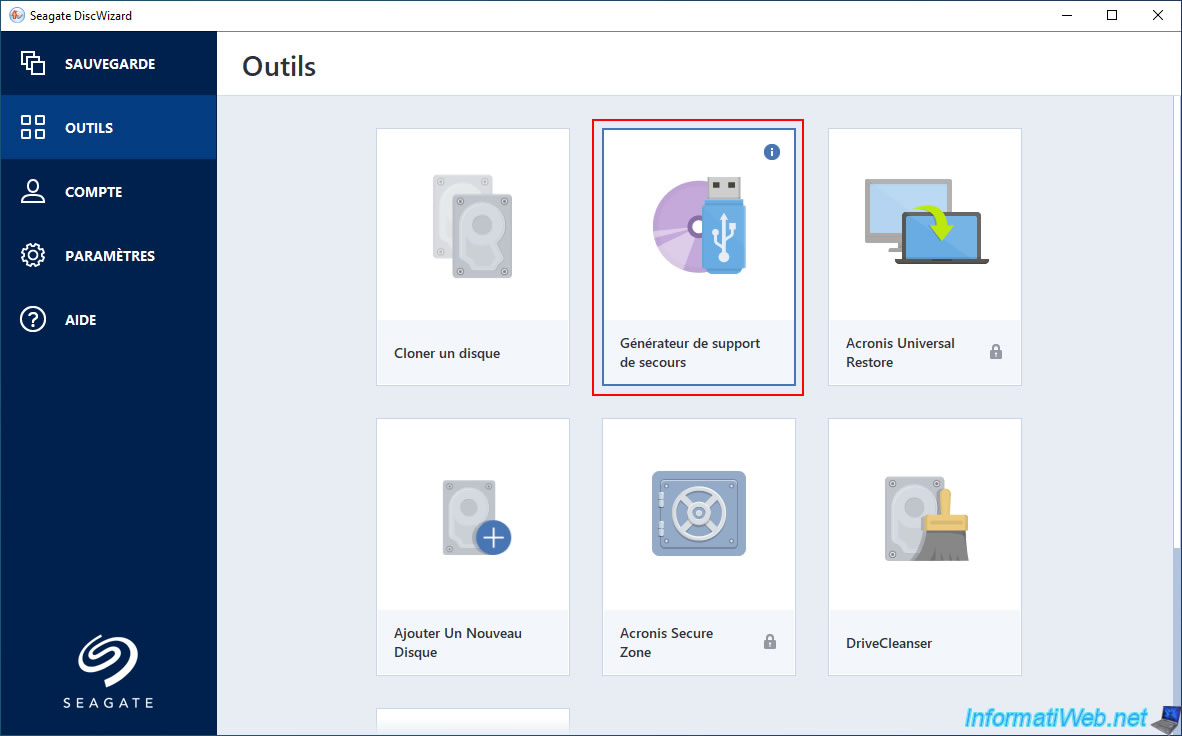
7. Create the Seagate DiscWizard rescue media
Although this OEM version of Acronis True Image has limited functionality, you have everything you need to back up and restore your computer.
This includes what happens if Windows fails to boot one day, as you can still create a Seagate DiscWizard recovery drive if you wish.
We won't describe every option of this recovery drive generator, as we've already done so in detail for the Acronis True Image one.
So, if needed, simply search "Acronis True Image - Rescue Media - Create media" on our "InformatiWeb" website to find the various tutorials related to this rescue media builder.
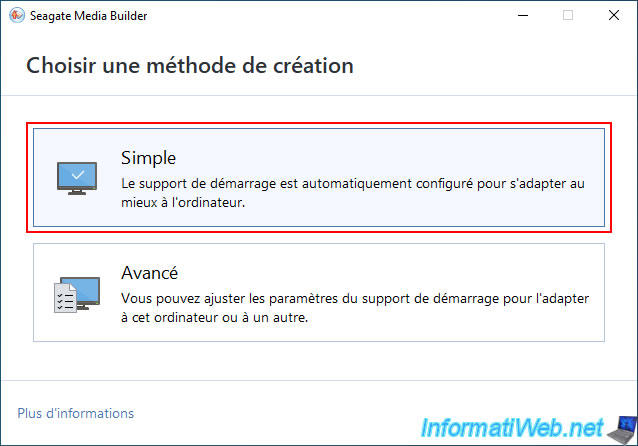
In the "Seagate Media Builder" that appears, click on "Simple" to easily create a rescue media (boot media) that will be adapted to your computer's hardware.
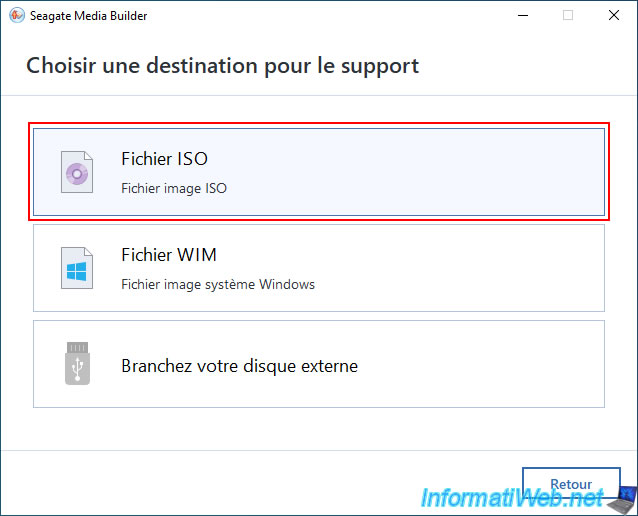
Next, click on "ISO File" (if you want to create a DVD for this recovery media) or plug in an USB key, then click on it to turn your USB key into Seagate rescue media.
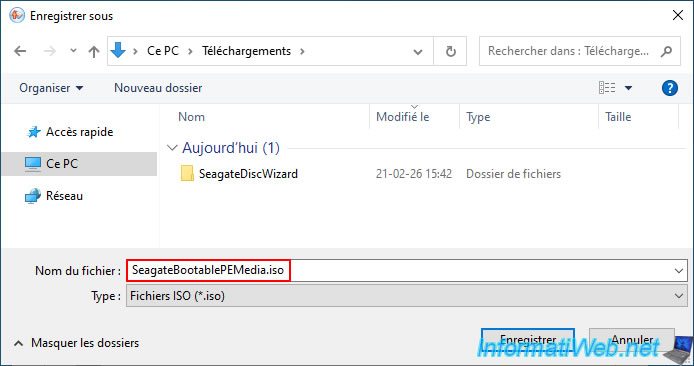
As you can see, the file that will be created is named "SeagateBootablePEMedia.iso" by default.
Select the folder where you want to create this ISO file, and then click "Save".
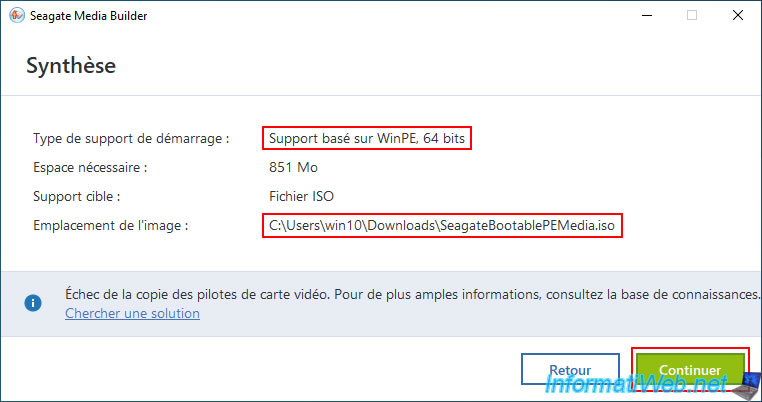
Since we have a 64-bit version of Windows, which is very common these days, the "Seagate Media Builder" software will create a 64-bit WinPE-based installation.
Click the "Continue" button.
Note: you can ignore the message about copying the video card drivers, as it will still work without them.
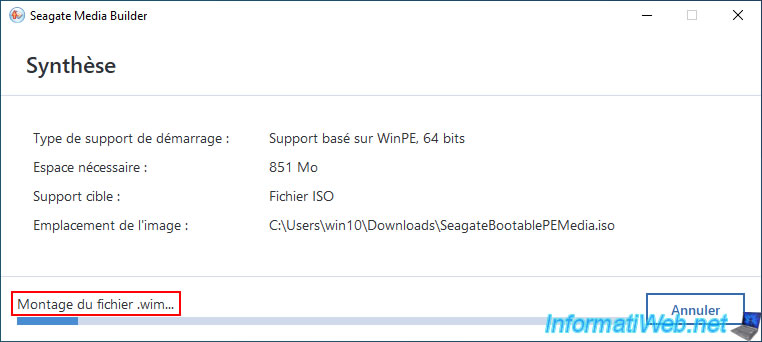
The "Seagate Media Builder" software will mount the Windows PE 64-bit WIM file to modify it and add the "Seagate DiscWizard" software.
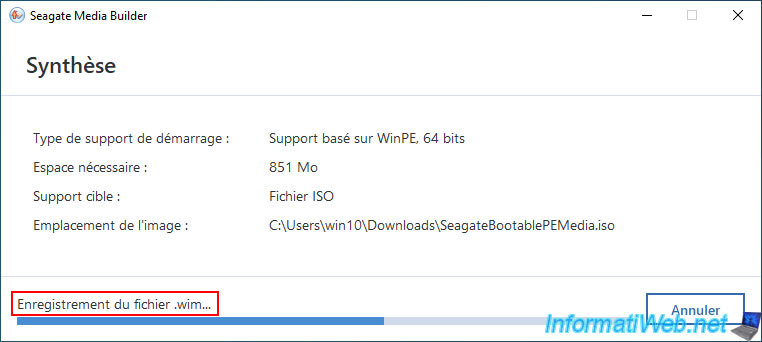
Once the modification is made, the WIM file will be unmounted and saved.
Finally, it will create the ISO file containing the updated WIM file.
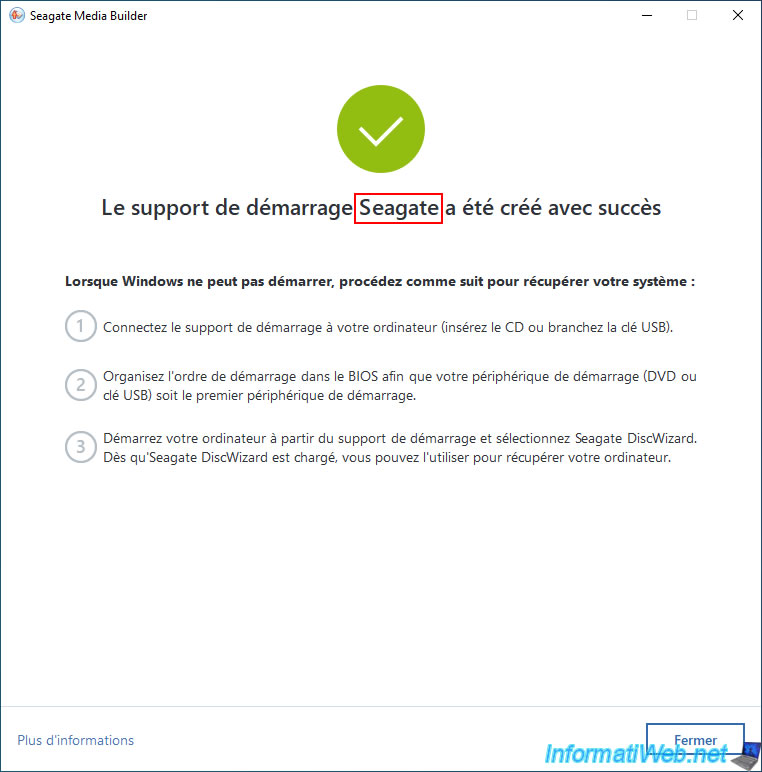
The message "Seagate bootable media has been created successfully" will then appear.
8. Introducing Seagate DiscWizard's rescue media
Configure your motherboard's BIOS to boot from your CD/DVD drive or USB key first (if you selected this option).
For instructions, please refer to our tutorial: Change the BIOS boot priority.

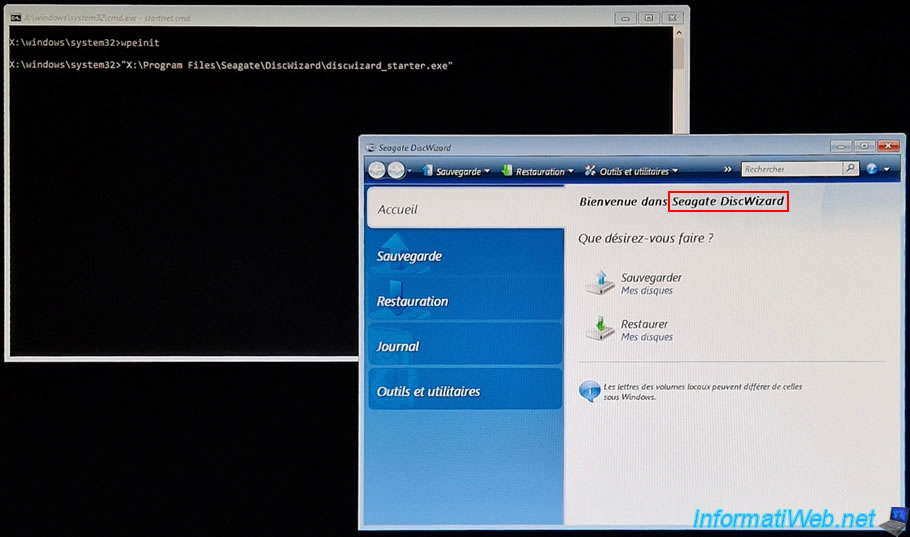
If your computer boots from your Seagate recovery media, a black window will appear with a "wpeinit" command.
This command is the default one used by Microsoft's Windows PE environments.

Next, you will see that the "Seagate DiscWizard" software will appear in this Windows PE environment.
Again, this is the "Acronis True Image" software renamed "Seagate DiscWizard" (free and limited OEM version).
Thanks to this "Seagate DiscWizard" rescue media, you can restore or back up your computer, even if Windows fails to boot.
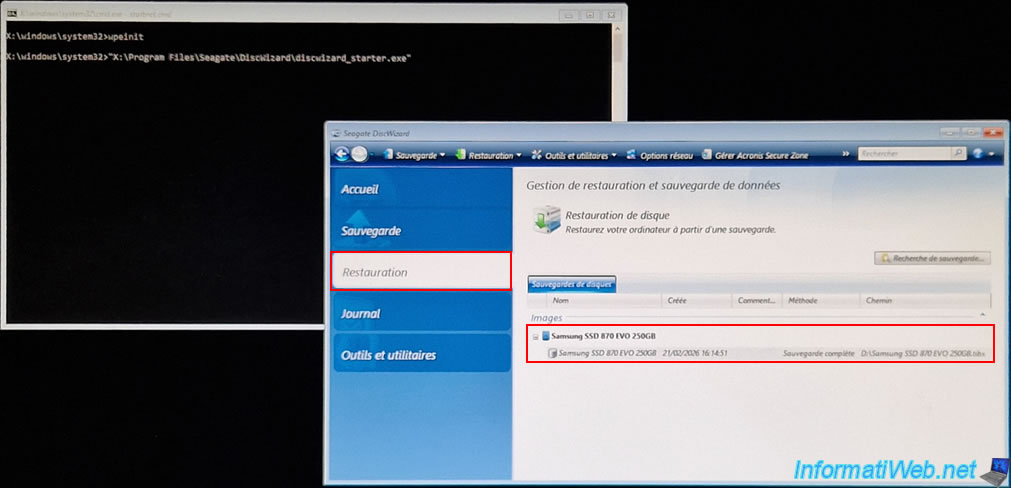
If you use this recovery media on the computer where Seagate DiscWizard is installed and you go to the "Restore" tab, you will see your Seagate backup appear.
To restore your computer from this Seagate recovery media, refer to step "5. Restore your computer from this Acronis rescue media (Linux based)" in our tutorial on creating an Acronis True Image recovery media, as the software is the same.
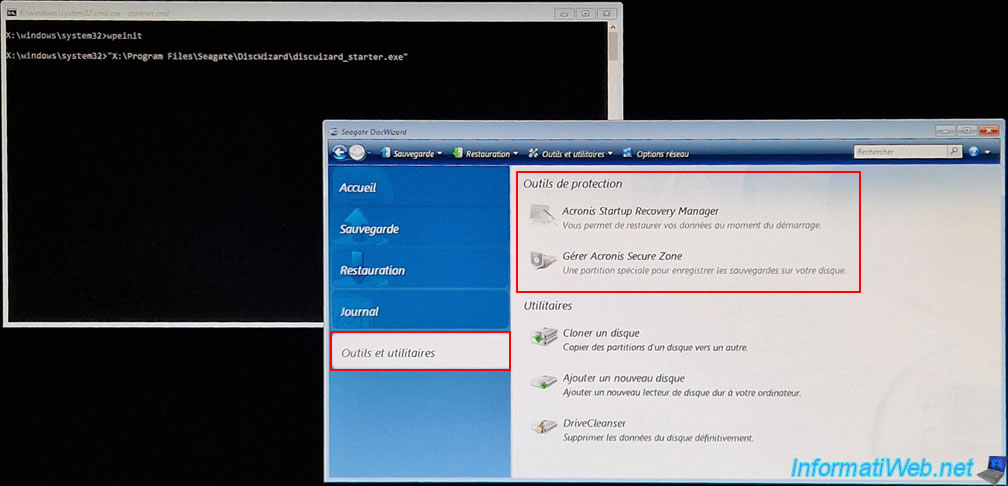
Note: if you go to the "Tools and Utilities" section of Seagate DiscWizard, you'll notice that the first two tools are grayed out: "Acronis Startup Recovery Manager" and "Manage Acronis Secure Zone".
Again, these tools are not available in your (OEM) version of this software.
Share this tutorial
To see also
-

Backup 10/20/2025
Acronis True Image - Archive your files locally
-

Backup 11/3/2025
Acronis True Image - Archive your files on Acronis Cloud
-
Backup 6/9/2025
Acronis True Image - Backing up your PC to a FTP server
-
Backup 12/1/2025
Acronis True Image - Synchronize a folder between 2 PCs (Cloud instead of local)
No comment