- Security
- 06 July 2026 at 08:14 UTC
-

- 1/10
Bitwarden is a free, open-source, cross-platform password manager that you can use very easily on Windows, Android, ... as well as from your favorite web browsers thanks to the official bitwarden extensions. This service is hosted by the company managing bitwarden, but you can also host it on your own server if you wish.
- Why use a password manager?
- Benefits of Bitwarden
- Use Bitwarden password manager from the official website
- Using Bitwarden on PC (Windows)
- Download and install Bitwarden on Windows
- Log in to your Bitwarden account from the Windows application
- Create a new item in your Bitwarden vault from the Windows app
- Send encrypted data via Bitwarden website from Windows application
- Bitwarden settings on Windows
- Use dark theme with Bitwarden app for Windows
- Manually lock your Bitwarden vault
- Install official Bitwarden extensions in your favorite web browsers
- Download, install and use the Bitwarden extension for the Mozilla Firefox web browser
- Download, install and use the Bitwarden extension for the Google Chrome web browser
- Download, install and use the Bitwarden extension for the Opera web browser
- Download, install and use the Bitwarden extension for the Microsoft Edge web browser
- Using Bitwarden on your smartphone (Android)
- Download and install Bitwarden app on Android
- Manually copy account credentials from the Bitwarden mobile app
- Use autofill on smartphone from the Bitwarden mobile app (on Android)
- Create a new item in your Bitwarden secure vault from the mobile app (on Android)
- Create a new item faster from the mobile app (on Android)
1. Why use a password manager?
On the Internet, you can access more and more services, some of which require an account (free or paid).
For convenience, you are probably used to using the same email address and password on all sites.
However, if a site has been hacked or you have registered on a malicious site, a hacker has probably recovered your usual identifiers (email address, username and password).
All he has to do is try these identifiers on all known services to try to access several of your accounts.
Note that all websites can be hacked, including Google, Hotmail, Facebook and recently LinkedIn.
It is therefore essential that you use a different password on each site.
The other reason is that you probably use passwords that are easy to remember (for convenience), such as: azerty, qwerty, 1234, 1111, password1, ...
These passwords are obviously among the first passwords that hackers will try to use using specific tools to try to access your accounts without your authorization.
In short, thanks to a password manager, you will be able to:
- use different passwords on each site.
This way, the hacker will only be able to access one account if the credentials are stolen, found or recovered during a data leak (following a hack of the server of the site concerned). - use strong (complex) passwords made up of letters (upper and lower case), numbers and special characters to prevent a hacker from being able to guess it too easily.
- use long passwords: the longer the password, the greater the number of possible combinations.
This helps to avoid brute-force attacks as much as possible (via a tool that tests all possible passwords). - only remember the master password.
Obviously, this must be difficult to remember. But don't forget it, otherwise you will no longer have access to your other accounts.
Unless you use the "Lost password" option, if you also know the password for your email address.
2. Benefits of Bitwarden
The password manager "Bitwarden" has several advantages:
- free and open-source: meaning that the source code is publicly available and security experts have been able to analyze the code to ensure that it does not have security vulnerabilities.
- multi-platform: available on all platforms, whether on PC (Windows, Linux and Mac), on smartphone (Android and iOS) or on web browsers on PC (Mozilla Firefox, Google Chrome, Opera, Microsoft Edge, ...).
- data import: you can import your current password database from another password manager (such as: KeePass) or from the one integrated into your web browsers (such as: Chrome, Firefox, ...).
- password sharing: possibility to share passwords with other Bitwarden users.
This is convenient for sharing passwords with your family, friends or work colleagues, for example. - Self-hosting possible: although you can use Bitwarden's website, as well as their applications and extensions on your PC and smartphone, you will also be able to deploy the Bitwarden service on your own server (including NAS like Unraid, Synology, ...).
3. Use Bitwarden password manager from the official website
3.1. Create a Bitwarden account via the official website
To start using Bitwarden password manager, you need to create an account on their official website.
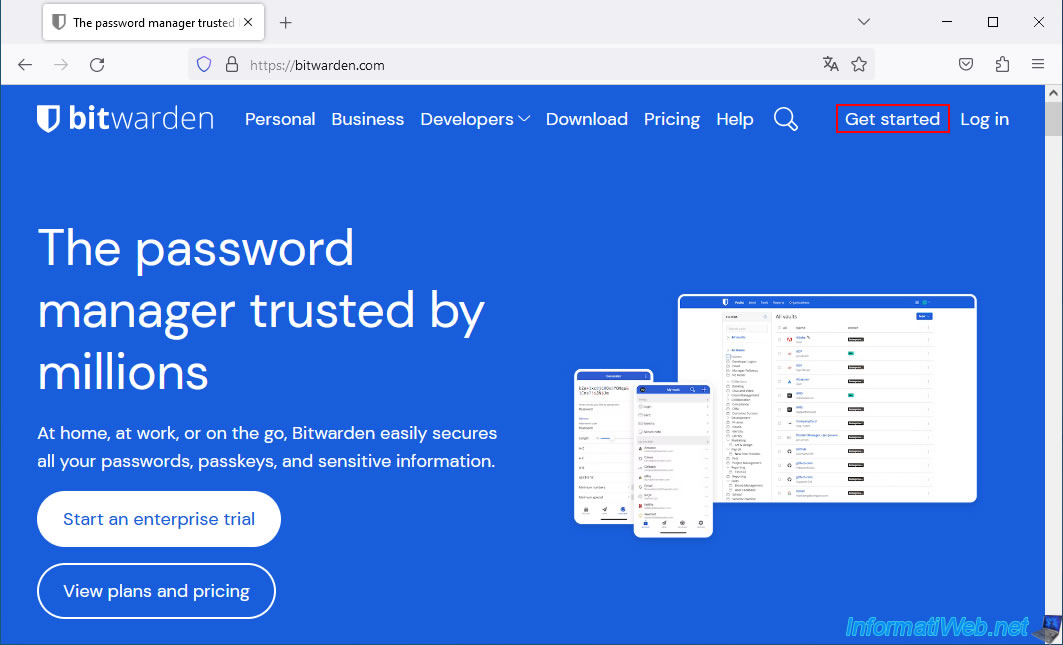
To do this, go to the Bitwarden website and click on the "Get started" link (top right).
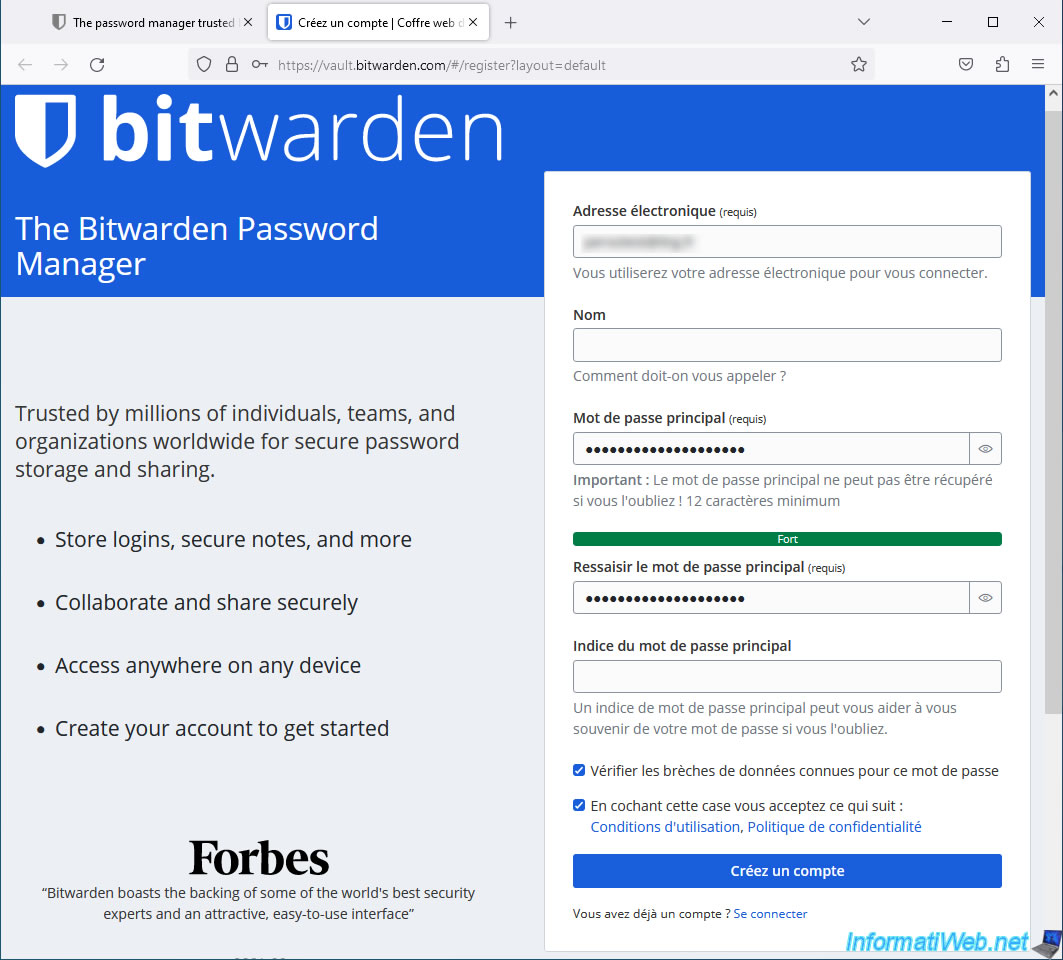
Fill in the fields of the displayed form.
The only mandatory fields are: the email address and the master password.
Once the fields are filled in:
- preferably check the box "Check for known data breaches for this password" to make sure that the password you are using has not already been leaked.
This way, hackers will not be able to easily access your Bitwarden account, as they will first test all simple or previously leaked passwords. - check the box "By checking this box you agree to the following: Terms of Use, ...".
- click on "Create an account".
Important : enter a long and complex password (that you can still remember) as your master password.
In fact, with your email address and this master password, anyone could access all your accounts added in Bitwarden.
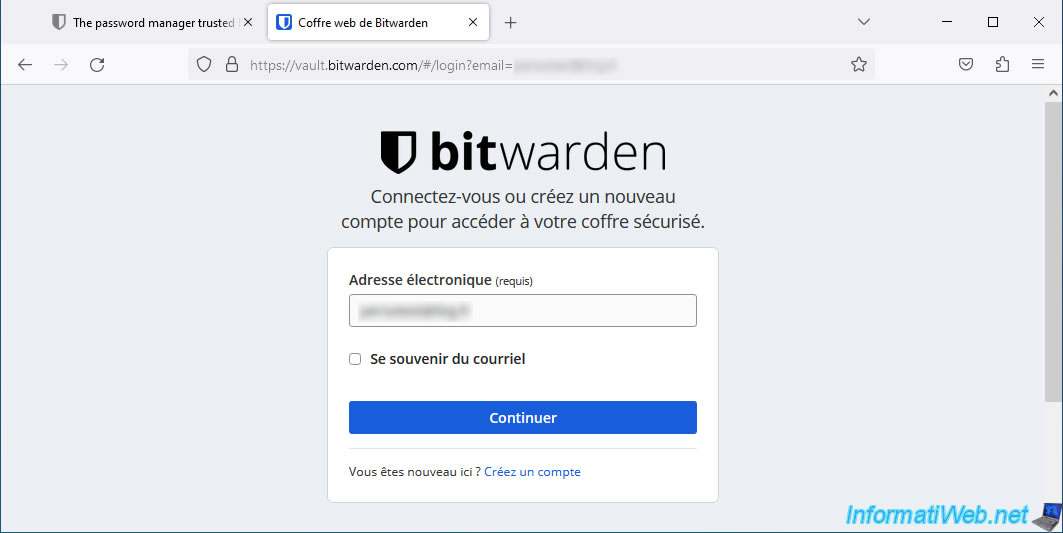
The Bitwarden login page appears.
Enter your email address and click Continue.
Then, type your password and click "Log in with master password".
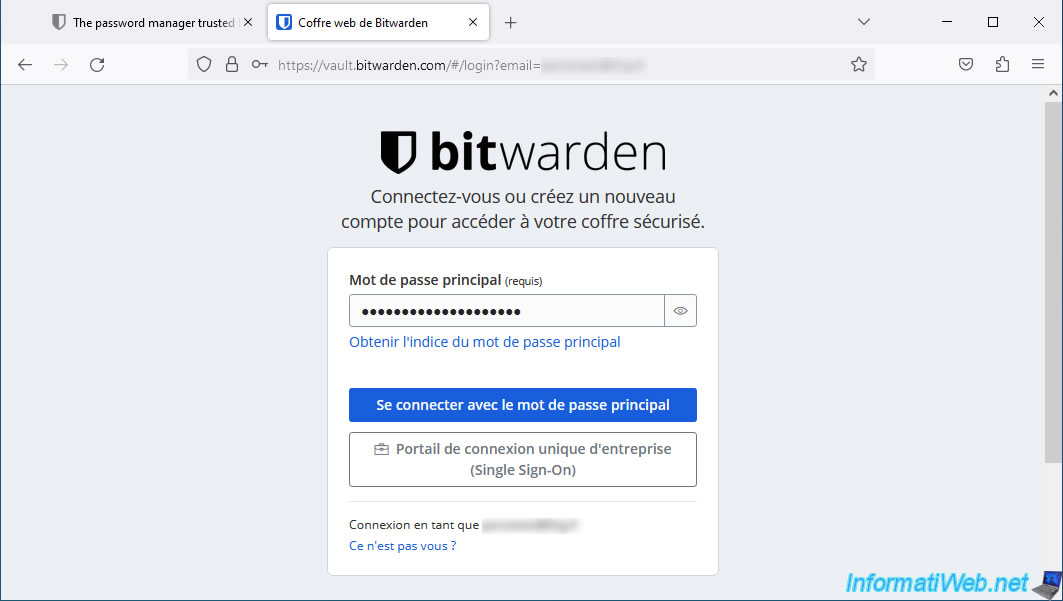
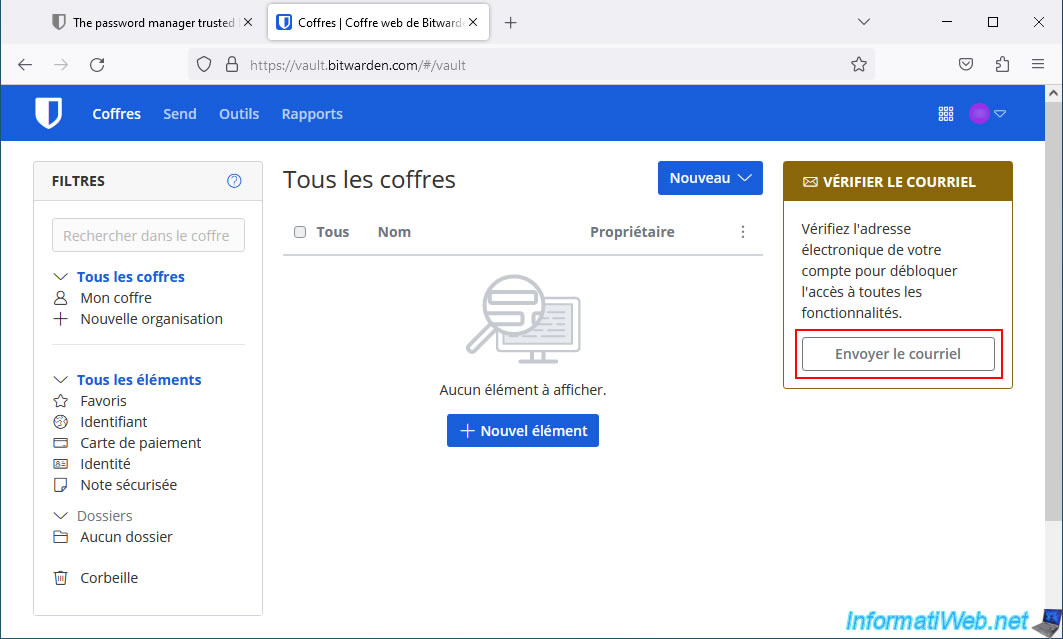
To prevent the creation of fake accounts, Bitwarden will ask you to confirm the validity of your email address.
To do this, click on the "Send Email" button located in the orange "Verify Email" block (located on the right side of the page).
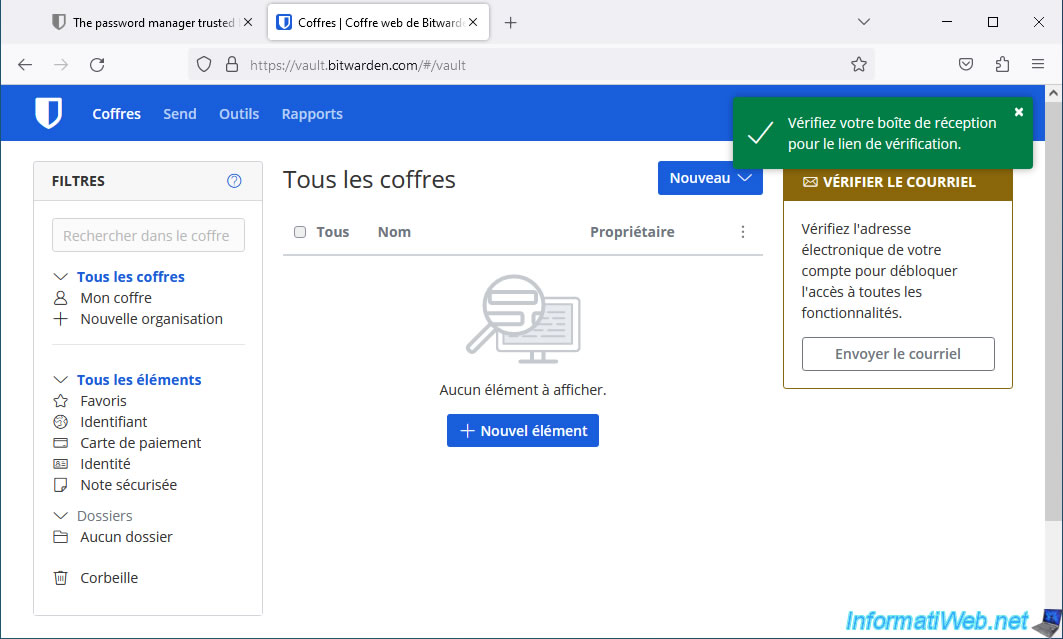
A notification "Check your inbox for verification link" will appear.
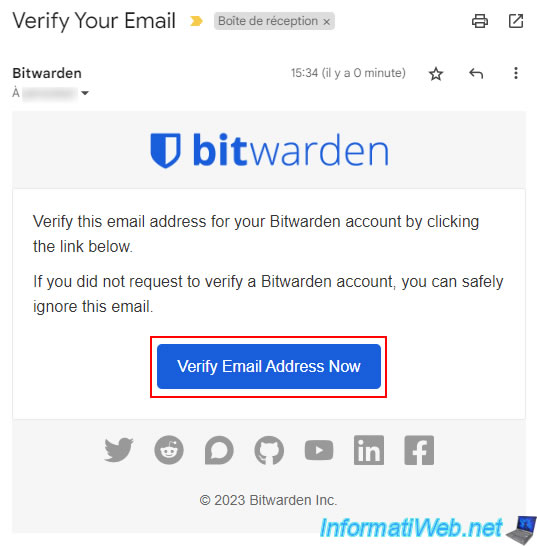
On your email address, you will see an email named "Verify Your Email" sent by "Bitwarden".
Click on the "Verify Email Address Now" button.
A "Verified Account Email" notification will appear.
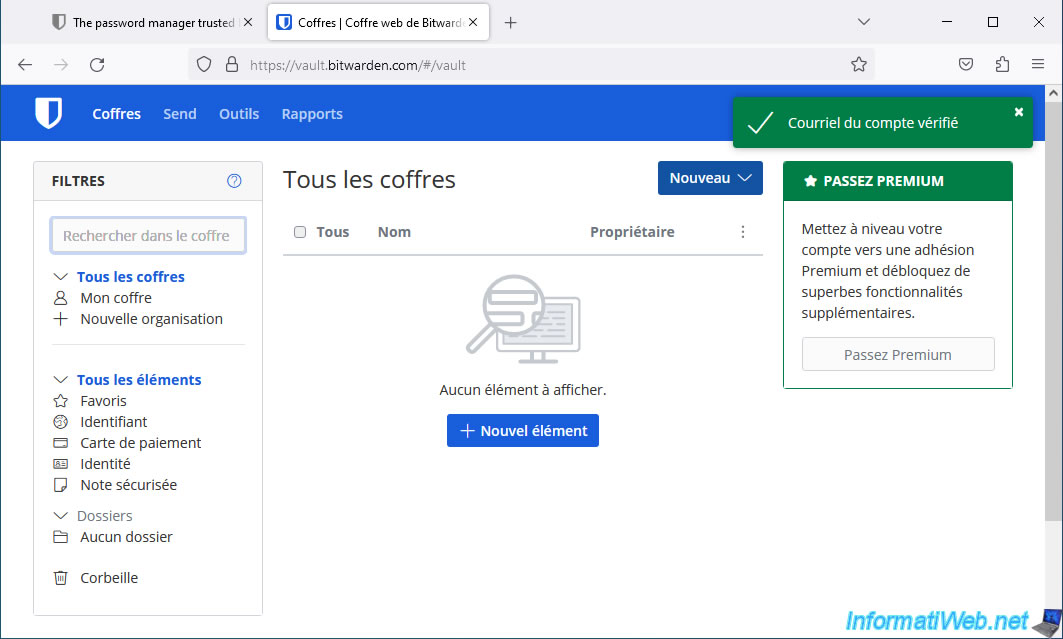
3.2. Create a new item in your Bitwarden secure vault via the official website
As you can see, by default, in the left column, you will be able to store:
- favorites.
- logins.
- payment cards.
- identities.
- secure notes.
You can also create folders to organize your different accounts (for example: social networks, computer sites, forums, banks, ...).
To create a new folder via the Bitwarden website, click on the "New" button (top right), then on: Folder.
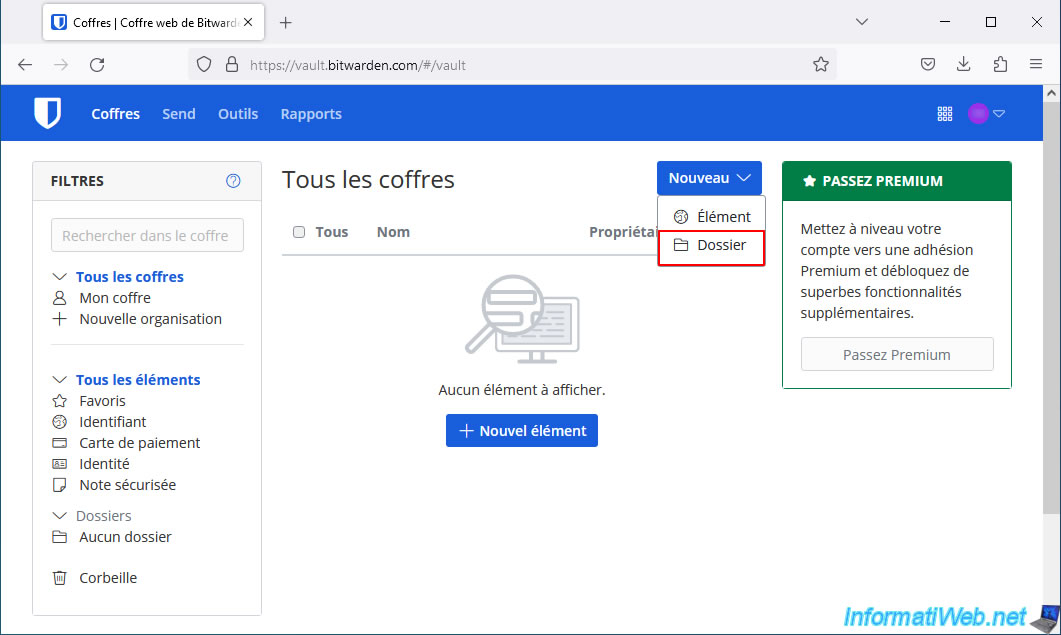
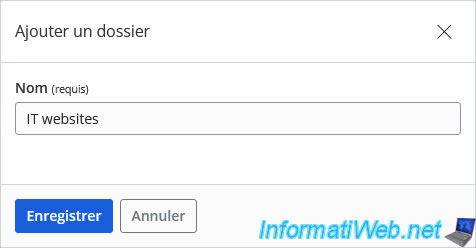
Enter the desired name for your new folder, then click: Save.
In our case: IT websites.
The folder has been added and appears in the left column.
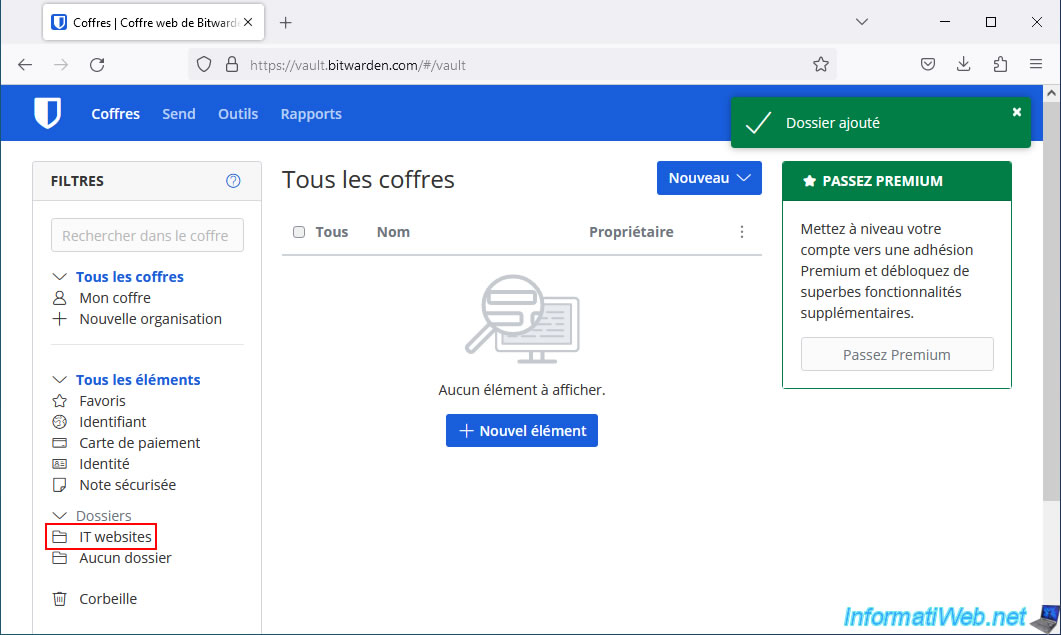
Click on the name of the desired folder to create a new item directly in that folder (if desired), then click: New -> Item.
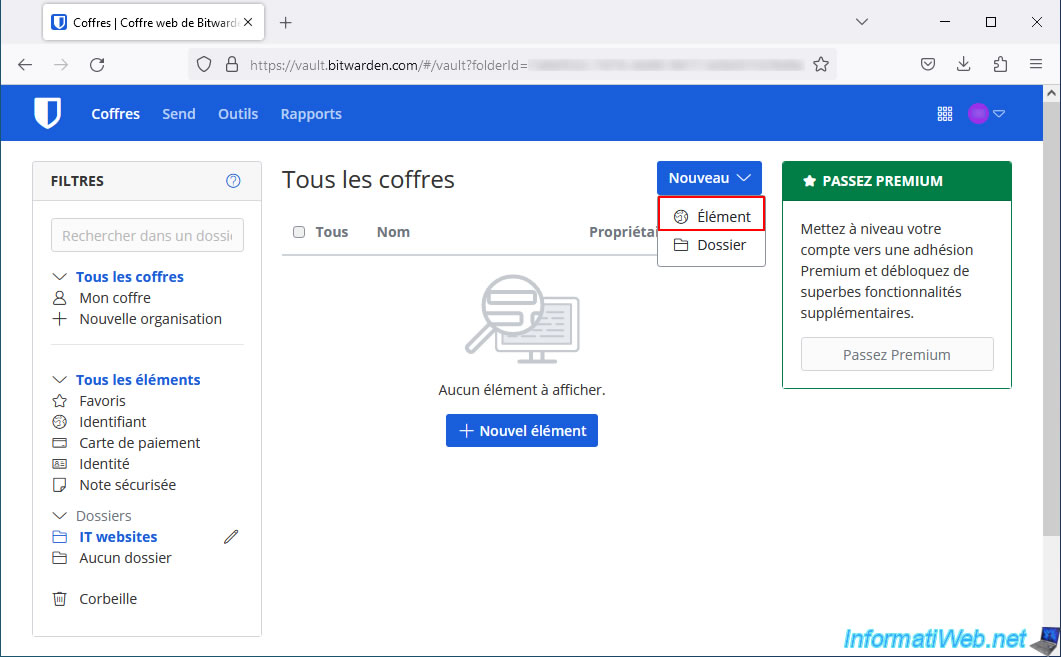
As explained above, you can create different types of elements.
In our case, we want to create an element of type "Identifier". So, in summary, indicate a username, a password and the address (URI) of the site concerned.
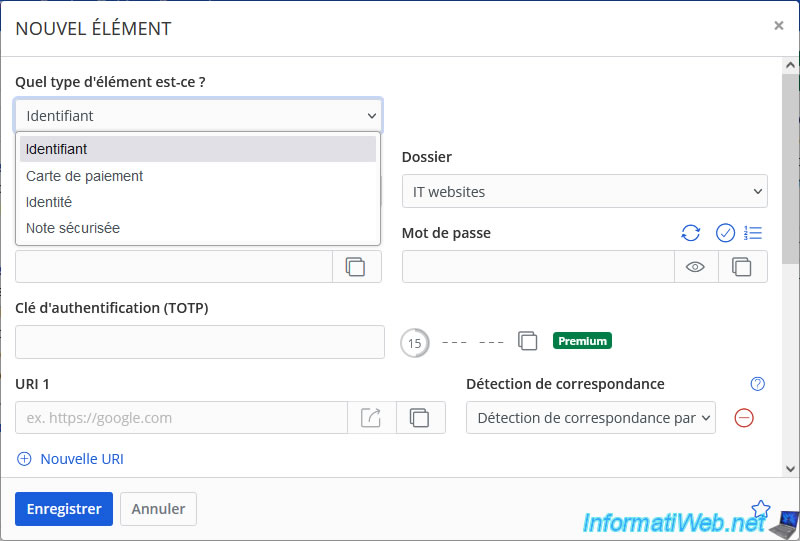
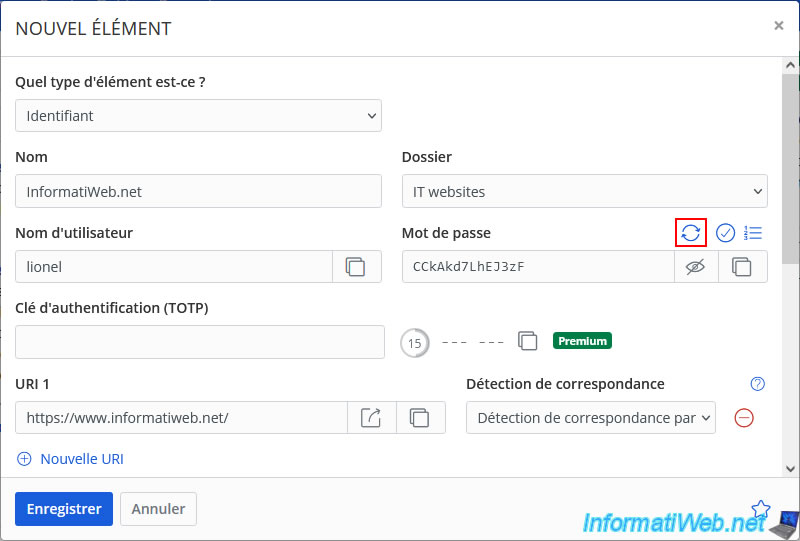
In the displayed "New Item" window, fill in the fields like this:
- What type of item is this? : Identifier.
- Name : the name of the site concerned.
- Folder : the folder in Bitwarden where you want to store this item.
By default, the folder where you were when you clicked on the "New -> Item" button. - Username : the username to use on the site concerned.
Note that the account must obviously already exist on the site concerned. - Password : the associated password. If you have not yet created this account, click on the icon with the 2 arrows (framed in red below) to generate a random password.
Then, use the icon located to the right of this field to copy this password and paste it on the registration page of the desired website. - Authentication key (TOTP): unique code used when you activate two-factor authentication on a site.
However, this option requires a Bitwarden Premium subscription or that the shared item is part of an organization paid for by a friend, family, or other. - URI 1: the address of the login page of the desired site.
- Match detection: by default, Bitwarden uses the domain to detect items that match the visited site.
However, you can change this behavior if you wish by selecting another value from the list.
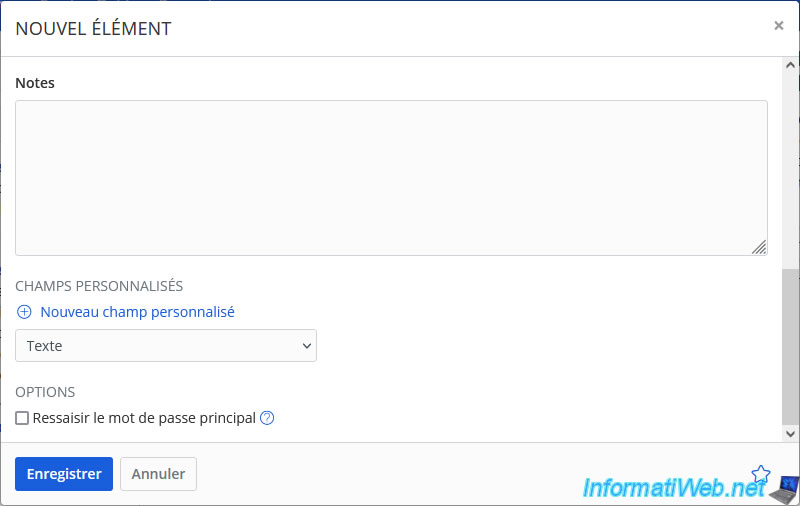
For each item, you can also add notes (such as secret questions and answers set on your account, if applicable), as well as custom fields (in case a login form has an additional field).
Note: when your "vault" is unlocked, you can access all passwords without having to retype the master password.
However, for sensitive accounts (for example, for banking), you can check the "Retype master password" box so that Bitwarden will ask you for the master password again to access it.
This way, if you forget to lock your Bitwarden vault, a malicious person will not be able to access this item without retyping the master password.
Once the desired fields are filled, click Save.
Your new item has been added.
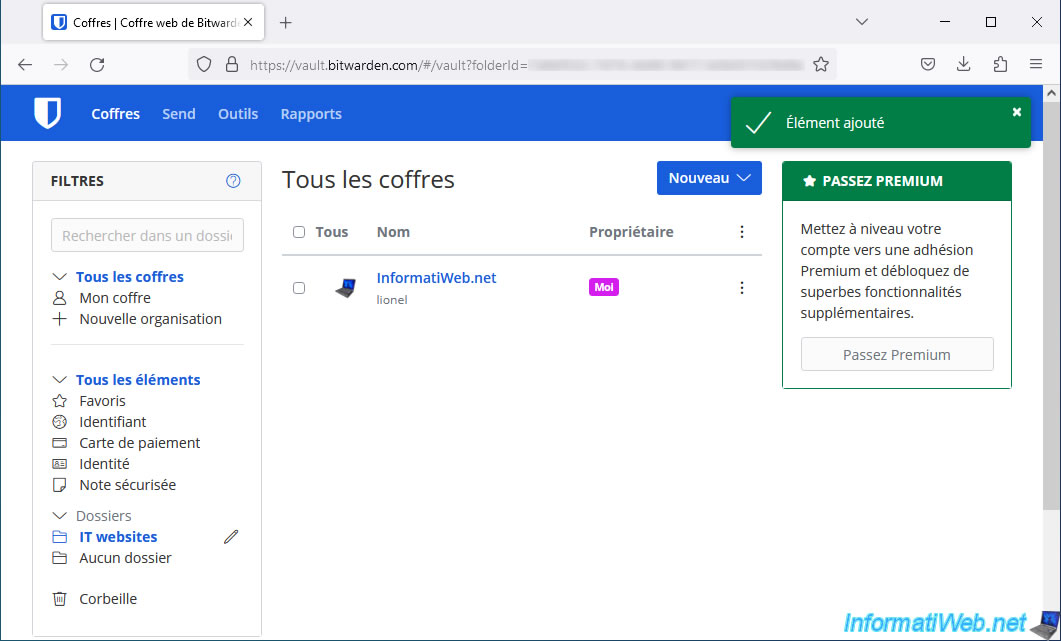
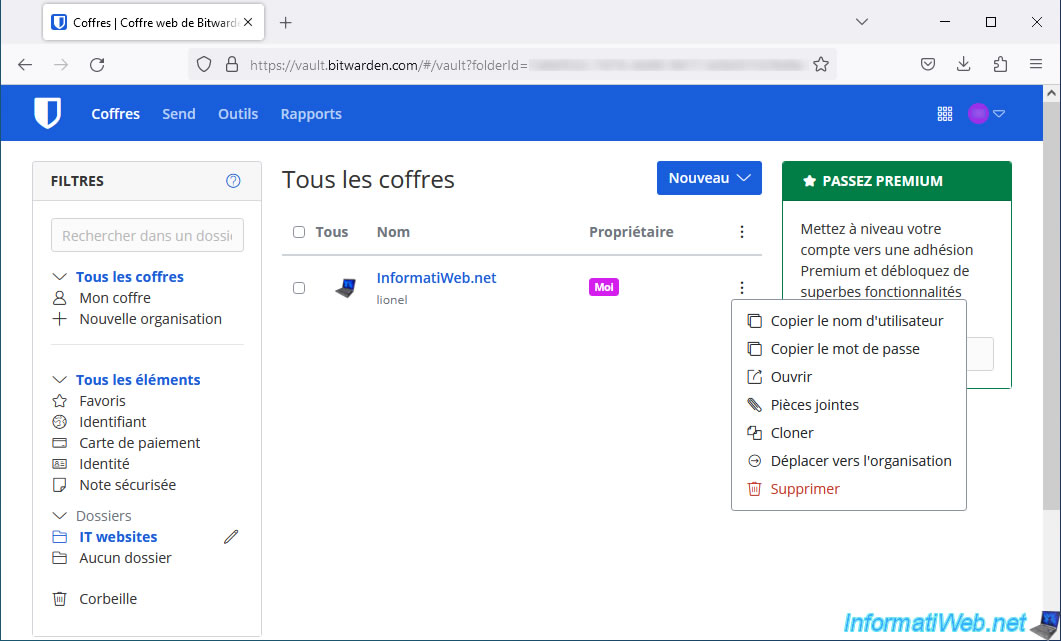
If you are on a computer where you cannot install anything, you can easily copy the username and password stored in a Bitwarden item by clicking on the "..." icon on the right of each item. Then, click on "Copy username" or "Copy password".
Share this tutorial
To see also
-
Security 10/26/2026
Avast Antivirus Free - Free renewal
-
Security 3/12/2016
Protect yourself against viruses, hackers, ...
-
Security 6/24/2014
Remove adwares with AdwCleaner
-
Security 5/22/2014
TrueCrypt - Encrypt your data securely
You must be logged in to post a comment